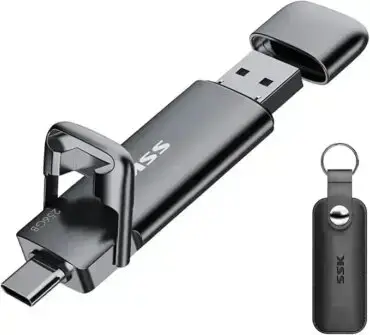
The following covers one way to make a MCNLive bootable USB flash pen drive in just a few steps from within Windows. By using this method, you don't need to burn the ISO to a CD and then run the USB installer from Linux. Instead, the Universal USB installer is used to automatically create the MCNLive USB flash drive for you.
In addition, the second part of this post explains how to save your changes back to a persistent mcnlive.loop file.
MCNLive Booted from a USB Drive

- Official Site:
mcnlive.org(Discontinued) - Persistence Support: Yes
MCNLive is a Linux distribution that is no longer in active development. It was specifically designed to be run from a removable USB device, such as a USB flash drive. It belongs to the category of live Linux distributions, which means that it can be booted directly from the USB drive without the need for installation on a computer's hard drive.
It is known for its portability and ease of use, allowing users to carry a fully functional Linux environment in their pocket. Live Linux distributions are often used for testing, troubleshooting, or as a portable operating system. Here are some of its key features:
- Operating System Portability: Designed to run from a USB device, making it highly portable. Users can carry their Linux environment on a USB flash drive and use it on different computers without installing it on each machine.
- User Friendly Graphical Desktop: Aimed to provide a user friendly and easy to use graphical desktop, making it accessible to users with varying levels of Linux experience. This feature can be appealing to those who are new to Linux.
- Persistence Support: Offers persistence support. This means that users can save changes and data to the USB drive, allowing for a more customized and personalized experience across different sessions.
- Application Selection: Includes a selection of popular applications and tools commonly used in Linux environments, providing users with a range of software for various purposes.
- Multilingual Support: Like most Linux distros, it supports multiple languages, enhancing accessibility for users all around the world.
Basic Essentials to boot MCNLive from USB
- MCNLive ISO file
- Universal USB Installer - Bootable USB Maker
- A fast USB flash drive
- Windows host PC (or Linux with WINE) to perform the build
How to Install MCNLive to a USB flash drive
- MCNLive Download the ISO file.
- Download and run the UUUI - bootable USB Maker
- Select "Try unlisted ISO" from the drop down list of distributions, and follow the remaining onscreen instructions.
- Proceed to reboot your PC;
(1.) During first post, enter your BIOS using a hotkey.
(2.) Set the USB drive as the first boot device from your system boot menu.
(3.) Save your changes and continue to boot from the USB drive.
Making a mcnlive.loop file for saving changes (persistence)
- First, boot from your USB device using the Boot with default settings option.
- From the start menu, navigate to MCNLive > Create persistent loop
- Follow the simple onscreen instructions for creating the persistent loop.
- Restart, and select the Boot with persistent changes boot option from the menu.
Hope this helps, Enjoy!