How to restore USB drives back to full capacity, recover lost storage space, reset a flash drive, or fix a USB drive that is showing the wrong size. This guide is for USB drives that appear corrupted, have lost storage space, or no longer show their original capacity after using tools like Etcher, Win32 Disk Imager, or dd to write an ISO or disk image. In many cases, you can restore USB storage by removing the existing partition layout and creating a new FAT32, exFAT, or NTFS partition.
How to Restore a USB Drive to Full Capacity
Is your USB drive not showing its full capacity? If a USB flash drive is showing the wrong size, has lost storage space, or stopped working normally after creating bootable media, you can often restore USB drives by recreating their partition layout and formatting them.
This commonly happens after using tools such as Balena Etcher, Win32 Disk Imager, or the Linux dd command to write an ISO or disk image directly to a USB drive.
The process can overwrite the USB drive's existing partition table and filesystem. When that happens, Windows, Linux, or macOS may show only part of the drive, report an unexpected capacity, leave space unallocated, or fail to recognize the USB drive normally.
The methods below show how to restore USB drives, reset USB storage, fix corrupted partitions, and repair a USB drive using Windows, Linux, or macOS.
🧾 Quick Answer: How to Restore USB Drives
- USB drive not showing full capacity? Recreate the partition and format the drive to restore USB storage to its available capacity.
- Need to reset a USB drive? Windows users can use DiskPart, while Linux users can use fdisk.
- Need to fix or repair a USB drive? First determine whether the problem is a corrupted partition layout or failing hardware.
- USB drive showing the wrong capacity? Test it with H2TestW or F3 before assuming the missing space can be restored.
- Need to restore USB storage after writing an ISO? A raw-written image can leave a drive with an unexpected partition layout or unused space.
- As a last resort,
ddcan be used to wipe the beginning of the device before repartitioning and formatting it.
Why Is My USB Drive Not Showing Full Capacity?
A USB drive may appear to have lost storage space after its partition table, boot record, or filesystem has been replaced by a bootable ISO or disk image.
When an ISO is written directly to a USB drive, the existing partition layout can be overwritten. This is normal for raw-write tools because they are creating the USB contents from the image rather than simply copying the ISO file onto an existing storage partition.
Afterward, the USB drive may:
- show less storage space than expected
- show an unusual or incorrect capacity
- contain multiple partitions
- show unallocated space
- appear as a read-only or inaccessible drive
- lose its normal drive letter
- appear corrupted or unreadable
- fail to appear normally in File Explorer
If the USB drive is still physically healthy, recreating its partition layout and formatting it can often restore the USB drive to its normal usable capacity.
How to Restore USB Storage After Creating Bootable Media
If you used a USB drive to create bootable media and now want to use the entire device for normal storage again, you may need to restore USB storage by removing the bootable partition layout.
Tools such as Etcher, Win32 Disk Imager, and dd can write an image directly to the USB device. This can replace the partition information that was previously used by the flash drive.
In this situation, the USB drive may still be perfectly healthy. The problem is that the drive is no longer arranged as a conventional storage device.
To restore USB drives to their normal state, you can delete the existing partitions, create a new partition using the available space, and format it with a suitable filesystem.
How to Fix a USB Drive That Is Not Showing Its Full Capacity
Before attempting to restore USB storage, determine whether the problem is caused by the partition layout or by the physical flash storage itself.
A drive that was used to create bootable media may simply need to be repartitioned. However, a USB drive that reports an unusually large capacity but fails when data is written may be counterfeit or damaged.
For that reason, testing the drive before attempting to restore USB storage can save time and help determine whether the USB drive can actually be repaired.
How to Test a USB Drive for Fake or Damaged Storage
Before attempting to restore USB drives, it is worth verifying that the drive is genuine and functioning correctly. Some counterfeit flash drives report a larger capacity than the physical storage can actually hold. A failing flash drive can also produce read/write errors.
Two useful tools for testing USB flash drives are H2TestW for Windows and F3 for Linux and macOS.
Testing USB Drives with H2TestW in Windows
H2TestW is a popular utility for testing flash storage and identifying fake or unreliable USB drives.
- Download H2TestW and start the program.
- Select the USB drive you want to test.
- Choose whether to test the entire available space or a specific area.
- Click Write + Verify to write test data and then verify that it can be read correctly.
- Review the results for the reported capacity and any read/write errors.
A genuine, functioning USB drive should be able to store and retrieve the amount of data it reports. A counterfeit or failing drive may report errors or show that substantially less data can actually be stored.
Testing USB Drives with F3 in Linux or macOS
F3, or Fight Flash Fraud, is a command-line tool for testing flash storage. It provides a useful alternative to H2TestW for Linux and macOS users.
Install F3 on Ubuntu or Debian
sudo apt install f3
Install F3 on CentOS
sudo dnf -y install f3
Install F3 on macOS
brew install f3
After installation, mount the USB drive and use f3write to fill the available storage with test files:
f3write /mount/point
Then use f3read to verify the data:
f3read /mount/point
If the drive is genuine and functioning correctly, the test should complete without capacity or data-integrity errors. A fake or faulty USB drive may report errors or show that its usable capacity is lower than advertised.
Why Test a USB Drive Before Restoring It?
Testing helps determine whether you are dealing with a corrupted partition layout or a hardware problem.
If a USB drive passes its capacity and data-integrity tests, resetting and repartitioning it may restore USB storage to its normal usable state.
If the drive fails testing, formatting or repartitioning cannot increase its physical storage capacity. A counterfeit or failing drive may need to be replaced.
Restore USB Drives from Windows, Linux, or macOS
Once you have determined that the USB drive is physically usable, you can attempt to restore USB storage, reset the drive, or repair its partition layout.
Windows users can use DiskPart, SD Memory Card Formatter, or BOOTICE. Linux users can use fdisk and filesystem tools from the terminal. macOS users can use compatible formatting tools such as SD Memory Card Formatter.
How to Restore USB Drives with DiskPart in Windows
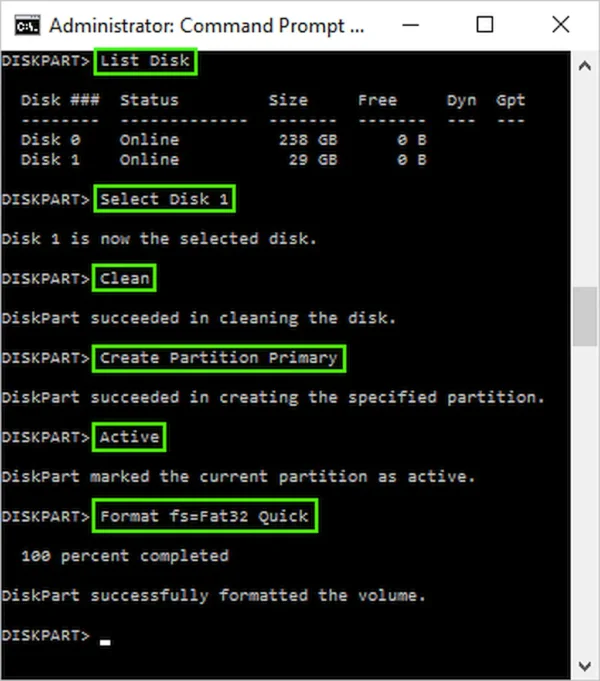
DiskPart can remove the existing partition layout from a USB drive and create a new partition. This is useful when a USB drive is showing the wrong capacity, contains unwanted partitions, or is no longer usable after being used as bootable media.
Warning: DiskPart's clean command removes the existing partition information from the selected disk. Make absolutely certain that you have selected the USB drive before continuing.
- Open Command Prompt as Administrator.
- Type diskpart and press Enter.
- Type list disk to display the connected drives.
- Identify your USB drive by its size.
- Type select disk #, replacing
#with the number of your USB drive. - Type clean to remove the existing partition information.
- Type create partition primary.
- Format the new partition. For example:
format fs=exfat quick
For a FAT32 filesystem, use:
format fs=fat32 quick
Then assign a drive letter:
assign
Finally, type:
exit
This recreates the USB drive as a normal partition that Windows can use for file storage.
DiskPart Has Encountered an Error: Access Is Denied
If DiskPart reports an error such as:
DiskPart has encountered an error: Access is denied.
See the System Event Log for more information.
First make sure that the correct disk is selected and that Command Prompt is running with Administrator privileges.
If clean still fails, the USB drive may be write-protected, in use, or experiencing a hardware problem. You can also try one of the alternative methods below to restore USB storage.
If you are working with a drive whose partition information cannot be removed normally, the dd method below provides a more aggressive last-resort approach.
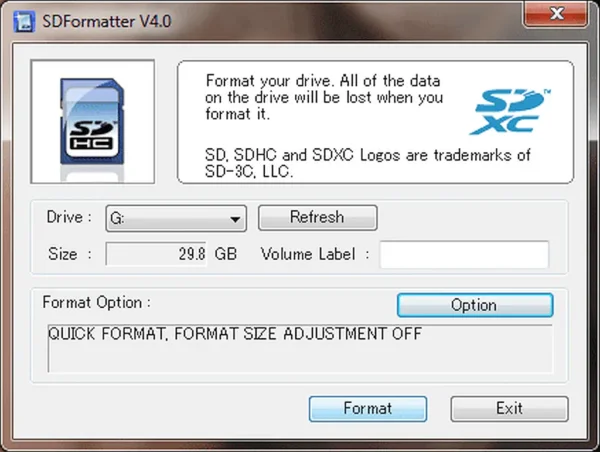
How to Restore USB Drives with SD Memory Card Formatter
Windows and macOS users can also try the SD Memory Card Formatter.
Although it was originally designed for SD and SDHC/SDXC memory cards, the tool can also be useful for reformatting some USB flash drives.
- Download SD Formatter and launch the application.
- Select your USB flash drive from the Drive drop-down list.
- Choose the desired Format Option.
- Press the Format button.
How to Reset, Fix, or Repair a USB Drive with BOOTICE
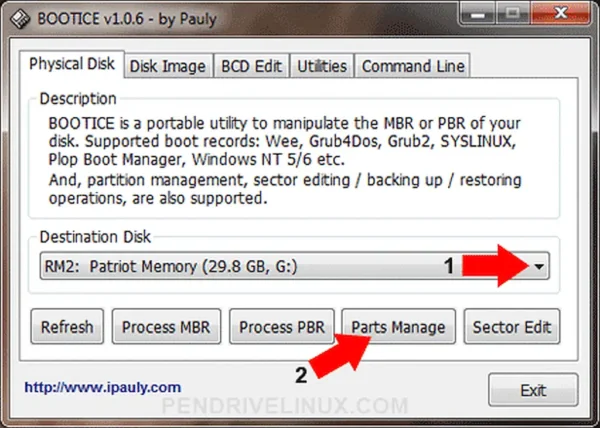
Windows users can also use BOOTICE to repartition and format a USB flash drive. It can be useful when a drive appears corrupted or has an unusual partition layout.
NOTE: BOOTICE may no longer be actively developed. The last revision was released in 2016. A download link to the last available version is provided here for legacy troubleshooting purposes.
- Download BOOTICE, extract the archive, and run the program.
- Select your USB drive from the device list.
- Click Parts Manage.
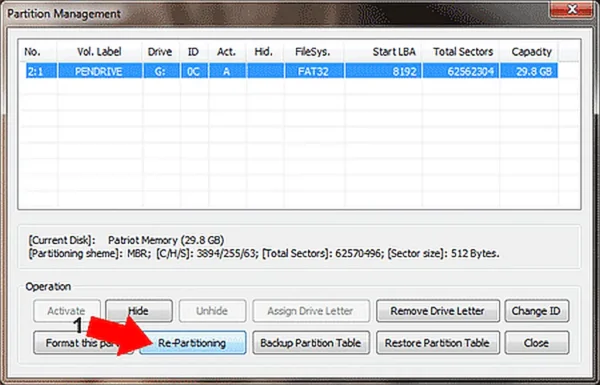
- Click Repartitioning.
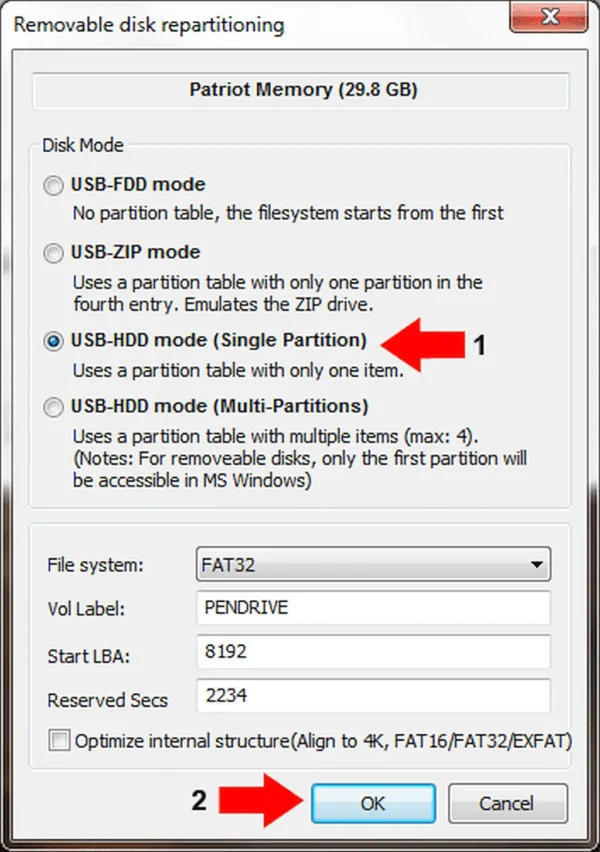
- Under Disk Mode, choose USB-FDD, USB-HDD, or USB-ZIP mode.
- Click OK to repartition the USB drive.
The original guide preferred USB-HDD mode for compatibility with many BIOS systems.
How to Restore USB Drives Using Linux
Linux users can reset, repartition, and format a USB drive from the terminal using tools such as fdisk and filesystem utilities.
Important: Make certain that you identify the correct USB device before using these commands. Selecting the wrong disk can erase another drive.
A. Identify and Remove the Existing USB Partitions
- Open a terminal with Ctrl+Alt+T.
- List your connected disks:
sudo fdisk -l
- Identify the device corresponding to your USB drive, such as
/dev/sdb. - Open the device with fdisk:
sudo fdisk /dev/sdX
Replace X with the correct drive letter.
Inside fdisk:
- Type d to delete a partition.
- Type the partition number, such as 1.
- Repeat if additional partitions need to be removed.
B. Create a New USB Partition
Inside fdisk:
- Type n to create a new partition.
- Accept the default partition type when appropriate.
- Type 1 for the first partition.
- Press Enter to accept the default first sector.
- Press Enter again to use the remaining available space.
- Type w to write the new partition information to the USB drive.
After writing the new partition table, unmount the new partition if necessary:
sudo umount /dev/sdX1
C. Format the USB Drive
For FAT32:
sudo mkfs.vfat -F 32 /dev/sdX1
For exFAT, use the exFAT filesystem tools available for your Linux distribution. On current Debian/Ubuntu systems, the package is generally provided by exfatprogs:
sudo apt install exfatprogs
Then format the partition:
sudo mkfs.exfat /dev/sdX1
Replace X with the actual device letter for your USB drive.
This process can restore USB storage by replacing the old partition layout with a new partition that uses the available space.
Last Resort: Restore USB Drives with dd
If the USB drive is still not showing correctly after repartitioning and formatting, you can try wiping the beginning of the device before creating a new partition table.
Warning: dd is a destructive command. A mistake in the device name can permanently erase another disk. Verify the target device carefully before running it.
This method wipes the beginning of the drive, removing partition-table and filesystem information located there.
Windows
The original guide used the Windows port of dd. Windows users who choose this legacy method will need a compatible dd.exe build.
For example, using the Windows raw device path:
dd if=/dev/zero of=\\?\Device\Harddisk1\Partition0 count=1 bs=4096 --progress
Replace Harddisk1 with the appropriate disk number for the USB drive.
Linux
For Linux, first identify the correct USB device using fdisk -l or another disk-identification tool.
Then, replacing X with the correct device letter:
sudo dd if=/dev/zero of=/dev/sdX bs=4096 count=1 status=progress
After the command completes, recreate the partition table and format the USB drive using one of the methods described above to restore USB storage to a normal usable state.
What If My USB Drive Still Shows the Wrong Capacity?
If you have tried to restore USB storage by resetting, repartitioning, and formatting the USB drive but it still shows the wrong capacity, the problem may not be the filesystem.
Consider these possibilities:
- The drive was used to write a disk image. The raw image may have replaced the original partition layout.
- Unallocated space remains. The existing partition may not occupy the full device.
- The flash drive is counterfeit. The controller may report a capacity greater than the physical flash memory.
- The flash memory is failing. A damaged drive can report errors or lose usable capacity.
- The drive has a hardware problem. Formatting cannot repair physical flash-memory failure.
If you suspect a fake or damaged USB drive, run a complete H2TestW or F3 test before attempting to restore USB capacity again.
Can a USB Drive Really Be Restored to Its Original Capacity?
Usually, yes, when the problem is caused by the partition layout rather than the physical hardware.
For example, a USB drive that originally contained one large partition may appear smaller after an ISO image has been written directly to it. Repartitioning the drive can make the previously unavailable space usable again and restore the USB drive's usable capacity.
However, formatting cannot make a physically damaged or counterfeit drive hold more data than its actual flash storage can support.
If a USB drive repeatedly fails capacity testing, continues to corrupt files, or reports serious read/write errors, the hardware may need to be replaced.
How to Restore USB to Its Original State
For a normal USB flash drive that you want to use again for file storage, the basic process is:
- Back up any files you need from the USB drive.
- Verify that you have selected the correct USB device.
- Remove the existing partitions.
- Create one new partition using the available space.
- Format the partition as FAT32, exFAT, or NTFS, depending on your needs.
- Assign a drive letter if using Windows.
This effectively restores USB storage to its original usable state and returns the flash drive to a conventional storage layout.
If the drive was previously used to create bootable media, this process removes the old bootable partition structure so that the available storage can be used again.
Recover Lost Space on a USB Drive
You can also recover lost USB storage space if you want to retain a bootable portion of the drive while making additional space available for normal file storage.
This can be particularly useful after using dd or another raw-write utility to write an ISO image to a USB drive.
The related tutorial explains how to recover usable space and create an additional partition rather than completely resetting the USB drive.
If your goal is to completely restore USB storage to its original usable capacity, use the reset and repartitioning methods in this article instead.
Frequently Asked Questions
How can I restore USB drives to their original capacity?
You can restore USB drives to their original usable capacity by removing the existing partitions, creating a new partition using the available space, and formatting it. Windows users can use DiskPart, while Linux users can use fdisk and filesystem tools.
Why is my USB drive not showing its full capacity?
A USB drive may not show its full capacity because its original partition layout was overwritten, because unallocated space remains, or because the drive is counterfeit or damaged. If the drive is physically healthy, repartitioning and formatting it can often restore USB storage to its normal usable capacity.
How do I restore a USB drive to full capacity?
To restore a USB drive to full capacity, remove the existing partitions, create a new partition using the available space, and format it. Windows users can use DiskPart, while Linux users can use fdisk.
How do I restore USB to its original state?
You can restore USB drives to their original state by deleting the existing partitions and creating a new partition that uses the available space. Formatting the new partition as FAT32, exFAT, or NTFS gives the USB drive a normal storage layout again.
How do I fix a USB drive that is not showing its full capacity?
First check whether the drive contains unallocated or unexpected partitions. If the hardware is functioning correctly, use DiskPart in Windows or fdisk in Linux to remove the old partition layout and create a new partition using the available space.
How do I repair a USB drive after creating bootable media?
Writing an ISO directly to a USB drive can replace its original partition layout. If you no longer need the bootable USB, you can repair the storage layout by deleting the existing partitions, creating a new partition, and formatting it.
Why does my USB drive only show 32GB?
A USB drive that suddenly shows a much smaller capacity may have an altered partition layout after being used to create bootable media. It can also indicate a counterfeit or failing flash drive. Check the partition layout first, then test the drive with H2TestW or F3 if necessary.
Why does my USB drive show the wrong capacity after making it bootable?
Raw-write tools such as Etcher, Win32 Disk Imager, and dd can replace the USB drive's original partition table and filesystem with the layout contained in the disk image. Repartitioning the drive can restore USB storage for normal use.
Can formatting restore a USB drive to full capacity?
Formatting a partition does not necessarily restore capacity that exists outside that partition. If the USB drive contains an unexpected partition layout or unallocated space, the drive may need to be repartitioned before formatting.
How do I restore a USB drive using DiskPart?
Open Command Prompt as Administrator, run diskpart, use list disk to identify the USB drive, select it with select disk #, use clean, create a new primary partition, format it, and assign a drive letter. This can restore USB storage to the available capacity of the device.
How do I restore a USB drive in Linux?
Linux users can use fdisk to remove the old partitions and create a new partition. The new partition can then be formatted with mkfs.vfat for FAT32 or mkfs.exfat for exFAT.
How can I test if my USB drive is fake?
Use H2TestW on Windows or F3 on Linux/macOS. These tools write test data to the flash drive and verify that the data can be read correctly, helping identify drives that report more storage than they can actually hold.
What should I do if my USB drive still shows the wrong capacity?
If repartitioning and formatting do not restore USB capacity, test the USB drive with H2TestW or F3. Persistent capacity errors, read/write failures, or corrupted data may indicate counterfeit or failing hardware.
Can I use SD Memory Card Formatter to restore a USB drive?
SD Memory Card Formatter was designed for memory cards, but it can also be used with some USB flash drives. Select the USB drive, choose the appropriate format option, and start the format process.
What is BOOTICE and how can it help restore a USB drive?
BOOTICE is a Windows utility that can manage partition information and repartition USB storage devices. It can be useful when a USB drive has an unusual or corrupted partition layout and you need to restore USB storage to a usable state.
Can dd repair a corrupted USB drive?
The dd command can wipe the beginning of a USB drive, removing partition-table and filesystem information. It is a last-resort method because it is destructive and can erase the wrong disk if the device is specified incorrectly.
Final Thoughts on How to Restore USB Drives
If your USB drive is not showing its full capacity, appears corrupted, or has lost storage space after being used to create bootable media, the problem is often related to its partition layout rather than the physical flash memory.
In many cases, you can restore USB drives by removing the existing partitions, creating a new partition, and formatting it. The same process can reset a USB drive, fix an unusual partition layout, or recover storage that became unavailable after writing an ISO image.
Windows users can use DiskPart, SD Memory Card Formatter, or BOOTICE. Linux users can use fdisk and filesystem tools. If those methods do not work, dd can be used as a last resort to wipe the beginning of the device before creating a new partition layout.
Before attempting to restore USB storage, remember to back up any important files. Also test questionable USB drives with H2TestW or F3, since formatting cannot fix counterfeit or physically failing flash memory.
With these methods, you can restore USB drives to full usable capacity, reset USB storage, recover lost USB space, or fix a USB drive showing the wrong size.
Happy USB booting!