Create a System Rescue bootable USB with YUMI from Windows. YUMI is a multiboot USB creator that lets you install it alongside other Linux distributions, recovery environments, and diagnostic tools on the same USB flash drive.
SystemRescue is an actively maintained Linux live system designed for troubleshooting, repairing, and recovering computers. It provides tools for partition management, filesystem repair, data recovery, backups, networking, and system administration, and can boot directly from USB without installing to the internal drive.
SystemRescue Bootable USB
What Is SystemRescue?
SystemRescue, formerly known as SystemRescueCD, is a Linux-based live recovery environment designed for repairing, recovering, and maintaining computers.
It runs from bootable media such as a USB flash drive and does not require installation to the computer's internal storage. This makes it useful when Windows or Linux will not boot normally, when a filesystem needs repair, or when important files need to be recovered from a damaged system.
It can be used for:
- Data recovery and file rescue
- Disk and partition management
- Filesystem repair
- Linux and Windows system recovery
- Disk backup and restoration
- Network-based file transfer and recovery
- System administration and troubleshooting
Because SystemRescue runs independently of the operating system installed on the computer, it can provide access to files and storage devices even when the normal operating system cannot start.
SystemRescue Tools
SystemRescue includes a large collection of Linux utilities for system recovery and administration.
Some of the tools available include:
- GParted for graphical disk partition management
- TestDisk for partition recovery and filesystem-related recovery tasks
- ddrescue for recovering data from damaged storage devices
- fsarchiver for filesystem-level backup and restoration
- fsck and other filesystem utilities for checking and repairing filesystems
- Midnight Commander for managing files from the command line
- rsync for file synchronization and backups
- Network utilities for transferring files and working with network resources
- Memory testing utilities for diagnosing system memory
The available tools can vary between SystemRescue releases, but the project is designed to provide a comprehensive Linux environment for recovery, repair, backup, and system administration.
Current SystemRescue Version
SystemRescue is actively maintained and continues to receive new releases.
Current release: SystemRescue 13.01
Release date: June 6, 2026
Architecture: amd64
ISO size: approximately 1.3 GB
The latest ISO can be downloaded from the official SystemRescue download page.
The project also provides checksums and GnuPG signatures that can be used to verify downloaded ISO files.
Project: SystemRescue
Website: system-rescue.org
What You'll Need
To create a SystemRescue bootable USB with YUMI, you'll need:
- A Windows computer
- A USB flash drive with at least 2 GB of available capacity
- The latest SystemRescue ISO
- YUMI
A larger USB drive is recommended if you plan to add additional Linux distributions and recovery tools to the same YUMI multiboot drive.
Warning: Always make sure you select the correct USB drive in YUMI. Creating or modifying bootable media can overwrite existing data on the selected device.
Create a SystemRescue Bootable USB with YUMI
If you are using Windows, YUMI provides an easy way to create a SystemRescue USB and add additional bootable tools to the same drive.
You do not need to know anything about multiboot USB drives to get started. YUMI guides you through selecting the USB drive, choosing SystemRescue, and adding the ISO.
The main advantage is that you can return to YUMI later and add additional Linux distributions, recovery environments, and utilities without recreating the entire USB drive.
1. Download SystemRescue
Download the latest SystemRescue ISO from the official project website.
Save the ISO somewhere easy to find, such as your Downloads folder.
2. Download and Run YUMI
Download and launch YUMI.
Insert your USB flash drive and allow Windows to recognize it.
3. Select Your USB Drive
In YUMI, select the USB flash drive you want to use from the available drive list.
Make sure you select the correct device before continuing.
4. Select SystemRescue
Choose SystemRescue from the list of supported distributions in YUMI.
If your version of YUMI does not have a dedicated SystemRescue entry, use the appropriate unlisted ISO option.
Browse to the SystemRescue ISO you downloaded and select it.
5. Create the SystemRescue USB
Click Create and allow YUMI to copy the required SystemRescue files to the USB drive.
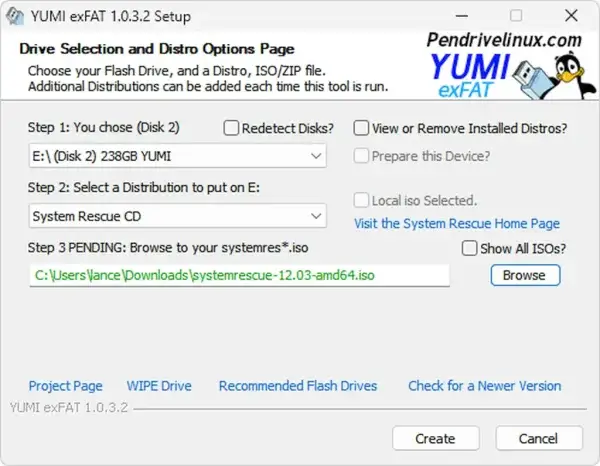
When YUMI finishes, the item will be available from the YUMI boot menu.
6. Boot SystemRescue
Restart the computer and open its BIOS or Boot Menu.
Select the USB flash drive and choose SystemRescue from the YUMI boot menu.
The tool will then start from the USB without requiring installation to the computer's internal drive.
Why Use YUMI for SystemRescue?
A standalone Rescue USB is useful, but YUMI lets you turn the same USB drive into a larger Linux recovery toolkit.
Instead of dedicating an entire flash drive to SystemRescue, you can add multiple bootable operating systems and recovery utilities and select the one you need from the YUMI boot menu.
For example, one YUMI USB could contain:
- SystemRescue for Linux and Windows recovery
- Clonezilla for disk cloning and imaging
- GParted Live for partition management
- Linux live distributions for troubleshooting and testing
- Other diagnostic and recovery utilities
This makes YUMI especially useful if you want a portable Linux recovery USB rather than a single purpose Rescue drive.
New to YUMI?
YUMI is a multiboot USB creator designed to let you place multiple bootable ISO files on a single USB drive.
You select your USB drive, choose the operating system or utility you want to add, select its ISO file, and let YUMI configure the drive.
After adding this tool, you can return to YUMI later and add additional ISO files to the same USB drive.
See the YUMI Multiboot USB Creator guide for additional instructions and supported operating systems.
Boot SystemRescue from USB
After creating the YUMI USB:
- Insert the USB drive into the computer you want to recover or troubleshoot.
- Restart or power on the computer.
- Open the system's boot menu or firmware settings.
- Select the YUMI USB device.
- Choose SystemRescue from the YUMI menu.
It supports booting on both traditional BIOS systems and modern UEFI systems.
The default boot options are suitable for most computers. Advanced users can also specify additional boot parameters when needed.
Run SystemRescue Without Installing Linux
SystemRescue is a live Linux environment, so you can use it without installing Linux to the computer's internal drive. This is particularly useful when the installed operating system is damaged or cannot boot. Once started, you can access storage devices and use the included recovery utilities to investigate and repair the system.
Recover Files from an Unbootable Computer
One of the most useful reasons to keep a Rescue USB available is to recover important files from a computer that will not boot. After starting from it, you can inspect the computer's internal storage, mount supported filesystems, and copy important data to another drive or network location.
For example, you might use a System Rescue USB to:
- Copy personal files before reinstalling Windows or Linux
- Back up data from a failing installation
- Recover files from a computer that cannot boot
- Transfer files to another storage device
- Investigate filesystem or partition problems
Important: If a storage device is physically failing, avoid unnecessary writes to it. Consider creating an image or using a recovery-oriented tool such as ddrescue before attempting extensive repairs.
Repair and Manage Disk Partitions
SystemRescue includes several tools for working with disk partitions.
GParted provides a graphical interface for viewing and modifying partitions, while command line utilities such as fdisk and parted provide additional options for advanced users.
You can use the environment to inspect partition layouts, resize partitions when appropriate, and troubleshoot partition related problems. Always back up important data before modifying disk partitions.
Repair Linux and Windows Systems
Because the software runs independently of the operating system installed on the internal drive, it can be used to troubleshoot both Linux and Windows computers.
Common tasks include:
- Accessing files when Windows or Linux will not boot
- Checking filesystems for errors
- Backing up important data before repair
- Investigating damaged partitions
- Working with Linux boot and filesystem configuration
- Performing offline maintenance
The exact recovery procedure depends on what caused the system failure.
Create a SystemRescue USB from Linux
Linux users can create SystemRescue media using the project's USB writer, dd, or another compatible imaging utility.
To write the ISO directly with dd, first identify the USB device:
lsblk
Find the correct device, such as:
/dev/sdX
Do not use a partition such as /dev/sdX1.
Write the ISO to the entire USB device:
sudo dd if=systemrescue-13.01-amd64.iso of=/dev/sdX status=progress
sync
Replace /dev/sdX with the actual USB device.
When finished, eject the drive:
sudo eject /dev/sdX
Warning: The dd command can overwrite the selected device. Verify the device name carefully before running it.
Create a SystemRescue USB from macOS
macOS users can also write the SystemRescue ISO directly to a USB drive using dd.
1. Identify the USB Drive
Insert the USB drive and open Terminal.
Run:
diskutil list
Find the USB drive, for example:
/dev/disk2
Make sure you have identified the correct disk before continuing.
2. Unmount the USB Drive
Run:
diskutil unmountDisk /dev/disk2
Replace disk2 with the correct disk identifier.
3. Write the ISO
Use the raw disk device:
sudo dd if=~/Downloads/systemrescue-13.01-amd64.iso of=/dev/rdisk2 bs=4m
Replace rdisk2 with the corresponding raw device for your USB drive.
4. Eject the USB Drive
When dd finishes:
diskutil eject /dev/disk2
Persistence
Though not a conventional persistent desktop Linux distribution, current versions provide mechanisms for retaining configuration and customizing how the live environment starts. Writable USB installations can be configured to retain settings and support custom configuration files. This can be useful for advanced users who regularly perform recovery work and want to automate portions of their workflow. For most users, however, the primary benefit is simply having a Linux recovery environment available when a computer needs repair.
Why a System Rescue USB?
A System Rescue USB is worth having before you actually need it.
If a computer suddenly stops booting, the USB can provide an independent Linux environment for accessing the internal storage, backing up files, checking filesystems, and attempting repairs.
It can be useful for:
- Computer maintenance
- Linux system recovery
- Windows data recovery
- Disk and partition management
- Filesystem troubleshooting
- Backup and restoration
- Hardware diagnostics
- Network-based recovery
Keeping it on a multisystem boot USB is even more useful because you can carry additional recovery tools on the same device.
Build a Linux Recovery USB with YUMI
SystemRescue works especially well as part of a larger YUMI multiboot recovery USB. Instead of carrying a separate flash drive for every recovery environment, you can place multiple bootable tools on one USB drive and select the one you need when the computer starts.
A YUMI recovery USB could contain:
- SystemRescue for general Linux and Windows recovery
- Clonezilla for disk imaging and cloning
- GParted Live for partition management
- Linux live distributions for testing and troubleshooting
- Other diagnostic and recovery utilities
This gives you a portable Linux recovery toolkit that can be used across multiple computers.
Frequently Asked Questions
What is SystemRescue used for?
It's a Linux live recovery environment used for data recovery, disk and partition management, filesystem repair, backups, system troubleshooting, networking, and other computer maintenance tasks.
Can it repair Windows?
The tool can be used to access Windows filesystems, recover data, create backups, manage partitions, and perform other offline recovery and maintenance tasks when Windows will not boot normally.
Can it repair Linux?
Yes. It includes Linux filesystem, partition, boot, backup, and system administration tools that can be used to troubleshoot and repair Linux installations.
Do I need to install it?
No. It is designed to run as a live environment from bootable media such as a USB flash drive. It can be used without installing it to the computer's internal storage.
How do I create a SystemRescue bootable USB?
Windows or Linux users can create a Rescue USB with YUMI. Linux users can use YUMI Py, the tool's official USB writer, dd, or another compatible USB writing utility.
Can it recover deleted files?
It includes recovery utilities such as TestDisk and other storage and filesystem tools that can be used for data-recovery tasks. Recovery success depends on the condition of the storage device and whether deleted data has been overwritten.
Does it support UEFI?
Yes. It supports booting on modern UEFI systems as well as traditional BIOS systems.
What size USB drive do I need?
The documentation recommends a USB drive with at least 2 GB of capacity. A larger drive is recommended if you plan to add additional ISO files to a multiboot USB.
Final Thoughts on this USB Recovery Toolkit
SystemRescue is an actively maintained Linux recovery environment for troubleshooting, repairing, and recovering computers. It can boot directly from USB and provides tools for data recovery, filesystem repair, partition management, backups, networking, and system administration. YUMI provides an easy way to add the standalone bootable repair utility to a multiboot USB and keep other Linux distributions and recovery utilities on the same drive. Afterwards, you'll have an independent Linux environment ready to use when a computer will not boot normally, important files need to be recovered, or a disk or filesystem needs attention.