
Looking to remove old Linux kernels? At some point in time, almost every Linux user will have updated their kernel image. After you've used Linux with the new kernel for a while and are confident everything works, you might want to remove the old kernel versions still on your system. This helps free disk space and declutters your GRUB boot menu.

Why Remove Old Linux Kernels?
- Frees disk space (each old kernel can take 100–200MB).
- Keeps your GRUB menu clean and easy to navigate.
- Reduces clutter in system updates.
Remove Old Linux Kernels (Ubuntu or Debian)
The following process explains how to entirely remove old Linux image versions and automatically update GRUB.
Removing unused Linux kernels on Debian or Ubuntu
- Open a terminal window (Ctrl+Alt+t).
- To automatically remove old kernels and update GRUB, run:
sudo apt autoremoveCheck your current kernel (Important!)
Before removing kernels manually, verify your running kernel:
uname -rDo not remove this version.
Removing Old Linux kernels on older Debian or Ubuntu
These steps are useful on older releases or when autoremove doesn't remove everything. You can also remove old linux-headers this way.
- Open a terminal window (Ctrl+Alt+t).
- List all installed kernel images:
dpkg --list | grep linux-image- Identify which kernel image you are currently running:
uname -r- Remove unused kernel images (replace VERSION with the old kernel version):
sudo apt-get remove linux-image-VERSION- Remove the old headers and modules:
sudo apt-get remove linux-headers-VERSION linux-modules-VERSION- Update GRUB:
sudo update-grubOptional Advanced One Liner (All Old Kernels)
This command removes all old kernels safely, keeping only the running kernel:
dpkg -l 'linux-image-*' | awk '{ print $2 }' | grep -v $(uname -r) | xargs sudo apt-get -y purgeAlternate older graphical method
Note your old kernel versions from the GRUB menu. Then, in your desktop environment:
- Press Alt+F2 and type Synaptic.
- Search for
linux-imagein Synaptic. - Locate old linux-image versions (e.g., linux-image-x.x.xx-xx-xxx).
- Right-click → Mark for Complete Removal → Apply.
- Open terminal (Ctrl+Alt+t) and run:
update-grubNext time you reboot, your GRUB menu will contain only the current kernel. This concludes the simple process for safely removing old Linux kernels.
Tips & Warnings
- Always check your current kernel before removing old ones.
- Back up important data or create a recovery USB if unsure.
- Use
sudo apt autoremovewhenever possible for safety.
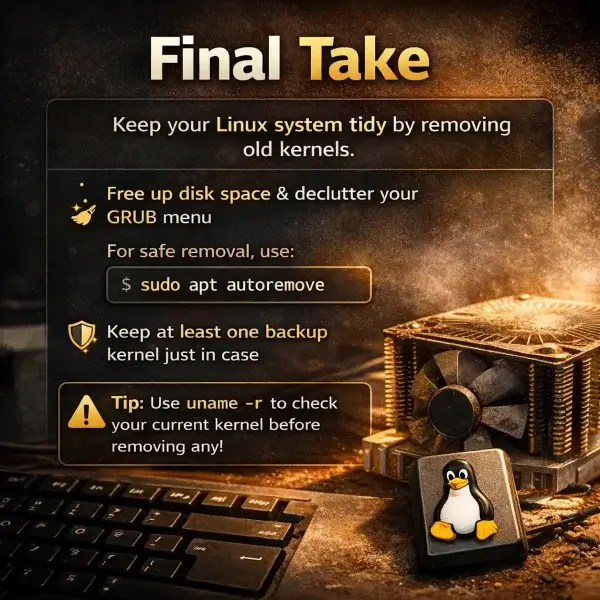
Final Notes on keeping your Linux System Clean
Keeping your Linux system tidy by removing unused or old kernels is a simple but important maintenance task. It frees up disk space, declutters your GRUB menu, and reduces potential confusion during boot. Using sudo apt autoremove is the safest and easiest method, while manual removal or graphical tools can help on older systems or when more control is needed.
Always double check your current kernel with uname -r before removing anything, and consider keeping at least one previous kernel as a fallback. With these steps, your system stays clean, organized, and ready for smooth updates in the future.