Using Ubuntu or Debian and need to install a .deb file manually? While most applications can be installed directly from official repositories using apt or the App Center, you may occasionally download standalone .deb packages from developer websites or third-party sources. This guide covers every method for installing, managing, and removing Debian packages on Ubuntu and Debian-based Linux systems.
Quick answer: The recommended command for most users is sudo apt install ./packagename.deb - it installs the file and handles dependencies automatically. Use sudo dpkg -i packagename.deb if you need lower-level control, then run sudo apt --fix-broken install to attempt to repair missing dependencies afterward.
What Is a .deb File?
A .deb file is a Debian software package - the standard format used by Ubuntu, Debian, Linux Mint, Pop!_OS, and other Debian-based distributions. Similar to an .exe or .msi installer on Windows, a .deb file bundles an application's binaries, configuration files, metadata, and installation scripts into a single downloadable file.
You typically encounter .deb files when:
- Downloading software directly from a developer's website (e.g. Google Chrome, VS Code, Zoom)
- Installing a specific version not available in Ubuntu's official repositories
- Performing an offline or manual installation without internet access
Security note: A .deb package can run scripts as root during installation. Only install .deb files from official project websites or trusted sources.
Method 1: Install a .deb File Using apt (Recommended)
The apt command is the recommended method for most users because it automatically resolves and installs any missing dependencies.
- Press Ctrl+Alt+T to open a terminal window.
- Navigate to the folder containing your
.debfile:cd ~/Downloads - Install the package, replacing
packagenamewith the actual filename:sudo apt install ./packagename.deb
Use the ./ prefix when the file is in the current directory; for another location, provide the full or relative path, such as sudo apt install ~/Downloads/packagename.deb. This tells APT to install the local package file rather than search for a package by name in the repositories. When prompted, press Y to confirm.
Method 2: Install a .deb File Using dpkg
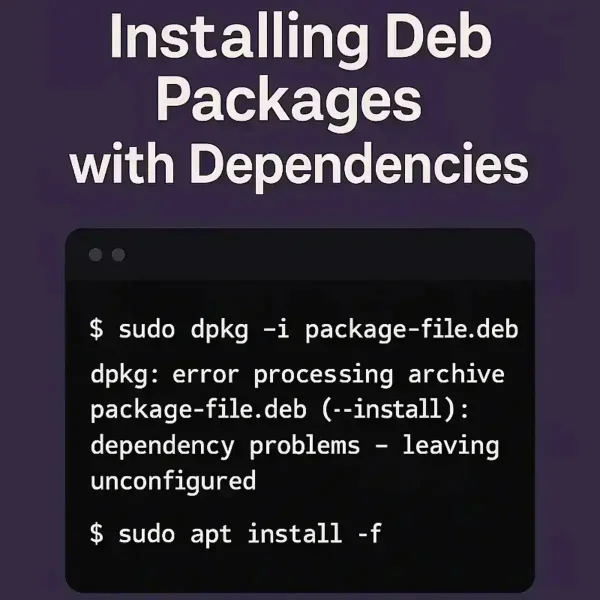
dpkg is the lower-level Debian package manager. It unpacks and installs the local package but does not automatically resolve dependencies. For most users, sudo apt install ./packagename.deb is simpler because APT can resolve dependencies from configured repositories.
Note: This installs only the downloaded .deb file. If the package depends on other programs or libraries, you will need to install those separately (see below).
- Press Ctrl+Alt+T to open a terminal window.
- Run the following command, replacing
packagenamewith the actual file name:sudo dpkg -i packagename.deb
Fix Missing Dependencies After dpkg
If you receive an error similar to:
packagename depends on otherprogram (>= 1:0.0.0); however: Package otherprogram is not installed
This means the .deb package requires additional software. Run this command to automatically find and install all missing dependencies:
sudo apt install -fOr install a specific dependency by name:
sudo apt-get install otherprogramMethod 3: Install a .deb File Using gdebi
gdebi is a lightweight tool designed specifically for installing local .deb files. It resolves dependencies automatically like apt, and also works as a GUI installer. It is not installed by default, so install it first:
sudo apt install gdebiThen install your package:
sudo gdebi packagename.debType Y when prompted to confirm. gdebi will resolve and install all dependencies before completing the installation.
Method 4: Install a .deb File Using the GUI (No Terminal Required)
If you prefer not to use the terminal, Ubuntu and most Debian-based desktop environments let you install .deb files graphically:
- Open your file manager and navigate to the
.debfile (usually in the Downloads folder). - Right-click the file and select Open With Software Install or Open With App Center.
- Click Install and enter your administrator password when prompted.
- Wait for the installation to complete.
This method is the easiest for beginners but provides less feedback if something goes wrong. For packages with complex dependencies, the terminal methods are more reliable.
How to Uninstall or Remove a .deb Package
To remove a package installed via dpkg or apt:
sudo dpkg -r packagenameOr use apt to remove the package. This does not automatically remove every dependency that is no longer needed; review the results of sudo apt autoremove separately if you want to remove unused automatically installed packages:
sudo apt remove packagenameTo remove the package and all its configuration files (a full purge):
sudo apt purge packagenameNote: Use the package name (e.g. google-chrome-stable), not the original .deb filename. If you are unsure of the exact package name, use the search command below.
How to List or Search Installed deb Packages
To check whether a package is installed or to search for packages matching a specific name:
dpkg -l | grep nameIn dpkg -l output, the first three characters show the package's desired action, status, and error flag; the package name appears after those status columns. Use the exact package name with sudo apt remove or sudo dpkg -r. For a clearer query, you can also run dpkg-query -W '*keyword*' and replace keyword with part of the package name.
Which Method Should You Use?
| Method | Handles Dependencies? | Best For |
|---|---|---|
sudo apt install ./package.deb |
Yes - automatically | Most users; recommended default |
sudo dpkg -i package.deb |
No - manual fix needed | Scripted installs, advanced users |
sudo gdebi package.deb |
Yes - automatically | Local installs with GUI option |
| App Center / GUI | Yes - automatically | Beginners, desktop users |
Frequently Asked Questions
What is the difference between dpkg and apt for installing .deb files?
dpkg is the low-level package manager that installs only the .deb file itself, without resolving dependencies. apt is higher-level and automatically downloads and installs any missing dependencies from the repositories. For most users, sudo apt install ./packagename.deb is the better choice.
Why do I need to put ./ before the filename when using apt?
The ./ prefix tells apt that the file is a local path, not a package name to look up in the online repositories. Without it, apt will search Ubuntu's package servers and return a "package not found" error.
I get a dependency error when using dpkg. How do I fix it?
Run sudo apt --fix-broken install to ask APT to repair broken dependencies. Review the proposed package changes before confirming; depending on the problem, APT may propose installing, upgrading, or removing packages. This can resolve many dependency issues after dpkg, but it is not a guarantee that every failed installation can be completed automatically.
Does this work on Linux Mint, Pop!_OS, and other Debian-based systems?
Yes. The same commands work on any Debian-based distribution, including Linux Mint, Pop!_OS, elementary OS, and Kali Linux. The GUI method may look slightly different depending on the desktop environment.
How do I find the correct package name to remove an installed .deb?
Run dpkg -l | grep keyword, replacing keyword with part of the application name. The package name appears after the three-character status field at the start of each result line. You can also use dpkg-query -W '*keyword*' to list matching package names and versions.
Can I install a .deb file without an internet connection?
Yes. Both dpkg and apt install ./file.deb install from the local file. However, if the package has unmet dependencies, those must also be available locally or pre-installed. For fully offline installs, consider downloading all required dependency packages in advance.
Is it safe to install .deb files from third-party websites?
Only if the source is trusted. A .deb package runs scripts as root during installation, so it has full access to your system. Always download from official project websites (e.g. Google, Microsoft, Zoom) and verify checksums when provided.
What is the difference between apt remove and apt purge?
apt remove uninstalls the package but generally keeps system-level configuration files. apt purge also removes package-managed system configuration files. Neither command necessarily removes user data or settings stored in your home directory.
Final Thoughts on Installing Debian Packages
For most users, sudo apt install ./packagename.deb is the simplest and most reliable way to install a .deb file on Ubuntu or Debian - it handles dependencies automatically and works on all modern versions. Use dpkg when you need lower-level control or are scripting installs, and follow it up with sudo apt --fix-broken install if dependencies are broken. The GUI method works well for one-off installs on desktop systems.
Looking for more Linux tips? Check out our tutorials on booting Ubuntu from USB with persistence or running Ubuntu entirely from RAM.