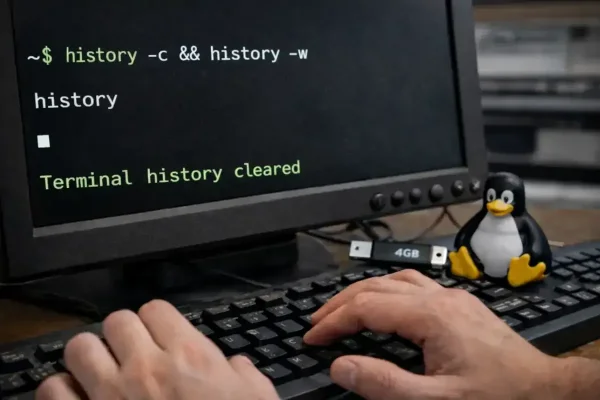
Looking to clear terminal history in Linux? Maybe clear bash history, erase session history, or permanently delete typed commands from the terminal? This guide explains how terminal history works and shows you how to view, manage, and completely clear command history in Linux - including bash, zsh, and Fish shell.
Quick answer: Run history -c && history -w to clear bash history from both memory and disk. For a more thorough wipe, use cat /dev/null > ~/.bash_history && history -c. Keep reading for all methods, including how to delete single commands, clear zsh history, and permanently disable history logging.
What Is Terminal History in Linux?
When you type commands in a Linux terminal, the shell automatically saves them so you can reuse them later - pressing the up arrow key cycles through past commands. By default, the bash shell stores this history in a hidden file called .bash_history in your home directory (~/.bash_history).
Linux terminal history is stored in two places at once:
- In memory - commands from your current active terminal session
- On disk - written to
~/.bash_historywhen the shell session closes
This distinction matters. Clearing one without the other can leave traces of your commands behind. Most systems store between 500 and several thousand commands, depending on the values of HISTSIZE and HISTFILESIZE.
This guide focuses on bash, the default shell on most Linux distributions. Methods for zsh and Fish shell are also covered below.
Why Clearing Terminal History Matters
Terminal history may contain sensitive or private data, including:
- Passwords accidentally typed directly into commands
- API keys or tokens passed as command arguments
- File paths revealing your system's structure
- Administrative commands showing system configuration changes
Clearing history is especially important on shared computers, Live USB environments with persistence enabled, or any machine you no longer control.
History Command Cheat Sheet
| Command | Description |
|---|---|
history |
Display command history for the current shell |
history -c |
Clear history stored in memory only |
history -w |
Write current memory history to the history file |
history -c && history -w |
Clear memory and overwrite the history file (recommended) |
history -d OFFSET |
Delete a single command by line number |
cat /dev/null > ~/.bash_history |
Erase the history file on disk |
unset HISTFILE |
Disable history logging for the current session |
How to View Terminal History
Before clearing, you may want to review what's stored. Open a terminal (Ctrl + Alt + T) and use any of the following:
- Show all saved commands:
history - Show only the last 20 commands:
history 20 - Search history interactively:
Press Ctrl + R and start typing - bash will show the most recent matching command. - Search history with grep:
history | grep ssh - View the raw history file:
cat ~/.bash_history - View root user history:
Switch to root first:sudo suThen run:
history
How to Clear Terminal History in Linux
There are multiple ways to clear terminal history in Linux. You can remove only the commands from the current session, permanently delete saved commands, delete a single entry, or prevent the shell from recording history entirely.
1. Clear Session History Only
This clears commands stored in memory for the active terminal session. It does not remove commands already written to .bash_history on disk.
history -cUse this when you want a clean slate for the session without permanently altering your history file.
2. Permanently Clear Bash History (Recommended)
This two-step method clears memory and overwrites the history file on disk:
history -c && history -wFor an even more thorough wipe that explicitly empties the file before clearing memory:
cat /dev/null > ~/.bash_history && history -cAfter running either command, the history file will be empty and no commands will return when you open a new terminal session.
3. Delete a Single Command from History
If you only need to remove one specific entry - for example, a command that contained a password - you can delete it by its line number.
First, find the line number:
historyThen delete that specific entry, replacing 42 with the actual line number:
history -d 42You can also open the history file directly in a text editor and remove lines manually:
nano ~/.bash_historyDelete the lines you want to remove, save with Ctrl + O, and exit with Ctrl + X.
4. Disable Bash History Logging Permanently
To stop bash from saving any future commands at all, add unset HISTFILE to your shell configuration:
- Open your bash config file:
nano ~/.bashrc - Add this line at the bottom:
unset HISTFILE - Save the file and reload it:
source ~/.bashrc
From this point forward, bash will not write new commands to any history file. Commands will still appear in memory during the current session but will not persist after logout.
How to Clear and View Root's History
Root has its own separate history file at /root/.bash_history. To view or clear it, switch to root first:
sudo suThen clear as normal:
history -c && history -wOr clear the file directly without switching users:
sudo cat /dev/null > /root/.bash_historyClearing Zsh History
On systems using zsh - common on newer Ubuntu versions - history is stored in ~/.zsh_history. Unlike bash, zsh often writes history to disk immediately rather than waiting for the session to close, so both the file and memory should be cleared.
To clear zsh history:
cat /dev/null > ~/.zsh_history && history -pTo disable zsh history logging permanently, add this to your ~/.zshrc:
unset HISTFILEThen reload:
source ~/.zshrcClearing Fish Shell History
Fish shell stores history in ~/.local/share/fish/fish_history. To clear it using the built-in command:
builtin history clearOr delete the file directly:
rm ~/.local/share/fish/fish_historyUnderstanding HISTSIZE and HISTFILESIZE
Two environment variables control how much history Linux stores:
- HISTSIZE - number of commands kept in memory during a session (default: typically 500-1000)
- HISTFILESIZE - maximum number of lines written to the history file (default: typically 2000)
To check your current settings:
echo $HISTSIZE
echo $HISTFILESIZE
To temporarily set both to zero, disabling history for the current session only:
export HISTSIZE=0
export HISTFILESIZE=0
To make this permanent, add those export lines to your ~/.bashrc.
Frequently Asked Questions
Can I delete specific commands instead of everything?
Yes. Run history to find the line number, then use history -d LINE_NUMBER to remove that entry. You can also edit the history file directly with nano ~/.bash_history, remove the lines you want gone, then save and exit.
Why does history sometimes reappear after clearing?
Bash writes history when the shell exits. If you clear memory with history -c but don't overwrite the file with history -w, the old file remains on disk and will reload in your next session. Always run both steps together: history -c && history -w.
Does this apply to Live Linux USB systems?
Yes. If persistence is enabled on a Live Linux USB, terminal history may be saved across reboots. Clearing history before shutting down is recommended to protect your privacy.
Does clearing history affect other users?
No. Each user's terminal history is stored separately in their own home directory. Clearing your history has no effect on other accounts on the same machine.
How do I clear history without leaving a trace of the clear command itself?
If HISTCONTROL=ignorespace is set, commands preceded by a space are not saved. Alternatively, delete the last history entry after clearing:
history -d $(history 1 | awk '{print $1}')Final Thoughts
Clearing terminal history in Linux is a simple but important task for privacy and security. Whether you want to erase session history, permanently delete command logs, remove a single entry, or disable history tracking entirely, these methods give you full control over your terminal activity.
- Quick session clear:
history -c - Permanently wipe bash history:
history -c && history -w - Delete one command:
history -d LINE_NUMBER - Disable history entirely: Add
unset HISTFILEto~/.bashrc - For zsh: Target
~/.zsh_historyinstead - For Fish: Use
builtin history clear
For more Linux tutorials, see our guide on How to Mount an NTFS Partition in Linux.