YUMI (Your Universal Multiboot Installer) is a popular tool for building a multiboot USB drive: one bootable flash drive that can hold and boot multiple operating systems, Windows installers, Linux distributions, antivirus rescue disks, cybersecurity, pentesting, and recovery utilities, all selectable from a single boot menu.
Which version should you use? YUMI Py is the recommended build - it runs on both Windows and Linux from the same Python codebase and is where active development is focused. YUMI exFAT currently remains a fully supported, Windows native alternative if you'd rather run the familiar classical NSIS code based interface. Older Legacy and UEFI only builds are archived, mentioned for historical reference and are no longer supported.
Which YUMI Should I Use?
Four variants of YUMI exist for different needs. If you're not sure which one applies to you, this table will tell you in a few seconds:
| Variant | Best For | Platform | Format | Status |
|---|---|---|---|---|
| YUMI Py | Most users - cross platform, actively developed | Windows & Linux | exFAT | Recommended |
| YUMI exFAT | Windows users who prefer simple (less features) | Windows only | exFAT | Supported |
| YUMI Legacy | Older BIOS only systems | Windows only | NTFS/FAT32 | Archived |
| YUMI UEFI | Older UEFI systems (distro dependent) | Windows only | FAT32 | Archived |
Short version: I'd start with YUMI Py. If you're on Linux and specifically need to create a new Windows-To-Go style VHD/VHDX install - that guided flow currently requires Windows (either YUMI Py for Windows or YUMI exFAT). See the FAQ below for details.
YUMI Py: The Recommended Multiboot USB Creator
YUMI Py is a standalone Python build of YUMI that runs natively on both Windows and Linux from the same underlying codebase. It supports exFAT formatting, files larger than 4GB, multiboot menu generation, ISO/IMG/WIM/EFI/VHD(x) batch support, and persistence for compatible Arch, Debian, Fedora, and Ubuntu based live systems - everything YUMI exFAT does, with one platform specific exception: on Linux, YUMI Py can't run the guided Windows On VHD install (that needs diskpart/DISM, which are Windows only tools). You can still copy an existing VHD/VHDX file onto a Linux prepared drive and boot it - you just can't build a brand new one from Linux. See the FAQ below for more detail.
Beyond matching YUMI exFAT's core feature set, it adds several capabilities of its own - built in Test Boot and Install to VM, Auto Download, Backup/Restore/Clone a USB drive to another, and LAN Share network booting from what's on the drive (boot ISO files from your local area network in a browser); all covered in simple steps below.
Supporting YUMI: If you shop on Amazon, one of the easiest ways to support this project is by starting your purchase through our Amazon affiliate link. It doesn't cost you anything extra, and qualifying purchases help fund future development. Thank you!
1. Get YUMI Py
Linux Download: Standalone Linux YUMI Py binary
Recent Changes:
yumi_py-1.0.8 Autodetect and select first YUMI prepared or compatible drive "if available" on startup. Make ISO file detection case insensitive.1.0.7: Add notifications spinner on detect and refresh drives. Save disclaimer acceptance choice so it only appears once.
1.0.6: Allow YUMI to autodetect and work with YUMI, UUI, or standard Ventoy. Change to Show all drives. Set entries added in Add Multiple and Auto Download sections span the full container width.
2. Set Up YUMI Py on Linux
Note: The Linux binary requires glibc 2.35 or newer - that's Ubuntu 22.04, Debian 12, Fedora 36, or newer. It won't run on older systems like Ubuntu 20.04 or Debian 11. If you're on Windows, skip ahead to step 3 - just launch the downloaded .exe.
If you're on an older or minimal system, a legacy-compatible build is also available, built against glibc 2.17 - this covers virtually any x86_64 Linux system released in the last decade or more, including Ubuntu 14.04+, Debian 8+, and CentOS/RHEL 7+.
- Open a terminal: Ctrl+Alt+T
- To find out which glibc version your distro ships with, run
ldd --versionfrom the terminal, first line reports it. In step 3, you'll get the build equal to or greater than your system GLIBC.ldd --version - Download the modern Linux binary build (glibc 2.35+) with
wget:wget https://yumiusb.com/downloads/YUMI/yumi_py-1.0.8or the Legacy Linux compatible build (glibc 2.17+):
wget https://yumiusb.com/downloads/YUMI/yumi_py-1.0.8-legacy - Make it executable:
chmod +x yumi_py* - Run it as root:
sudo ./yumi_py-1.0.8or
sudo ./yumi_py-1.0.8-legacy
3. Prepare Your Drive and Add ISOs
Run YUMI Py for Windows or Linux: launch the downloaded yumi_py-1.0.8.exe or the binary for Linux. It follows the same workflow regardless of which platform you choose to use:
- Select your drive, click prepare to format and prepare it
- Then, select from the list of available distributions (or use Auto Download below to fetch the ISO for you)
- Browse to the related ISO file and set up persistence for supported distributions
- Click Add to USB Drive
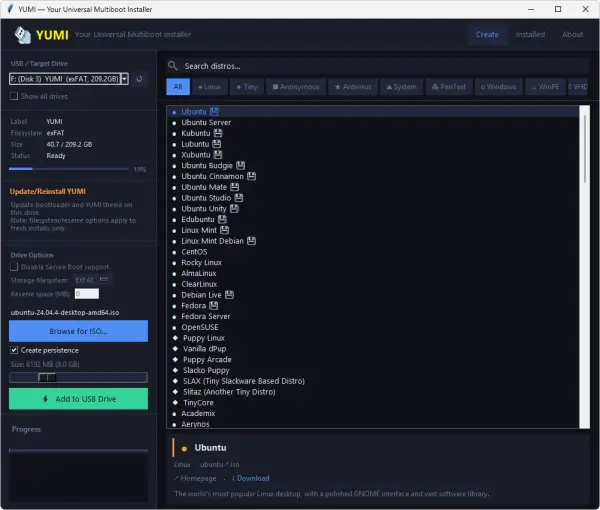
YUMI Py main setup screen - Reboot your PC and set it to boot from your USB drive - you'll be presented with a YUMI boot menu
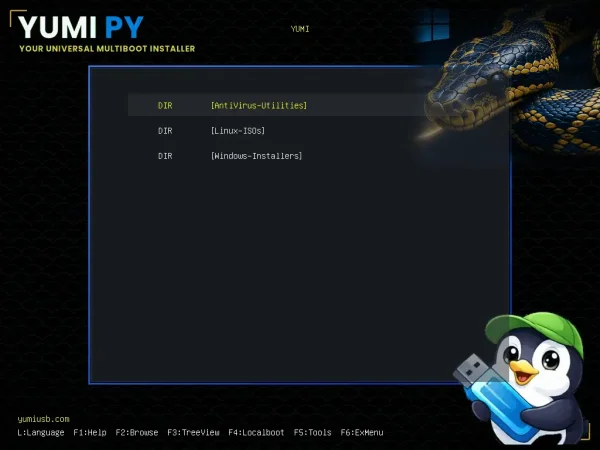
YUMI_Py Boot Menu
Or skip the reboot entirely and preview it in a VM - see Test Boot & Install to VM just below.
4. Test Boot & Install to VM
No need to reboot your PC just to try something out. From the Installed tab, select Run in QEMU to boot an installed ISO from USB straight from Windows or Linux:
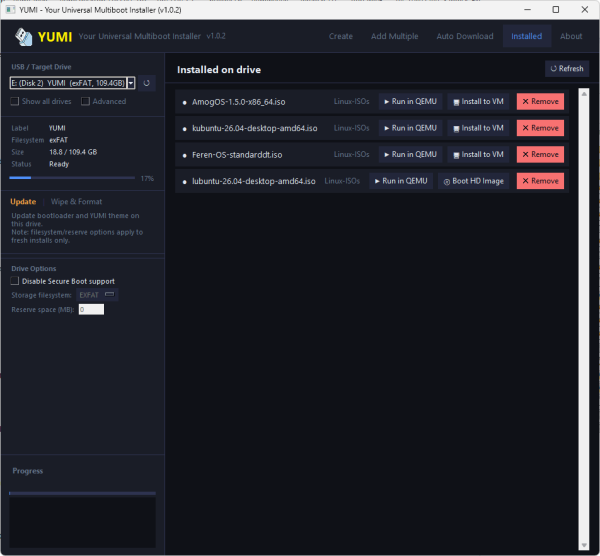
There are two related but different options here:
- Test Boot gives you a throwaway preview and discards everything on exit - nothing you do inside it is saved. VirtualBox Test Boot boots your actual prepared physical drive in a temporary VirtualBox VM, using VirtualBox's raw-disk support to point straight at the real device - the most accurate test, since it exercises the real partition table and bootloader chain YUMI just wrote, not just the ISO in isolation (requires your own existing VirtualBox install). QEMU Test Boot boots a single installed ISO directly, with any matching persistence file attached, using automatic WHPX (Windows) or KVM (Linux) hardware acceleration when available.
- Install to VM is different: instead of a disposable preview, it installs a distro into a persistent virtual disk (a
.vm.qcow2file) stored directly on the USB drive, right alongside the ISO. The first run creates the disk and boots the installer from the ISO; every run after that boots straight from the installed disk itself, so your changes persist between sessions - effectively a portable installed VM that travels with the drive.
If QEMU isn't found, YUMI Py handles it differently per platform: on Windows, it offers to download a self-contained portable QEMU build (~150MB) straight to PortableEMU\qemu-windows\ on the drive; on Linux, it suggests the exact install command for your distro's package manager (apt, dnf, pacman, zypper, or apk).
Note: Test Boot and Install to VM depend on your hardware's virtualization support (WHPX on Windows, KVM on Linux) and, for VirtualBox Test Boot, a working VirtualBox install. Results can vary by distro and by host system.
5. Auto Download & Install
Instead of hunting down ISO files yourself, Auto Download lets you pick distros from a built in list and queue them for automatic download straight onto your drive:
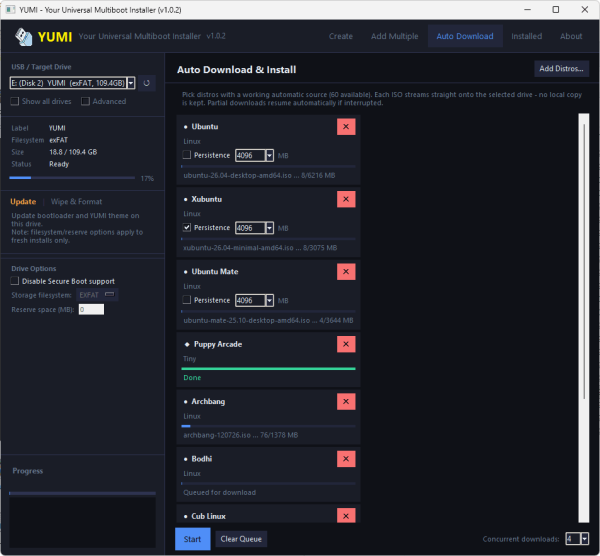
- Streams directly to the drive - each ISO downloads straight onto the selected USB drive, with no separate local copy kept on your computer.
- Per drive queues - each connected drive has its own queue, so downloading to one drive doesn't affect what's queued for another.
- Automatic resume - if a download is interrupted (app closed, connection dropped), YUMI Py picks up right where it left off next time - it even scans for leftover partial downloads from a previous session and re-queues them for you automatically.
- Adjustable concurrency - download 1 to 4 distros at once. More is faster on a good connection, but since everything writes to the same physical drive, try 1 if downloads feel slow on an older USB stick.
- Skips what you already have - won't re-offer a distro that's already installed on the selected drive.
Note: Auto Download doesn't verify downloaded ISOs against a published checksum (yet) - it relies on standard HTTP transfer integrity. If you need to confirm an ISO's authenticity for security-sensitive use, verify it against the checksum published on the distribution's own site after downloading.
Note: some links aren't resolving correctly yet - please let us know of any automatic ISO downloads that fail.
6. Batch Drag-and-Drop ISO/IMG/VHD(x) Files
From the Add Multiple tab, you can also batch drag and drop multiple ISO files from a folder on your computer straight onto the app, set up persistence for each, and let it do its thing:
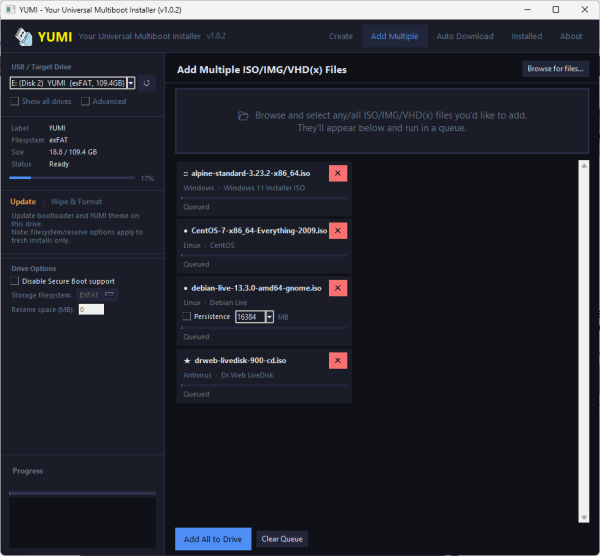
To remove items later, navigate to the Installed tab and click Remove:
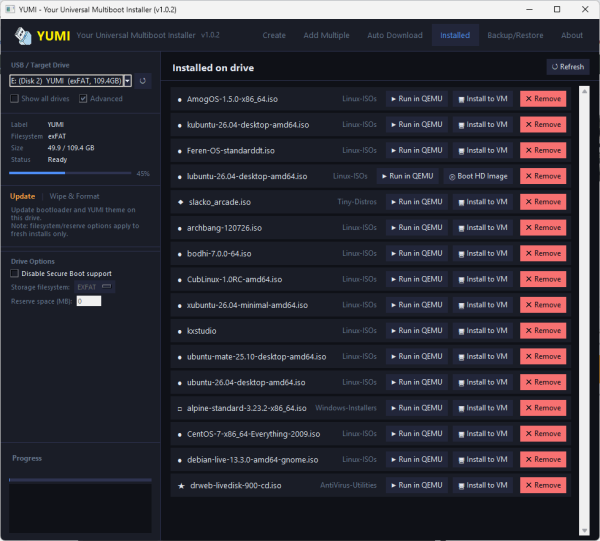
You can also drop ISO/IMG/WIM/VHD(x)/EFI files directly into folders on the drive itself outside the app - see Drag-and-Drop ISO Support below for that method, which both YUMI Py and YUMI exFAT share.
7. Backup, Restore, Clone USB & Flash ISO
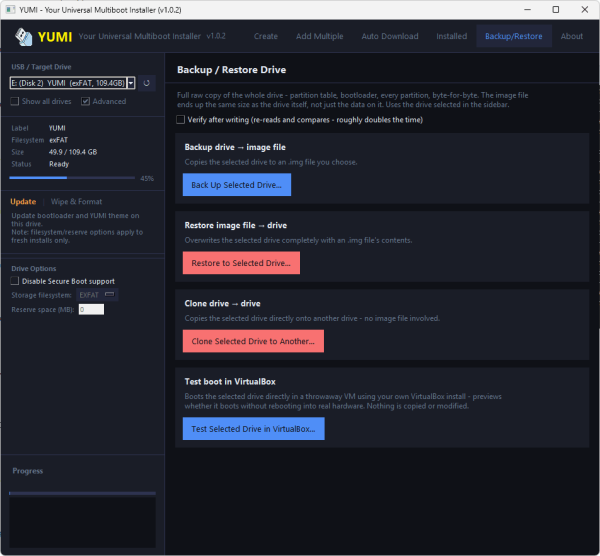
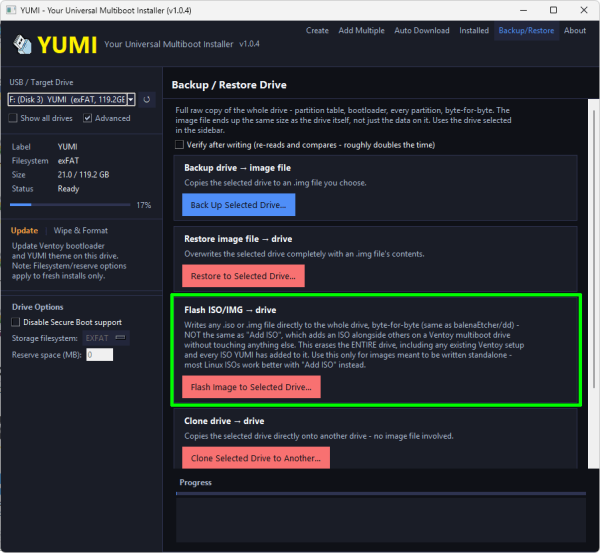
YUMI Py can also manage your prepared drive at the physical disk level, on both Windows and Linux. Tick the advanced box, next to show all drives to gain access to the Backup/Restore tab:
- Backup USB - copies an entire prepared drive to a single image file, with an optional verify pass after the copy completes.
- Restore USB - writes a previously created backup image back onto a drive.
- Clone USB - copies one physical drive directly onto another, with no image file step in between.
- Flash ISO to USB - writes any standalone .iso or .img file directly to the whole drive, byte for byte (the same approach as balenaEtcher or
dd). This is not the same as the normal Add ISO workflow above, which layers an ISO onto an existing multiboot drive without touching anything else on it - when you flash or burn an ISO/IMG file to USB, it erases the entire drive, including any existing setup, replacing the contents with just that one image.
The Backup, Restore, and Clone a USB drive (Linux Disk Cloning) options are useful for keeping a master copy of a bootable drive you've spent time customizing, or for quickly duplicating the same multiboot drive across multiple flash drives - you'll need the matching storage space if you choose to do this. Flash ISO to USB is for the opposite case: when you have a single ISO or IMG meant to occupy an entire drive by itself, most Linux ISOs can easily be added through the regular Add ISO process.
Note: The same user interface and most options are shared across both Windows and Linux platforms.
8. LAN Share - Boot ISOs from Any PC on Your Network
The LAN Share tab serves the ISOs already on your prepared USB drive to other devices on your local area network - no VNC client, no software install on the other device, and no second copy of the ISO/VM. Open a browser on a phone, laptop, or another PC on the same network, pick a distro, and it boots right there in the tab.
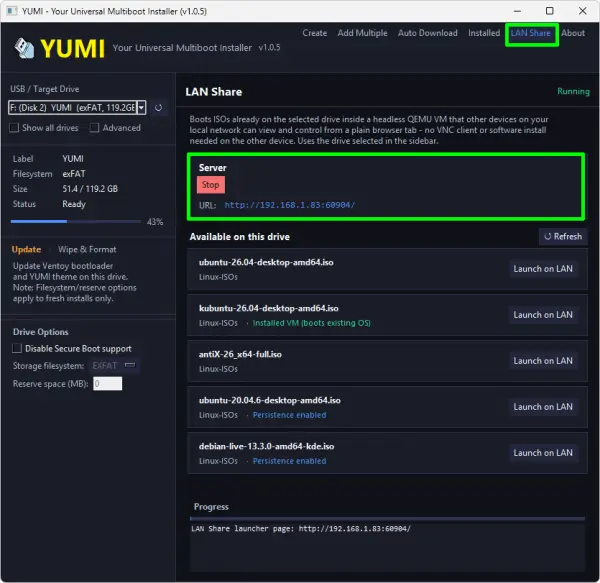
Under the hood, each ISO runs in a headless QEMU virtual machine, and the display streams into the browser over noVNC, a WebSocket based VNC viewer - kind of like DistroSea's browser based previews for testing Linux distros, but LAN sharing runs privately on your own network with your own persistence and installed VMs, not on a shared public queue:
- Open the LAN Share tab and click Start.
- YUMI Py shows a local network address, such as
http://192.168.1.x:PORT#. - Open that address in a browser on any other device on the same network - no app or extension needed, just a modern browser.
- Pick an ISO from the list and click Launch. The VM boots and its screen appears right in the page.
LAN Share detects which of three states applies to each installed ISO and shows a badge accordingly: a plain live boot that discards changes on exit, an ISO with persistence already configured (changes carry over just like booting the drive directly), or an already installed VM from Install to VM, which it boots straight into instead of the live ISO. QEMU is required and, same as elsewhere in YUMI Py, is downloaded automatically if it isn't already present.
Note: Don't run Test Boot or Install to VM on an ISO locally at the same time it's being served over LAN Share - both would write to the same file at once and can corrupt it. Use one or the other per ISO at a time.
Note: LAN Share has no login or access code, so it's intended for trusted home or personal networks. Anyone who can reach your computer's IP on the same network can open the page - avoid enabling it on shared office or public Wi-Fi.
YUMI exFAT: The Windows Native Alternative
YUMI exFAT is the original standalone Windows .exe build of YUMI, currently built on Ventoy's boot process. It remains fully supported and like the Windows build of YUMI Py, can create bootable Windows VHD/VHDX installer images. If you're running from Windows and prefer the simplified classic NSIS environment, this is the build for you.
YUMI exFAT Download
WARNING Backup Data: You must back up any data you wish to keep before using the "Prepare this Device" option. While preparing the drive, ALL volumes/partitions on the selected (Disk #), even if hidden, will be wiped clean.
YUMI exFAT Changelog
- 07/26/2026 - YUMI-exFAT-1.0.4.2.exe: Updated to use Ventoy version 1.1.17 bootloader.
Older versions
- 07/13/2026 - YUMI-exFAT-1.0.4.1.exe:
Updated to use Ventoy version 1.1.16 bootloader, fixing boot issues with old UEFI version firmware when secure boot is disabled. Fixed a bug where prepare/update reported success on the wrong disk num, though the correct disk was prepared/updated. - 06/11/2026 - YUMI-exFAT-1.0.4.0.exe:
Expanded distro and tools list with additional popular Linux ISO entries.
Updated several distro homepage and download links, including Ubuntu Unity, Garuda Linux, Arch Linux, Fedora, Manjaro, and SystemRescue.
Fixed ISOs added via drag and drop now appear in removal dropdown.
Improved cleanup of stale Installed.txt entries. - 06/08/2026 - YUMI-exFAT-1.0.3.9.exe:
Fixed volume label not being set to YUMI.
Fixed selected disk not restoring after preparation.
Restored wipe drive feature. - 05/01/2026 - YUMI-exFAT-1.0.3.8.exe:
Updated to Ventoy 1.1.12.
Fixed Ubuntu 24.04.4 install issue.
Fixed VirtualBox UEFI display issue.
Fixed WinPE resolution issue.
Fixed Oracle Linux 6.9 issue. - 04/09/2026 - YUMI-exFAT-1.0.3.7.exe:
Updated to Ventoy 1.1.11.
Fixed Windows/WinPE UEFI display issue. - 03/19/2026 - YUMI-exFAT-1.0.3.6.exe:
Fixed broken 32G persistence file pointer for Debian. - 02/08/2026 - YUMI-exFAT-1.0.3.5.exe:
Added preparation menu for reserved space and filesystem selection. - 02/03/2026 - YUMI-exFAT-1.0.3.4.exe:
Fixed Debian Live persistence option.
Disabled automatic update checks at runtime.
This list is not all inclusive and includes only the most recent changes over the past several months.
How to Create a Multiboot USB Drive
Both YUMI Py and YUMI exFAT follow the same core workflow, whichever build you're using:
What You Need
- 4GB+ flash drive (128GB-1TB SSD works well) - see our recommended fast USB flash drives
- A computer that can boot from USB
- Windows 11/10/8, or Linux (YUMI Py only) - YUMI exFAT can also run under WINE on Linux
- Your Windows and Linux ISO files
Creating the Drive
- Launch YUMI Py or YUMI exFAT and follow the on-screen steps:
- Select your disk (prepare disk)
- Select an ISO
- Browse to the ISO file
- Optionally set a persistent storage size (if supported for that distro)
- Click Create
- Re-run the tool anytime to add more ISOs to the same drive.
Booting from Your YUMI USB Drive
- Restart your PC and, during POST (before any loading logo appears), use the hotkey to access your boot menu. Common keys: F1, F2, F9, F10, F12, or Esc.
- Set your boot menu to bypass the Windows boot manager and boot from the USB drive, then save changes (usually F10).
- Select a distribution or tool from the YUMI boot menu to launch it.
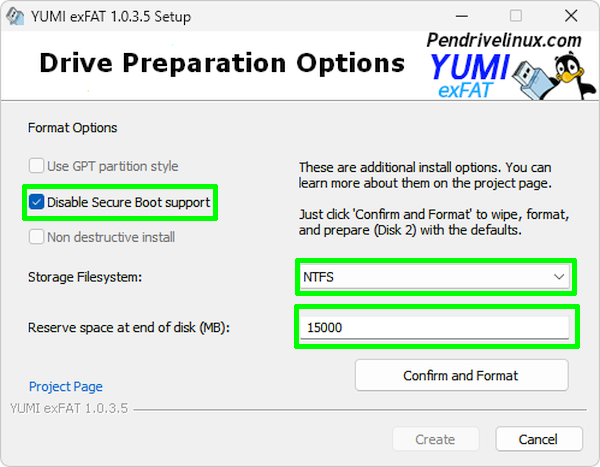
Drive Preparation Options
Format Options
- GPT Partition Style - for modern systems. (Currently greyed out)
- Disable Secure Boot Support - bypass Secure Boot checks
- Non Destructive Install - keep existing files on the drive. (Currently greyed out)
Note: Greyed-out options aren't implemented yet - YUMI applies default settings automatically in those cases.
Filesystem Options
- exFAT - cross platform filesystem (Windows, Mac, Linux), the default and recommended choice
- NTFS - supports large files, Windows-compatible
- FAT32 - works on older systems, 4GB max file size (can't hold large ISOs)
Reserve Space at End of Disk
Optionally specify free space to leave at the end of the drive for a separate partition later. You'll need to partition and format that space yourself afterward.
Persistent Storage Support
Persistence lets a live Linux system save changes (files, settings) back to the USB drive between reboots. It works on most Arch Linux, Fedora, and Ubuntu based live systems, and several Debian based systems including Kali Linux, when supported by the distribution. YUMI automatically manages persistence via preconfigured loopback images on the drive.
About newer Debian Live persistence: recent official Debian Live releases changed how persistence works upstream, requiring:
- Storage named/labeled
persistenceinstead oflive-rw - A
persistence.conffile inside that storage - That file must contain the line
/ union
YUMI 1.0.3.4 and later handles this automatically. For manual setup or larger custom persistence images, see: Setting up Debian Persistence.
Drag-and-Drop ISO Support
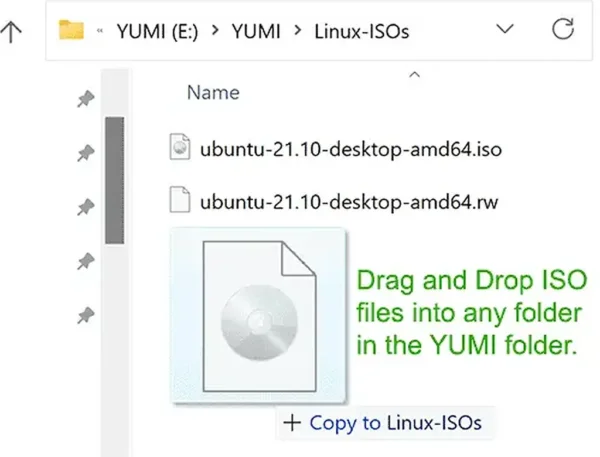
Create your own storage folders inside the YUMI folder on the drive, then drag and drop ISO, IMG, WIM, VHD(x), VDI.vtoy, or EFI files directly in. YUMI detects and adds boot entries for them automatically at startup. Files can exceed 4GB.
Is USB Secure Boot Supported?
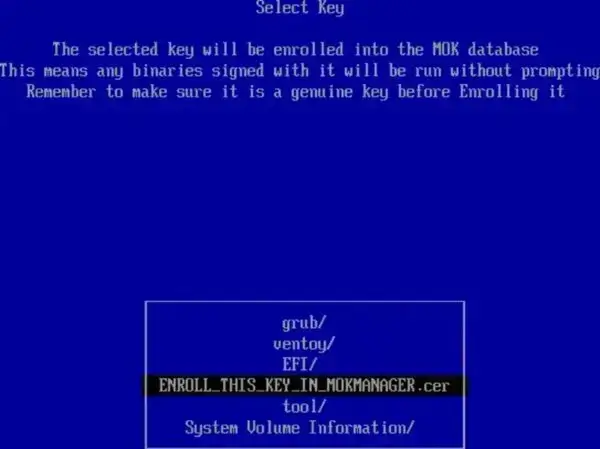
Yes - both YUMI Py and YUMI exFAT use upstream Ventoy Secure Boot. Select VTOYEFI and enroll ENROLL_THIS_KEY_IN_MOKMANAGER.cer into the MOK database.
Troubleshooting: What to Do If an ISO Won't Boot
If one boot method fails, try another - this is normal across different hardware and ISOs.
Normal Mode (Default): Uses the ISO's own designated bootloader startup code. Works most of the time.
GRUB2 Mode: Try this if Normal Mode fails. Uses GRUB2 to start the system instead - works especially well for many Linux distributions.
MEMDISK Mode: Loads the ISO fully into RAM before booting. Ideal for small live systems and rescue/WinPE tools; the drive can sometimes be removed after boot if persistence isn't used.
UEFI Error: "No bootfile found for UEFI"
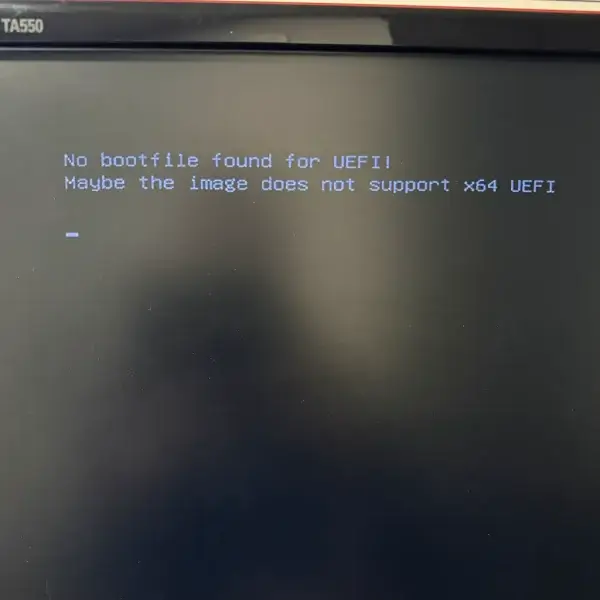
This means your system booted in UEFI mode, but the ISO lacks a compatible UEFI bootloader (typically expected at /EFI/BOOT/BOOTX64.EFI).
Common causes:
- The ISO is legacy BIOS only
- The ISO only supports 32-bit UEFI
- The ISO was built for optical media, not USB UEFI boot
- Secure Boot is on and the bootloader is unsigned
Fixes: confirm the ISO supports x64 UEFI, disable Secure Boot temporarily, or enable Legacy/CSM boot in firmware if the ISO is legacy-only.
Supported Operating Systems and Utilities
This list isn't exhaustive:
Let us know about any missing free Live Linux distributions or version revisions, and we'll add support as time allows. Open source developers wanting their distro added can reach out with a link to try it.
FAQ and Known Issues
Is YUMI free?
Yes. YUMI is free and open source, for all variants (Py, exFAT, Legacy, and UEFI).
Does YUMI Py replace YUMI exFAT?
Not entirely, yet. YUMI Py is the recommended build going forward and receives new features and fixes first, and on Windows both builds can create new Windows-To-Go VHD/VHDX installs via the guided Windows-On-VHD flow. The one gap is on Linux: YUMI Py there can add an existing VHD/VHDX file but can't create a new one, since that requires Windows' diskpart and DISM tools. If you don't need to build a new VHD/VHDX from Linux, YUMI Py is the better default - especially if you work across both Windows and Linux.
Can I test my USB drive without rebooting my PC?
Yes, in YUMI Py. Use Test Boot to preview your drive or a single ISO in a throwaway VirtualBox or QEMU VM (nothing is saved), or Install to VM to install a distro into a persistent virtual disk stored on the drive itself, so your changes stick around between sessions. See Test Boot & Install to VM in the YUMI Py section above. If you'd rather test it from a different device entirely, without touching the host PC at all, use LAN Share instead - see LAN Share above.
Can I boot an ISO on my phone or another PC without copying it there?
Yes, using LAN Share. If the ISO is already on your YUMI Py drive, any other device on the same local network can boot it in a browser tab, live or with persistence, without a separate copy of the file. See LAN Share above for setup and the security note - it's meant for trusted home or personal networks, not public Wi-Fi.
Persistent Storage Issues on Newer Debian Based Live Systems
Persistent storage works on most Arch Linux, Fedora, Ubuntu, and several Debian based live distributions, including Kali Linux releases.
The persistent feature on newer official Debian live images works differently due to upstream changes in how persistence is handled. Recent Debian releases require a different persistence layout than many other live systems. Specifically:
- The persistent storage must be named and labeled
persistencerather thanlive-rw - The persistence volume or file must contain a
persistence.conffile - The
persistence.conffile must include the line/ union - The persistence boot parameter must be manually added before booting
A fix was released in YUMI version 1.0.3.4 which should resolve the previous Debian Live Persistence not working.
Excluding a Drive from Being Detected
To exclude a drive from being detected by YUMI, create a blank text file named excludedrive.txt and place it at the root of the drive to be excluded.
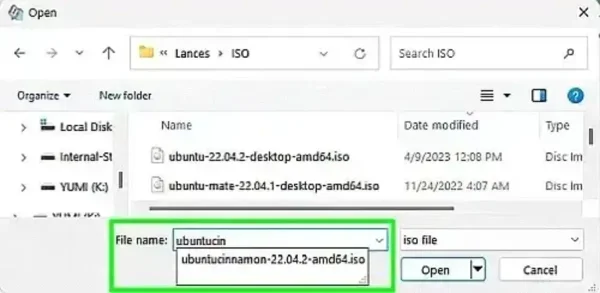
ISO File Not Detected? Force an ISO
You can try to force the selection of an ISO file for ISO filenames that do not appear when you browse for a select distribution. This is useful in situations where you know that a distribution is based on another existing distro, but an installable entry or option for it does not yet exist.
For example: To force a Cinnamon ISO file while using Ubuntu as the select distribution:
- Select Ubuntu for the distribution, during step 2.
- During step 3, when browsing to the ISO file, begin to type ubuntucin into the file name: box.
- Click to select the filename from the drop down as its name is being detected.
- Then click Open to override and force the new file name selection.
Can't Boot from USB but BIOS/UEFI Supports USB Booting
Some flash drives ship formatted without a partition, but this USB boot tool requires the drive to contain a partition with an MBR (Master Boot Record). To ensure compatibility, the installer will format your device during preparation.
Troubleshooting USB Boot Errors
When booting Linux distributions from some laptops such as the Lenovo Yoga with a touchscreen, the acpi=off boot parameter might be necessary in order to successfully boot.
If you don't have a floppy drive and get fd0 errors while booting, simply add floppy.allowed_drive_mask=0 to the append line for the troubled entry. The best fix is to simply disable floppy in BIOS.
Persistently Saving Changes
The casper-rw persistence feature is used for some (but not all) Debian and Ubuntu based distributions. You can also have multiple persistent distributions, as each distro utilizes its own block file.
Ophcrack Tables
In order to load Ophcrack tables, the tables folder needs to exist at the root directory of the USB device (example F:\tables\vista_free). You can get Ophcrack Tables from the Official Ophcrack site. Once downloaded, simply unzip them to the root of the USB. Because you're using this method, you can have your Windows 11/10/8/XP tables all working together on the same device.
TAILS USB Drive Detection Issue
If your USB drive is detected as a "fixed" hard drive and not a "removable" disk (a few of the larger AXE and SanDisk drives have the removable bit flipped this way), you'll need to remove occurrences of the boot parameter live-media=removable, or TAILS will fail to find the live filesystem.
How Do You Pronounce YUMI?
YUMI is commonly pronounced "YUMMY" (Yŭh-Mēē). Because the name is an acronym for "Your Universal Multiboot Installer," some users also pronounce it as "YOU-ME."
Common misspellings include:
- YUMMI
- YUUMI
- YUMY
- YUME
Regardless of pronunciation, all refer to the same YUMI multiboot USB creation tool.
How Are YUMI and Ventoy Related?
YUMI was among the first tools to pioneer the creation of multi-system bootable USB drives, designed for the purpose of booting multiple operating systems and tools from a single USB device. It originated as our Windows based USB multi-boot software developed back in 2010 and was publicly released as open source bootable USB software on March 13, 2011. Both YUMI exFAT and YUMI Py are current builds, running on Windows and/or Linux respectively.
The exFAT variant is an iteration that utilizes the newer Ventoy boot process in place of its older USB multi-booting methods while retaining YUMI's familiar frontend and popular features. These features include user-defined automated persistence file creation, the ability to create VHD containers for running Windows from USB, and a means of providing users with categorized information, website links, and download links for each bootable distribution or tool.
Key features, such as A1ive's (AGFM) Grub File Manager-based Boot Menu, were already integrated into the exFAT variant before the existence of Ventoy. At its inception, Ventoy also adopted AGFM along with Rufus partitioning methods to use separate partitions for boot and storage. This setup allows for NTFS or exFAT large file storage, along with a small FAT partition for BIOS boot support. This feature, originally pioneered by Pete Batard (the developer of Rufus), eventually became a standard across these utilities, providing a method for all of them to natively support both BIOS and UEFI USB booting.
Ventoy works by modifying the boot sector of the USB drive (based on characteristics of the ISO file being booted) to implement its unique boot method. Doing so allows it to be compatible with a wide range of bootable ISO files, operating systems, and utilities, eliminating the need to extract or physically manipulate the contents of an ISO file. This ability to modify the boot sector is the main feature that LongPanda's project brought to the table.
All of these open source projects have their place in the ongoing cycle of software development and provide a feedback loop that each developer can draw from, allowing for the expansion into the creation of ever evolving boot pendrive software.