
UNetbootin: Create a Linux Bootable USB Quickly and Easily. Short for Universal Netboot Installer, UNetbootin is a lightweight, open source utility used to create bootable Linux USB flash drives from ISO files without requiring a CD or DVD. It remains a simple option for testing or installing many Linux distributions, particularly on legacy BIOS or older UEFI systems.
What Is UNetbootin?
Watch the Video Tutorial
UNetbootin is a cross platform Linux USB creation tool. After launch, the application allows users to download supported Linux distributions or use a local ISO file. By default, the tool formats USB drives as FAT32 for maximum compatibility.
It allows users to either download supported Linux distributions directly within the application or use a locally downloaded ISO file to create a bootable USB drive.
Originally created by Geza Kovacs and released under the GNU GPL v2 license, the project is still available and lightly maintained today, with updates focused on stability rather than new features. While it continues to function for many Linux distributions, newer boot methods and firmware standards are not always fully supported.
Key Features
- Cross platform: Works on Windows, macOS, and Linux
- No optical media required: Boot Linux directly from USB
- Built in downloads: Select supported distributions inside the app
- Local ISO support: Use your own downloaded ISO files
- Beginner friendly: Simple and minimal interface
Quick Start to Making a Bootable USB
- Download UNetbootin for your operating system
- Insert a USB flash drive (8GB or larger recommended)
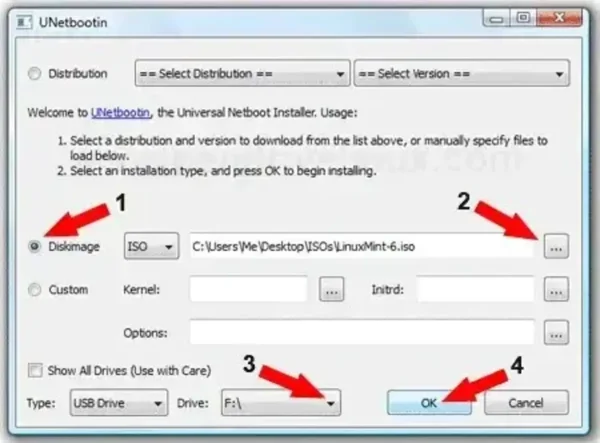
- Select a distribution or choose a local ISO file
- Select the correct USB drive (for example E: or /dev/sdb)
- Click OK and wait for the process to complete
- Reboot and configure your system to boot from USB
Filesystem and Compatibility Notes
For compatibility, this tool formats USB drives as FAT32. FAT32 is required for many UEFI systems and works well on older BIOS based machines. However, some modern Linux ISOs contain files larger than FAT32 allows, which may cause boot failures.
If you encounter issues with newer distributions, alternative tools such as Ventoy, YUMI, or direct dd writing methods may offer better results.
Installing UNetbootin on Each Platform
Install UNetbootin on Windows
- Download the Windows executable
- Run the installer and follow the on screen steps
- Proceed with the Quick Start instructions above
Install UNetbootin on Linux (Ubuntu or Debian)
wget https://unetbootin.sourceforge.net/unetbootin-linux-latest
chmod +x ./unetbootin-linux-*
sudo apt install p7zip-full
sudo ./unetbootin-linux-*
Install UNetbootin on macOS
- Download the macOS DMG from the official project page
- Open the DMG and drag UNetbootin into Applications
- Right click the app and choose Open to bypass Gatekeeper
Note: On modern macOS versions, especially Apple Silicon systems, UNetbootin may fail to produce a bootable USB. If you experience problems, using the macOS dd command or a tool like Balena Etcher is often more reliable.
Using a Local ISO vs Downloading a Distribution
Download a Supported Distribution
- Select a listed Linux distribution
- Choose the version and USB target
- Click OK to begin creation
Use Your Own ISO File
- Select Diskimage
- Browse to your downloaded ISO file
- Select the correct USB drive
- Click OK and reboot when finished
Troubleshooting Common Issues
- USB drive not detected: Reinsert the drive or reformat to FAT32
- System will not boot: Try switching between Legacy and UEFI boot modes
- Black screen or freeze: Newer ISOs may not be fully compatible with UNetbootin
Limitations to Be Aware Of
- No native multiboot support. For multiboot USBs, consider YUMI or Ventoy
- Limited and unreliable persistence support, primarily for older Ubuntu based ISOs
- This tool does not support Windows installation ISOs
- Inconsistent results with Secure Boot enabled systems
UNetbootin Compared to Other USB Tools
| Tool | OS Support | Multiboot | Persistence | ISO Download |
|---|---|---|---|---|
| UNetbootin | Windows / macOS / Linux | No | Limited | Yes |
| YUMI | Windows | Yes | Yes | Yes |
| Ventoy | Windows / Linux | Yes | Partial (plugin based) | No |
| Rufus | Windows | No | Yes (Ubuntu) | No |
Final Thoughts
This bootable USB creation utility remains a simple and accessible tool for creating Linux bootable USB drives, particularly on older hardware or systems using legacy boot methods. While it may not fully support modern Secure Boot environments or newer Linux releases, it can still be useful for quick testing or basic installations.
For advanced features such as multiboot setups, reliable persistence, or modern UEFI compatibility, tools like YUMI or Ventoy are better suited. Choose the tool that best matches your hardware and intended use case.