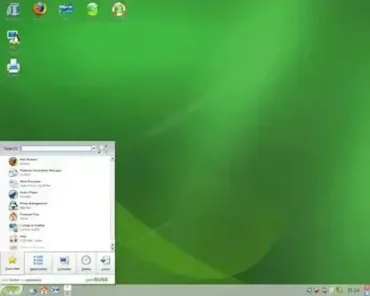
Effortlessly Make an OpenSUSE Bootable USB Drive: This tutorial demonstrates multiple methods for creating a bootable OpenSUSE USB drive using YUMI, Etcher, or the DD command. Depending on your needs, you can boot a portable live environment from USB or perform a full installation to another USB stick or internal hard drive.
Portable OpenSUSE Bootable USB

Requirements
- USB flash drive (Fast SSD-based USB stick recommended)
- OpenSUSE ISO file (Live version recommended)
- One of the following tools:
- YUMI (Windows)
- Etcher (Windows, Linux, macOS)
- DD command (Linux or macOS)
Make an OpenSUSE Bootable USB with YUMI on Windows
YUMI (Your Universal Multiboot Installer) allows you to create a multiboot USB drive and run multiple distributions from the same device.
- Download the latest version of YUMI.
- Download an OpenSUSE ISO file.
- Insert your USB flash drive and launch YUMI.
- Select your USB drive from the dropdown menu.
- Choose "OpenSUSE" from the distribution list.
- Browse and select your downloaded ISO file.
- Click Create to begin.

Once complete, restart your computer and set BIOS or UEFI to boot from the USB drive.
Create an OpenSUSE Bootable USB with Etcher (Windows, Linux, macOS)
Etcher writes the ISO directly to USB and verifies the write automatically. This method creates a single bootable distribution per USB drive.
- Download and install Etcher.
- Download the OpenSUSE Live ISO.
- Insert your USB drive.
- Open Etcher and click Flash from file.
- Select your OpenSUSE ISO.
- Choose your USB drive as the target.
- Click Flash.
Etcher works natively on Windows, Linux, and macOS and requires no additional configuration.
Create an OpenSUSE Bootable USB on Linux Using DD
Advanced users can write the ISO directly using the DD command.
Warning: Be absolutely certain you are writing to the correct device. Writing to the wrong disk will permanently erase it.
- Insert your USB drive.
- Identify the device name:
lsblk - Unmount the USB if automatically mounted.
- Write the ISO to the USB drive:
sudo dd if=/path/to/opensuse.iso of=/dev/sdX bs=4M status=progress oflag=syncReplace
/dev/sdXwith your actual USB device. - When finished, run:
sync
Create an OpenSUSE Bootable USB on macOS Using diskutil and DD
macOS users can use either Etcher or the built-in diskutil and DD tools.
Warning: Selecting the wrong disk will erase it permanently.
- Insert your USB drive.
- List disks:
diskutil list - Identify your USB drive (for example, disk2).
- Unmount the disk:
diskutil unmountDisk /dev/diskX - Write using the raw disk device for better speed:
sudo dd if=/path/to/opensuse.iso of=/dev/rdiskX bs=4m - Eject the USB when complete:
diskutil eject /dev/diskX
Full Installation of OpenSUSE on a USB Drive
This method installs OpenSUSE fully onto a second USB drive using the Live USB. Unlike a live session, this creates a fully persistent portable system.
Warning: Backup important data. Disconnect internal drives if possible to prevent accidental installation to the wrong disk.
Steps for Full USB Installation
- Boot from your previously created OpenSUSE Live USB.
- Insert a second USB drive.
- Ensure the target USB drive is unmounted.
- Launch the installer from the desktop.
- Select Expert Partitioner.
- Create a root (
/) partition. - Optionally create a separate
/homepartition and swap. - Install the bootloader to the USB device, not your internal disk.
- Complete installation and reboot.
You now have a fully functional portable OpenSUSE system running from USB.
Troubleshooting and FAQ
USB Drive Not Booting
Ensure the USB is first in the BIOS or UEFI boot order. Confirm the ISO matches your system architecture and was written correctly.
USB Not Recognized by the Boot Tool
Reinsert the drive, try another USB port, or reformat the device before recreating the bootable USB.
Stuck During Boot Process
Verify the ISO checksum. Try booting with Safe Graphics mode or add the nomodeset kernel parameter.
Partitioning Errors During Full Installation
Ensure the target USB is unmounted. Use Expert Partitioner to manually define root, home, and swap partitions.
Can I Use Other Tools Besides YUMI and Etcher?
Yes. Tools like Rufus, Ventoy, or the DD command can also be used.
Does openSUSE Have an Official USB Image Writer?
Yes. There exists an OpenSUSE USB ImageWriter utility or more specifically "SUSE Studio Image Writer" that can also be used for burning ISO images to USB drives. It functions similarly to Etcher or dd by directly writing the ISO directly to the USB device.
However, Etcher offers automatic verification and broader platform support, while YUMI allows multiboot functionality. For most users, these tools provide more flexibility.
How Can I Test the Bootable USB Without Rebooting?
Use virtualization software such as VirtualBox or QEMU to boot directly from the USB drive inside a virtual machine.
Final Thoughts
Whether you choose YUMI, Etcher, DD, or a full USB installation, OpenSUSE can be run from a USB drive on Windows, Linux, or macOS. For best performance and longevity, use a high quality SSD based USB flash drive.