BIOS USB Booting and UEFI Boot Menu Options: Learn how to boot from a USB drive on any PC using BIOS or UEFI. Whether you're trying to install Windows, run a Live Linux system, or launch recovery tools, this guide covers how to boot from USB, use the BIOS or UEFI Boot Menu, and troubleshoot common USB boot problems.
BIOS and UEFI USB Booting (Boot Menu)
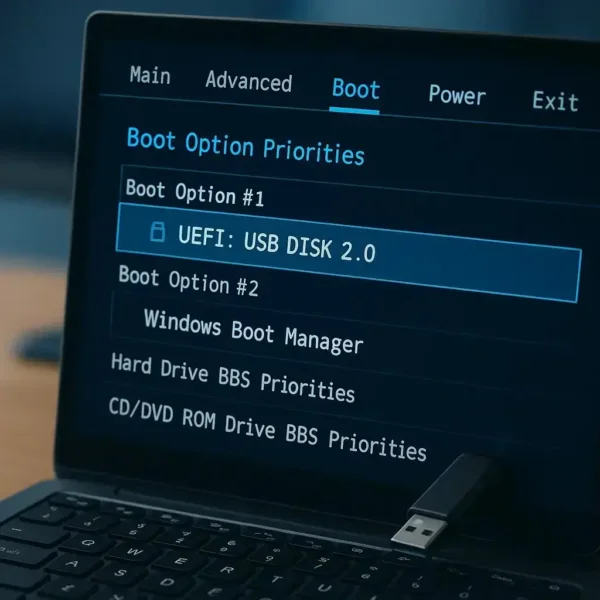
Quick summary: Create a bootable USB, insert it into your computer, restart, open the Boot Menu, select the USB drive, and press Enter. If the USB does not boot, check the BIOS or UEFI boot mode, Secure Boot, Fast Boot, and USB compatibility settings.
What You Need Before Booting from USB
- A properly prepared bootable USB flash drive
- A compatible ISO, operating system installer, recovery environment, or system utility
- A computer that supports USB booting
Simply copying an ISO file onto a USB drive does not normally make it bootable. Use a bootable USB creator to properly prepare the drive.
Popular options include:
Tip: The appropriate partition and file system depend on the operating system, bootloader, and firmware mode. Modern UEFI firmware commonly uses a FAT32 EFI System Partition, while bootloaders can provide access to additional NTFS or exFAT partitions when large files exceed FAT32's 4 GB individual-file limit.
BIOS vs UEFI (Why It Matters)
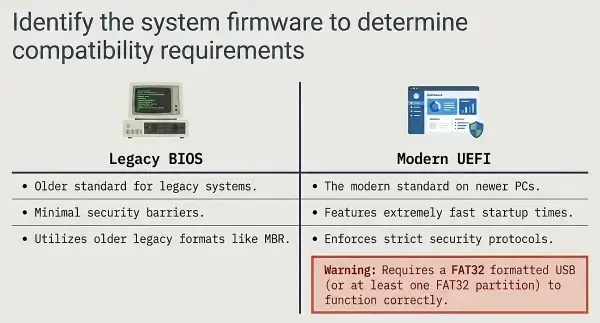
- BIOS: Traditional firmware used on older systems
- UEFI: Modern firmware used by most current computers
Most newer computers use UEFI. Older computers generally use Legacy BIOS, although many systems support both through a compatibility mode.
UEFI Booting
UEFI firmware can read EFI boot files directly from a compatible EFI System Partition. FAT32 is commonly used for this partition because it is widely supported by UEFI firmware.
Some modern USB creation tools use a small FAT32 boot partition together with an NTFS or exFAT data partition. This allows large files to be stored while retaining a UEFI-compatible boot path.
FAT32 has a 4 GB maximum individual file size. This can be important when creating Windows installation media or other bootable USB drives containing large files.
Legacy BIOS Booting
Legacy BIOS does not read EFI files in the same way as UEFI. Instead, it loads boot code from the boot device and relies on the bootloader to access the files on the USB drive.
This is why older BIOS systems may successfully boot USB drives using different partition layouts and file systems depending on the bootloader.
Many Linux ISO images are designed to support both BIOS and UEFI booting when written correctly to a USB drive.
Advanced: Tools such as YUMI exFAT and Rufus can use bootloader techniques that allow large ISO files to be stored on NTFS or exFAT while maintaining a UEFI-compatible boot partition.
For more information about firmware and BIOS access, see How to Enter BIOS and Access the Boot Menu.
How to Boot from a USB Drive
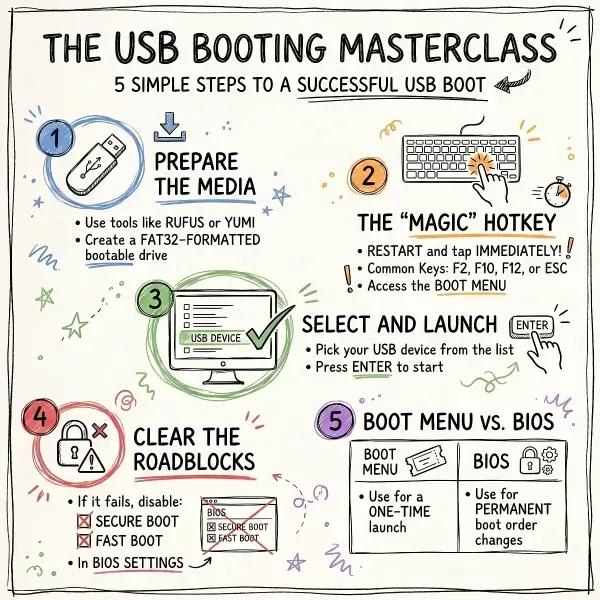
- Insert your bootable USB drive into the computer.
- Restart or power on the computer.
- Open the Boot Menu using the appropriate key for your computer.
- Select your USB device from the available boot options.
- Press Enter to boot from the USB drive.
Common Boot Menu keys include F12, F11, F10, F9, Esc, F2, and Delete. The correct key varies by manufacturer and motherboard.
If you are unsure which key to use, see our BIOS Hotkeys and Boot Menu Keys.
Boot Menu vs. BIOS/UEFI Settings
There are two common ways to tell your computer to boot from USB.
One-Time Boot Menu
The Boot Menu provides a temporary boot-device selection. This is usually the best option when you only want to boot from USB once.
Selecting the USB from the Boot Menu does not normally change the computer's permanent boot order.
BIOS/UEFI Boot Order
The BIOS or UEFI setup allows you to permanently change the order in which the computer searches for bootable devices.
For example:
1. USB Storage Device
2. Windows Boot Manager
3. Internal SSD
4. Network Boot
Tip: If you only need to boot from USB once, use the one-time Boot Menu rather than changing the permanent boot order.
How to Tell if You Booted in UEFI or BIOS Mode
Windows
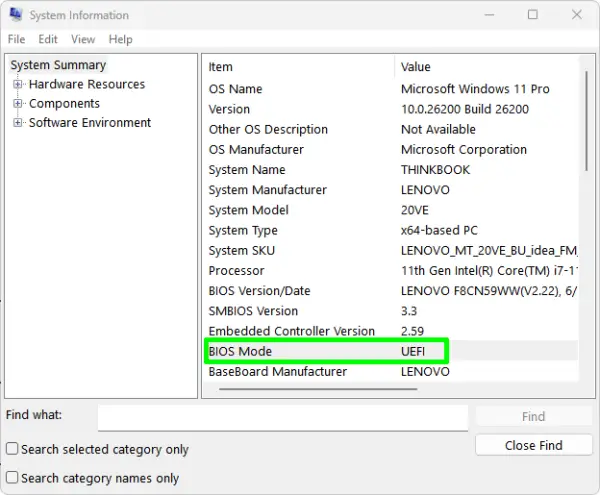
Press Win + R, type msinfo32, and press Enter.
Look for BIOS Mode in System Information.
- UEFI means Windows was booted using UEFI.
- Legacy means Windows was booted using traditional BIOS compatibility.
Linux
Open a terminal and run:
ls /sys/firmware/efiIf the directory exists, Linux was booted in UEFI mode. If it does not exist, the system likely booted using Legacy BIOS.
UEFI USB Boot Options
On a modern UEFI computer, the same USB drive may appear more than once in the Boot Menu.
UEFI: USB Flash Drive
USB Flash Drive
The entry beginning with UEFI: generally represents the UEFI boot path. The other entry may represent Legacy or compatibility booting.
When installing or running a modern operating system, select the UEFI: entry when available and appropriate.
Secure Boot
Secure Boot is a UEFI security feature that verifies supported boot software before allowing it to run.
Many current Windows and Linux systems support Secure Boot and do not require it to be disabled.
However, older Linux distributions, specialized utilities, and custom bootloaders may not support Secure Boot.
If a known-good USB appears in the Boot Menu but refuses to start, Secure Boot is one setting worth checking.
Fast Boot
Fast Boot reduces startup time by limiting some hardware initialization.
On certain systems, this can prevent USB devices from being initialized early enough for firmware to detect them.
If a USB drive is not detected during startup, temporarily disabling Fast Boot may help.
UEFI vs. Legacy Boot Mode
Some computers support both UEFI and Legacy BIOS compatibility modes.
Legacy support may be called:
- Legacy Boot
- Legacy BIOS
- CSM
- Compatibility Support Module
- Legacy Support
A USB created for one boot mode may fail when the computer is configured for another.
UEFI is normally preferred on modern computers. Legacy mode remains useful for older operating systems, older hardware, and bootable media that specifically requires Legacy BIOS support.
Advanced and Legacy USB Booting
Older computers may display USB boot options such as USB-HDD, USB-ZIP, and USB-FDD.
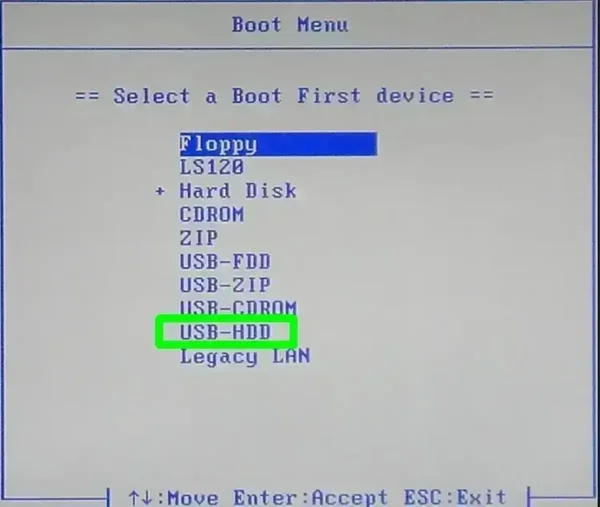
These options are primarily found on older BIOS systems that use legacy USB device emulation modes.
USB-HDD
USB-HDD treats the USB drive like a hard disk. It is generally the first option to try when booting a normally partitioned bootable USB on an older BIOS system.
USB-ZIP
USB-ZIP is an older compatibility mode based on ZIP-drive behavior. It may be required by some particularly old BIOS implementations when USB-HDD does not work.
USB-FDD
USB-FDD makes the BIOS treat the USB device more like a floppy disk drive. It is primarily relevant to very old systems and specialized legacy boot media.
Which Legacy USB Option Should I Use?
- Try USB-HDD first.
- If the USB does not boot, check whether it appears under a Hard Disk menu.
- If necessary, try USB-ZIP or USB-FDD on particularly old systems.
- Make sure the USB was actually prepared with a Legacy BIOS-compatible bootloader.
Phoenix/Award BIOS USB Booting
Some older computers use a Phoenix/Award BIOS interface. These systems can require an additional step because a USB flash drive may be detected as a hard disk rather than appearing directly as a USB boot device.
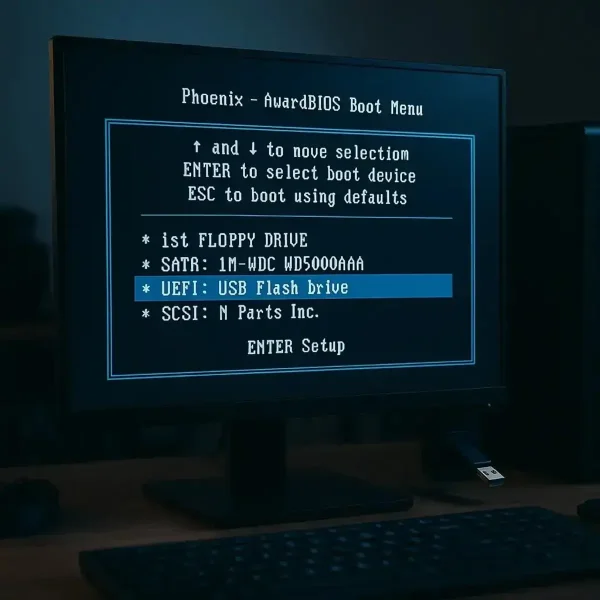
Demonstration system: MSI K8N Neo4 (MS-7125) motherboard. The exact BIOS menus vary by motherboard.
Method 1: Set the First Boot Device in BIOS Setup
- Insert the USB Drive: Plug your bootable USB flash drive into an available USB port before powering on.
- Enter BIOS Setup: Restart the system and begin tapping Delete or the appropriate BIOS setup key during POST. See our BIOS access keys by manufacturer if necessary.
- Open Advanced BIOS Features: Use the arrow keys to highlight it and press Enter.
- Set the First Boot Device: Highlight First Boot Device, press Enter, and select USB-HDD when available.
- Check Hard Disk Boot Priority: If your board has a Hard Disk Boot Priority submenu, select the USB drive and move it to the top.
- Save and Exit: Press F10 and confirm the changes.
Method 2: Use the One-Time Boot Menu
Some Phoenix/Award systems also provide a one-time Boot Menu that allows you to select a device without permanently changing the boot order.
- Insert the USB Drive.
- Restart the Computer.
- Open the Boot Menu. On the MSI K8N Neo4 demonstration system, F11 opens the Boot Menu. The key varies by motherboard.
- Select Hard Disk from the Boot Menu.
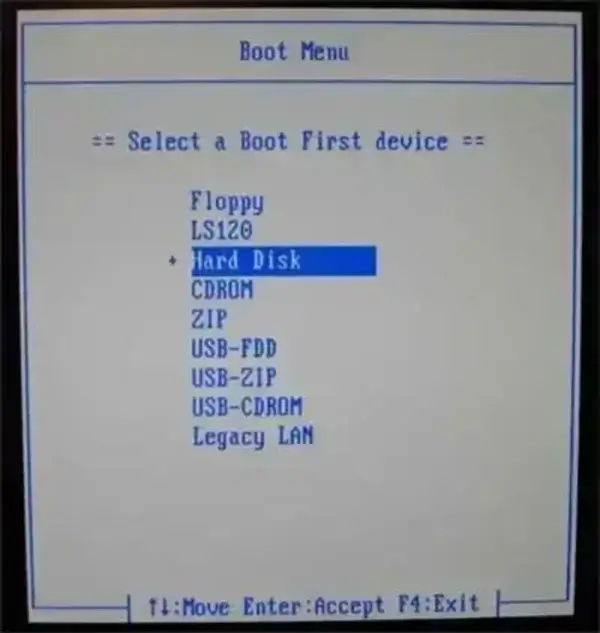
Some Phoenix/Award BIOS versions classify USB flash drives as hard disks.
- Select Your USB Drive: From the detected hard disks, highlight your USB device and press Enter.
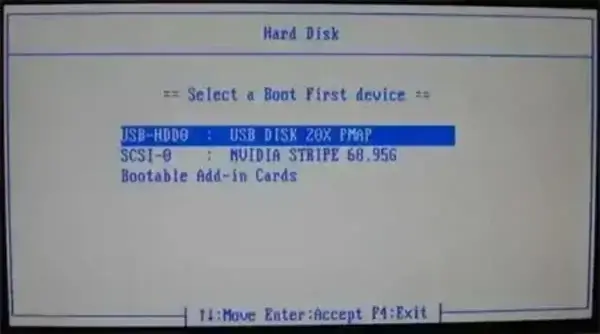
- Boot: Press Enter to boot from the selected USB device. Because this is a one-time boot selection, there is normally nothing to save.
USB-HDD vs. USB-FDD vs. USB-ZIP on Phoenix/Award BIOS
On genuinely old Award/Phoenix systems, USB flash drives may be presented using different legacy device types.
- USB-HDD: Usually the first choice for a normally partitioned bootable USB.
- USB-FDD: Legacy floppy-drive emulation.
- USB-ZIP: Legacy ZIP-drive compatibility mode.
If none of these options work, check for a USB Storage Function, Legacy USB Storage Detect, or similarly named setting and make sure it is enabled.
Hard Disk Boot Priority on Legacy BIOS
One of the most confusing aspects of older BIOS systems is that a USB flash drive may not appear directly in the primary boot-device list.
Instead, the BIOS may classify it as a hard disk.
If the BIOS displays a menu such as Hard Disk Boot Priority, Hard Disk Drives, or Hard Disk Drives BBS Priorities, open that menu and look for your USB drive.
If the USB is listed there, move it above the internal hard disk.
Common USB Boot Problems and Fixes
USB Not Showing in the Boot Menu
- Insert the USB before powering on the computer.
- Try another USB port.
- Try a USB 2.0 port on older hardware.
- Remove other USB storage devices.
- Disable Fast Boot.
- Check that USB Storage or Legacy USB support is enabled on older systems.
- Verify that the USB was actually created as bootable media.
No Bootable Device Found
- Recreate the USB using a different bootable USB tool.
- Verify the ISO if a checksum is available.
- Check whether the computer is using UEFI or Legacy mode.
- Make sure the USB contains a bootloader compatible with that mode.
System Skips USB and Loads Windows
Windows Boot Manager may simply have a higher boot priority.
Use the one-time Boot Menu and select the USB manually. If you want the computer to check USB first every time, change the permanent boot order in BIOS/UEFI.
USB Appears Twice
This is common on UEFI systems.
UEFI: USB Flash Drive
USB Flash Drive
Select the UEFI: entry when you want to boot the USB using UEFI.
UEFI and Legacy Boot Mode Mismatch
If a USB was created for UEFI but the computer is configured for Legacy mode, or vice versa, the USB may not boot.
Check the firmware settings and determine which boot mode the USB was designed to support. Some USB creation tools can create media that supports both BIOS and UEFI.
Secure Boot Error
If the firmware reports a Secure Boot violation, the bootloader on the USB may not be trusted or compatible with Secure Boot.
Use a compatible signed bootloader when possible. If you are testing older or specialized boot media, temporarily disabling Secure Boot may be necessary.
Older Computer Cannot Detect the USB
Some very old BIOS implementations have limited USB boot support.
Try:
- A USB 2.0 port
- A different USB flash drive
- USB-HDD instead of USB-ZIP or USB-FDD
- Enabling Legacy USB Storage support
- Checking Hard Disk Boot Priority
Some computers simply cannot boot from USB without additional hardware or a BIOS update.
Creating a Bootable USB Drive
Once the computer is configured to boot from USB, you need properly prepared bootable media.
Universal USB Installer
Universal USB Installer (UUI) creates bootable USB drives from supported ISO files and can be used for Windows installation media, Linux distributions, recovery environments, and other utilities.
YUMI
YUMI is designed for multiboot USB drives containing multiple operating systems, Linux distributions, utilities, and other bootable environments.
Etcher
Etcher provides a simple method for writing compatible disk images to USB drives.
Frequently Asked Questions
Why won't my computer boot from USB?
Common causes include an incorrectly created USB, the wrong UEFI or Legacy boot mode, Secure Boot, Fast Boot, incorrect boot priority, or limited USB support on older hardware.
How do I boot my computer from a USB drive?
Insert the bootable USB, restart the computer, open the one-time Boot Menu, select the USB drive, and press Enter. Common Boot Menu keys include F12, F11, F10, F9, and Esc, although the correct key varies by manufacturer.
How do I make USB the first boot device?
Enter BIOS or UEFI Setup, locate Boot Order or Boot Priority, and move the USB storage device ahead of the internal drive. If you only need to boot from USB once, use the one-time Boot Menu instead.
What is the difference between the Boot Menu and BIOS?
The Boot Menu provides a temporary device selection for one startup. BIOS or UEFI Setup allows you to change permanent firmware settings such as boot order, Secure Boot, Fast Boot, and Legacy/UEFI compatibility.
What does USB-HDD mean in BIOS?
USB-HDD is a Legacy BIOS compatibility mode that treats a USB storage device like a hard disk. It is usually the first USB boot option to try on an older BIOS system.
What does USB-ZIP mean in BIOS?
USB-ZIP is an older compatibility mode based on ZIP-drive behavior. It may be useful on some very old BIOS systems when USB-HDD does not work.
What does USB-FDD mean in BIOS?
USB-FDD makes the BIOS treat the USB device more like a floppy disk drive. It is primarily relevant to very old systems and specialized legacy boot media.
Why does my USB appear twice in the Boot Menu?
On UEFI systems, a USB can appear as both a UEFI and a Legacy boot option. Select the UEFI entry when you want to boot using UEFI.
Do I need to change BIOS settings every time I boot from USB?
No. The one-time Boot Menu allows you to select the USB drive for a single startup without permanently changing the boot order.
Can I boot multiple operating systems from one USB?
Yes. Tools such as YUMI can create multiboot USB drives containing multiple operating systems, Linux distributions, utilities, and recovery tools.
Why won't my old computer detect my USB drive?
Older BIOS systems may have limited USB boot support. Try a USB 2.0 port, another flash drive, USB-HDD mode, and make sure Legacy USB Storage support is enabled.
What format should a bootable USB use?
The correct format depends on the operating system and bootloader. FAT32 is widely supported by UEFI firmware, while bootloaders can provide access to NTFS or exFAT partitions when larger files are required.
Final Take on BIOS and UEFI USB Booting
Booting from USB is one of the most useful ways to install operating systems, run Linux live environments, launch recovery tools, and troubleshoot computers.
On a modern UEFI computer, the simplest approach is usually to insert the bootable USB, restart the computer, open the one-time Boot Menu, and select the UEFI: USB entry.
On an older Legacy BIOS computer, you may need to select USB-HDD, enable Legacy USB support, or move the USB device to the top of the Hard Disk Boot Priority list. Very old systems may also require USB-ZIP or USB-FDD compatibility modes.
If the USB does not boot, check the firmware boot mode, Secure Boot, Fast Boot, USB port, boot priority, and the way the USB drive was created.
Once you understand these settings, the same basic process works for Windows installers, Linux live USB drives, recovery environments, diagnostic tools, and multiboot USB toolkits.
Related USB Boot Guides
- How to Access BIOS and the Boot Menu
- Universal USB Installer
- YUMI Multiboot USB Creator
- Etcher USB ISO Burner