
How to Boot Ubuntu toRAM, recently updated to support modern versions: In this tutorial, we explain how to boot Ubuntu entirely from system memory using the toram boot parameter. This allows you to copy the entire Ubuntu live environment to RAM, and once it's loaded, you can remove the USB device and continue running Ubuntu from RAM on your computer.
While this feature was initially broken in older Ubuntu versions, modern distributions (and derivatives) now support the toram boot parameter by default. This makes it easier than ever to run Ubuntu entirely from RAM.
What's New in Booting Ubuntu toRAM
In recent Ubuntu releases, you can simply append the toram boot option at startup without needing complicated manual steps. This tutorial reflects the streamlined method for booting Ubuntu to RAM with modern Ubuntu versions.
Prerequisites for Running Ubuntu from RAM
- Ubuntu Live CD or USB: Ensure you have the latest Ubuntu live environment.
- USB storage device (optional): Required if you want to store the live environment on a USB drive. Make sure you have at least 3–4 GB of space.
- Minimum System Requirements: A system with at least 4 GB of RAM to hold the entire Ubuntu live environment. Larger environments may require more RAM.
How to Boot Ubuntu to RAM
- Insert your Ubuntu Live USB and Boot Up: Start your system using the Ubuntu Live USB drive.
- Press F6 or E to Access Boot Options: Once the Ubuntu boot menu appears, press F6 or E to access additional boot options.
- Append the toram Parameter: At the boot options screen, find the Linux line ending with
quiet splashand appendtoram. It should look like:linux /casper/vmlinuz file=/cdrom... quiet splash toram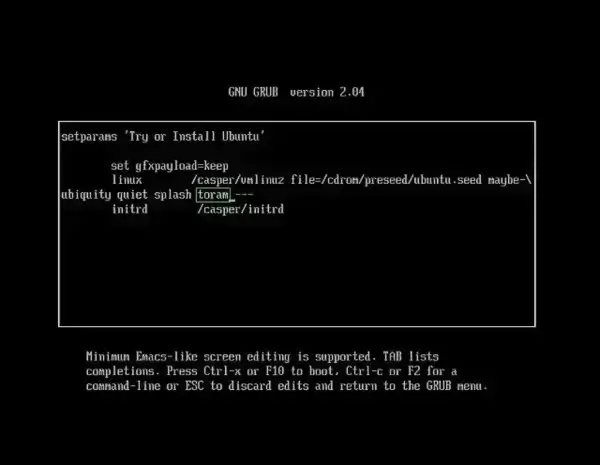
- Boot Ubuntu into System Memory: Press Enter or F10 to boot. Ubuntu will load the entire live environment into RAM. Once loaded, you can remove the USB and continue running Ubuntu from system memory.
Important Notes
- Persistent Storage: Modern Ubuntu distributions allow you to choose between
toramand persistent storage. You cannot use both at the same time, but they can be configured separately on different USB drives or partitions. - RAM Requirements: Ensure your system has enough RAM to hold the Ubuntu environment. Most cases require 8 GB, but larger environments may need more.
FAQ - Booting Ubuntu to RAM
How do I boot Ubuntu to RAM?
To boot Ubuntu to RAM, append toram to the boot options at startup. Press F6 or E at the boot menu, add toram after quiet splash, and press Enter. Ubuntu will load entirely into RAM, allowing you to run Ubuntu from RAM without needing the USB.
Can I use persistent storage while running Ubuntu from RAM?
No, you cannot use toram and persistent storage simultaneously. You must choose either to boot Ubuntu to RAM or to use persistent storage.
What are the benefits of booting Ubuntu to RAM?
Running Ubuntu from RAM allows faster read/write performance, reduces wear on your USB drive, and frees the USB after booting. It’s ideal for running Ubuntu on multiple systems from a single USB, or when system performance is critical.
Do I need a specific Ubuntu version to boot to RAM?
No, modern versions of Ubuntu (roughly 12.04 and newer) support toram by default. Make sure you use an up-to-date live environment.
How much RAM do I need to run Ubuntu from RAM?
Most Ubuntu live environments require at least 4–8 GB of RAM. Larger environments or resource-intensive applications may need more.
Final Thoughts
Booting Ubuntu to RAM is a flexible and powerful feature that allows you to run the live environment entirely from system memory. It offers faster performance, portability, and convenience, particularly in environments with limited USB access or when multiple machines are being used. Modern Ubuntu distributions have simplified the process, making it straightforward to boot Ubuntu to RAM without manual extraction or complex configuration. Simply append toram at boot, and you can enjoy Ubuntu entirely from RAM.
If you found this guide useful, share it with others or explore more Ubuntu tips and tutorials to get the most out of your live USB and RAM based workflows.