
Run Ubuntu Server from USB; Easily create a Live USB Bootable Ubuntu Server using YUMI from within Windows, or using native tools on Linux and macOS. The following guide covers multiple proven methods to install, boot, and run Ubuntu Server from a USB flash drive. Once completed, you can run Ubuntu Server Edition live from USB or install it to an internal hard drive. This is especially useful if your system lacks a CD or DVD drive but supports USB booting.
Live USB Bootable Ubuntu Server
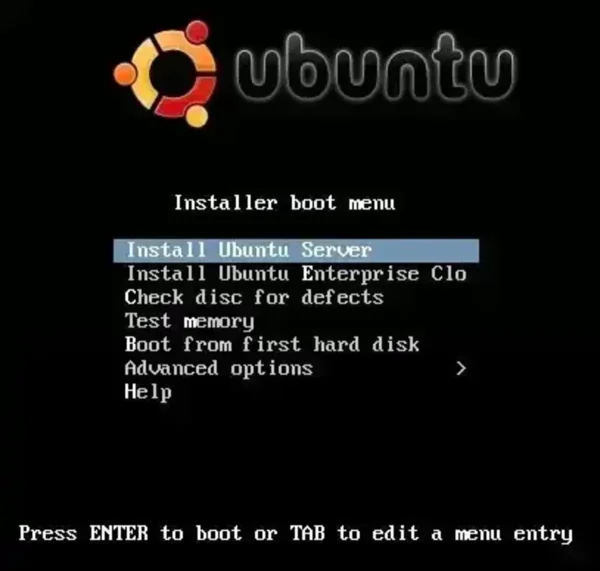
Distribution Home Page: Ubuntu Server Project
Persistence: No
Essentials to Run Ubuntu Server from USB
- Windows, Linux, or macOS computer
ubuntu-*-live-server.iso- A fast USB flash drive (Best fast USB flash drives)
- A method to write the ISO to USB (YUMI, dd, or Etcher)
Create a Live USB Bootable Ubuntu Server (Windows)
One Windows you can simply use the YUMI Multiboot USB Creator Tool. Here's how:
Using YUMI Multiboot USB Creator
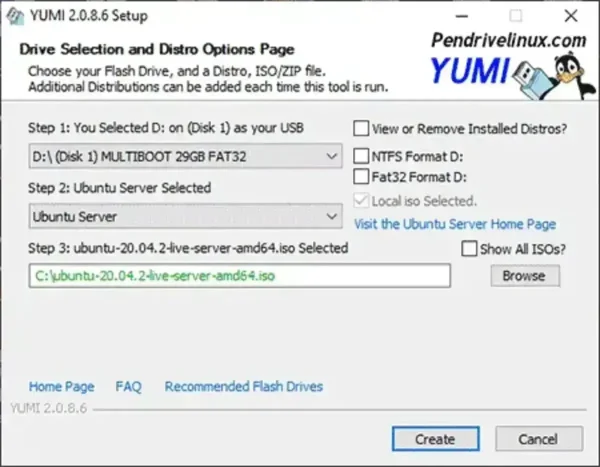
- Download and run the YUMI Multiboot USB Boot Maker.
- (1.) Select your USB flash drive from the drop down list.
(2.) Choose Ubuntu Server from the distribution list.
(3.) Browse to your Ubuntu Server ISO file and click Create.
- Once YUMI completes:
(1.) Restart your computer and enter BIOS or UEFI using your system hotkey.
(2.) Set the boot order to prioritize USB boot and save changes.
(3.) Continue booting from the USB device.
Create a Live USB Bootable Ubuntu Server (Linux)
On Linux you could use the dd command from an open terminal, or use Etcher. Here's how:
Using dd (Native Linux Method)
The dd method is fast, reliable, and available on all Linux distributions. This method performs a direct block level write of the ISO to USB.
- Insert your USB flash drive.
- open a terminal window.
- Identify the device name:
lsblk - Write the ISO to USB (replace
/dev/sdXwith your actual device):sudo dd if=ubuntu-*-live-server.iso of=/dev/sdX bs=4M status=progress conv=fsync - Wait for the process to complete, then safely eject the USB drive.
Note: This method will erase all data on the USB drive.
Using Etcher (Recommended for Beginners)
- Download Balena Etcher.
- Select the Ubuntu Server ISO.
- Select your USB flash drive.
- Click Flash and wait for completion.
Create a Live USB Bootable Ubuntu Server (macOS)
macOS users can create a USB bootable Ubuntu Server using the dd command or via GUI using Etcher.
Using dd (Terminal Method)
- Insert your USB drive.
- Open a terminal window.
- Identify the disk:
diskutil list - Unmount the USB disk:
diskutil unmountDisk /dev/diskX - Write the ISO to USB:
sudo dd if=ubuntu-*-live-server.iso of=/dev/rdiskX bs=4m status=progress - Eject the USB drive once complete.
Using Etcher (Simplest macOS Option)
Etcher is often the easiest and safest option on macOS, handling permissions and validation automatically. Instructions are identical as the Linux Etcher instructions posted earlier.
Final Take: Best Way to Run Ubuntu Server from USB
Running Ubuntu Server from a USB flash drive is a reliable and flexible way to test hardware compatibility, perform system recovery, or deploy servers without optical media. The best method depends largely on your operating system and experience level.
- Windows users will find YUMI the most convenient option, especially if multiboot support or future expansion is desired.
- Linux users can use the native
ddmethod for a fast, direct, and dependency free solution. - macOS users will typically have the best experience using Etcher, which simplifies permissions and validation.
Regardless of the method used, booting Ubuntu Server from USB provides a portable and repeatable deployment path that works on both modern UEFI and legacy BIOS systems. Once running, you can use the live environment to install Ubuntu Server to internal storage or operate directly from the USB drive when needed.