
Looking to Mount exFAT USB flash drives from Linux? Many modern USB flash drives come pre formatted with exFAT (Extended File Allocation Table), a proprietary filesystem created by Microsoft to overcome the 4GB file size limitation of FAT32. exFAT is ideal for sharing large files across Windows, macOS, and Linux systems without reformatting. This guide will show you how to mount exFAT USB drives from Linux, fix common mount errors, and install exFAT support if your system doesn't recognize the filesystem.
Why exFAT USB Mounting Matters on Linux
Most modern Linux distributions already include exFAT support via the FUSE library and utilities, but older Ubuntu based releases may not. Without proper drivers, trying to access an exFAT USB drive from Linux can produce an exFAT mount error like:
Unable to access "volume_name"
error mounting /dev/sdx at /media/ubuntu/volume_name:
unknown filesystem type 'exfat'
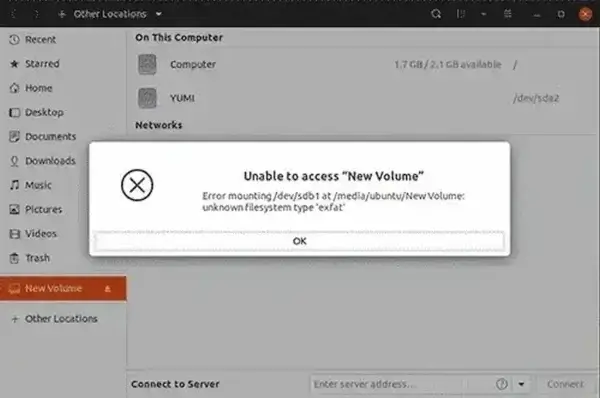
This indicates the system does not currently have the necessary exFAT drivers installed.
Mount exFAT USB Flash Drive from Ubuntu Linux
The following methods show how to mount an exFAT USB drive on Linux. These methods include installing necessary packages and resolving common mount errors.
Method 1: Installing exFAT Support via Ubuntu Universe Repository
This method works on Ubuntu 19.10 and later.
- Press Ctrl+Alt+T to open a terminal.
- Switch to root access:
sudo su - Enable the universe repository:
add-apt-repository universe - Update package lists:
apt update - Install exFAT FUSE library and utilities:
apt install exfat-fuse exfat-utils
After installation, inserting your exFAT USB drive should automatically detect and mount it.
Method 2: Installing exFAT via PPA Repository
If the universe repository method does not work (tested on Ubuntu 19.04), you can use a PPA to install exFAT support:
- Open a terminal (Ctrl+Alt+T).
- Switch to root:
sudo su - Add the PPA repository:
add-apt-repository ppa:arter97/exfat-linux - Update package lists:
apt update - Install exFAT kernel module and utilities:
apt install exfat-dkms
Reinsert your exFAT USB drive to verify it is now detected and mounted.
Method 3: Installing exFAT from GitHub Source
As a last resort, build exFAT support directly from source:
- Open a terminal (Ctrl+Alt+T).
- Switch to root:
sudo su - Install git if not present:
apt install git - Clone the exFAT source repository:
git clone https://github.com/arter97/exfat-linux - Enter the cloned directory:
cd exfat-linux - Build the software:
make - Install the compiled software:
make install
After installation, insert your exFAT USB drive. You should now be able to access and use it.
Additional Tips
- Modern Ubuntu versions (20.04+) generally support exFAT natively; installation may not be required.
- Check that your exFAT USB is mounted with:
df -h - If removed, exFAT support must be reinstalled before the USB will mount again.
- FUSE based exFAT drivers work in user space and do not require kernel patches.
By following these steps, you can reliably mount exFAT USB drives from Linux, troubleshoot common errors, and ensure your system can read and write exFAT formatted flash drives across Ubuntu and other Linux distributions.