
How to Install WINE on Ubuntu and Run Windows Apps on Linux. Have you ever needed to run a Windows program on your Linux machine? WINE is a powerful compatibility layer that enables Linux users to run Windows executable (.exe) files natively on Linux. By bridging the gap between Windows and Linux, WINE makes it possible to use essential Windows software, tools, and even many games directly from your Linux desktop.
This guide shows in simple steps how to install and configure WINE on Ubuntu, so you can run your favorite Windows applications efficiently and with minimal setup.
How to Install WINE on Ubuntu Linux

Linux does not have a default terminal password for WINE. All installation and usage commands require either your user account privileges or sudo for system level changes. WINE works entirely in user space and does not modify your Windows partitions.
How Does WINE Work and Why It's Not an Emulator
WINE stands for "WINE Is Not an Emulator". Unlike traditional emulators or virtual machines, WINE translates Windows API calls directly into POSIX calls used by Linux.
This approach has several advantages:
- No virtual machine overhead: Windows programs run at near-native speed.
- Direct integration: Applications can appear seamlessly alongside Linux programs.
- No Windows installation required: You don’t need a Windows license to run supported apps.
Because it’s a compatibility layer and not an emulator, some programs may require additional libraries or tweaks to work perfectly, but most popular software runs smoothly.
Installing WINE on Ubuntu
There are two main methods for installing WINE: via Ubuntu’s Universal repository (stable, simple) or the WineHQ official repository (latest version, recommended for advanced users).
Method 1: Installing WINE via the Universal Repository
- Open a terminal (Ctrl+Alt+T).
- Enable 32-bit architecture support:
sudo dpkg --add-architecture i386 sudo apt update - Add the Ubuntu Universe repository (if not already enabled):
sudo add-apt-repository universe - Update packages and install WINE with recommended packages:
sudo apt update sudo apt install --install-recommends wine32 winetricks -y - Verify the installation:
wine --version - Configure WINE for the first time:
winecfgThis will create a WINE prefix (
~/.wine) and configure default Windows settings.
Method 2: Installing WINE via the WineHQ Repository
This method ensures you have the latest stable version of WINE.
- Open a terminal (Ctrl+Alt+T).
- Enable 32-bit architecture support:
sudo dpkg --add-architecture i386 - Create a keyring directory:
sudo mkdir -pm755 /etc/apt/keyrings - Import the WineHQ repository key:
sudo wget -O /etc/apt/keyrings/winehq-archive.key https://dl.winehq.org/wine-builds/winehq.key - Add the appropriate repository for your Ubuntu version:
- Ubuntu 22.04 (Jammy Jellyfish):
sudo wget -NP /etc/apt/sources.list.d/ https://dl.winehq.org/wine-builds/ubuntu/dists/jammy/winehq-jammy.sources - Ubuntu 23.04 (Lunar Lobster):
sudo wget -NP /etc/apt/sources.list.d/ https://dl.winehq.org/wine-builds/ubuntu/dists/lunar/winehq-lunar.sources
- Ubuntu 22.04 (Jammy Jellyfish):
- Update packages and install WINE:
sudo apt update sudo apt install --install-recommends winehq-stable -y - Confirm installation and configure:
wine --version
winecfg
Tip: Use winetricks to install additional Windows components and libraries needed by some applications.
How to Run Windows Applications with WINE
Once WINE is installed, there are multiple ways to run Windows programs on Ubuntu.
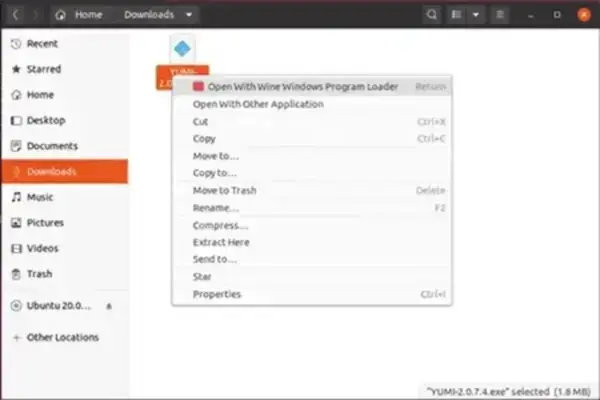
1. Using the Graphical Interface
- Locate the Windows executable (.exe) file in your file manager.
- Right-click the file and select Open with Wine Windows Program Loader.
- WINE will launch the program in a new window, functioning like a native Linux app.
2. Using the Terminal
If the “Wine Windows Program Loader” option is unavailable, you can run programs directly from the terminal:
- Run a Windows executable:
wine filename.exe - Execute a Windows batch file:
wine cmd /c filename.bat - Run an executable in a console window:
wineconsole filename.exe
Tip: Paths with spaces may need to be quoted:
wine "C:\Program Files\MyApp\app.exe"Troubleshooting and Tips
- Missing libraries: Some applications require additional DLLs or Visual C++ runtimes. Use
winetricksto install these. - 64-bit vs 32-bit apps: Ensure your WINE prefix matches the app architecture (
winecfg → Applications → Windows version). - Game compatibility: Check WineHQ AppDB for ratings and tweaks for popular Windows games.
- Reset WINE prefix: If an app misbehaves, remove or rename
~/.wineand runwinecfgto create a fresh prefix.
Final Thoughts
WINE is a powerful tool that allows Ubuntu users to run Windows software seamlessly. Whether you need to run office tools, legacy software, or games, WINE makes it possible without installing a full Windows environment.
With this guide, you can install WINE using either the default Ubuntu repository or the latest WineHQ packages, configure it for your system, and run Windows apps both graphically and from the terminal.
For more Linux tutorials, check out our guides on creating bootable USB drives and mounting Windows partitions.