
How to Create a Ubuntu Rescue Remix Bootable USB flash drive from within Windows. The following tutorial covers one method of installing and running (URR) Ubuntu Rescue Remix to a USB drive using a Windows PC and the Universal USB Installer to do the Boot creation. Upon completion, the distribution can then be booted and run from your removable device.
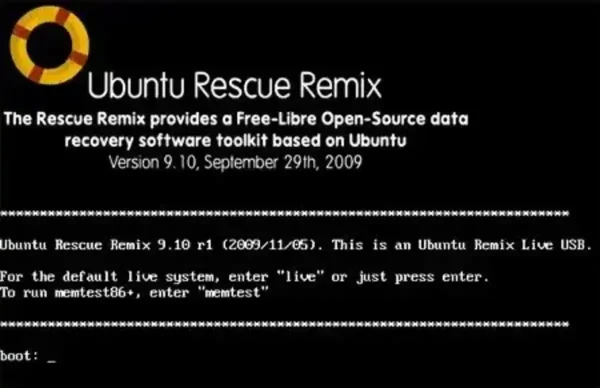
Ubuntu Rescue Remix running from USB
Distribution Home Page: Archived Project Page
Persistent Feature: Yes
Ubuntu Rescue Remix is a lightweight, command line based version of Ubuntu tailored for data recovery and system rescue. Maintained by Andrew Zajac, it features a suite of open sourced tools, including TestDisk, PhotoRec, and ddrescue, for recovering data from damaged or corrupted storage, performing forensic analysis, and repairing filesystems.
Though it has been discontinued, it was ideal for IT professionals, system administrators, and forensic investigators needing robust command line tools for challenging recovery and repair tasks.
Key Features include:
- Data Recovery: Tools like TestDisk and PhotoRec recover lost partitions and files.
- Disk Imaging: ddrescue for creating disk images and cloning failing drives.
- Filesystem Repair: Utilities such as e2fsck for repairing ext3/ext4 filesystems.
- Network Support: Enables network based recovery and remote access.
Use Cases:
- Recovering data from corrupted drives.
- Conducting forensic analysis in a secure, read-only environment.
- Repairing broken boot sectors and unbootable systems.
USB Boot Essentials:
- Windows PC to perform conversion
- Ubuntu Rescue Remix ISO
- Fast USB flash drive
- Universal USB Installer (does the conversion)
Install Ubuntu Rescue Remix to USB using UUI
- Download and then launch the Universal USB Installer.
- Choose your USB drive from the list of devices and check the box to prepare this drive.
- Select "Ubuntu Rescue Remix" or "Try Unlisted ISO/IMG" for distribution, then Browse to and select your ISO file.
- Once the script has finished, restart your PC. During system POST, access your BIOS or system Boot Menu to set your PC to boot from the USB device. Save your changes (F10) and then reboot, booting from the OS installed on the USB device.
If all went well, you should finally be booting from your ubuntu rescue remix on USB.
Create a Ubuntu Rescue Remix Bootable USB using DD
Here's how you can create a bootable USB for Ubuntu Rescue Remix using dd for Windows:
In many cases, writing the Ubuntu Rescue Remix ISO from Windows works most reliably when the USB device is first wiped with diskpart. Leaving the drive in a raw state briefly prevents Windows from mounting or formatting it, allowing dd to write the image without interference.
The key is to write the ISO immediately after running diskpart clean.
- Download the Ubuntu Rescue Remix ISO.
- Insert a USB flash drive with enough capacity to hold the image. Back up any important data, as the device will be completely erased.
- Open an elevated Command Prompt
Press Win + R, entercmd, then press Ctrl + Shift + Enter to run it as administrator. - Reset the USB drive using diskpart
Launch the disk partition utility:diskpartList all connected disks:
list diskSelect the USB drive by disk number (replacing
#with your disk num):select disk #Remove all partition and filesystem data:
cleanExit diskpart:
exit - Download and prepare dd for Windows
Download dd for Windows and extract it to a known directory. - Navigate to the dd directory
cd C:\path-to-dd - Write the Ubuntu Rescue Remix ISO to the USB device
Immediately after cleaning the disk, write the ISO image. Replace the ISO path and#with your disk number.dd if=path-to-ubuntu-rescue-remix.iso of=\\.\PhysicalDrive# bs=4M --progress
Booting from the USB
- Insert the USB drive into the computer you want to boot from.
- Access the BIOS/UEFI settings to configure the system to boot from USB and then save your changes (F10).
- Reboot the system, and it should boot into Ubuntu Rescue Remix.
This process will give you a bootable USB drive with Ubuntu Rescue Remix, ready for data recovery and system rescue tasks.
URR Frequently Asked Questions (FAQ)
- What is Ubuntu Rescue Remix?
- Ubuntu Rescue Remix (URR) is a lightweight, command-line-based version of Ubuntu designed for data recovery and system rescue tasks. It includes tools like TestDisk, PhotoRec, and ddrescue for recovering data from damaged drives, performing forensic analysis, and repairing filesystems.
- Is it still possible to download Ubuntu Rescue Remix?
- While the project has been discontinued, you can still find and download the Ubuntu Rescue Remix ISO from archives like SourceForge.
- Can I use Ubuntu Rescue Remix on a computer without a hard drive?
- Yes, you can run Ubuntu Rescue Remix from a USB drive, making it ideal for data recovery and system repair tasks on systems without a working hard drive or with an inaccessible operating system.
- How do I access the BIOS/UEFI settings to boot from USB?
- You can access your computer's BIOS or UEFI settings by pressing a specific key during startup, typically F2, F10, ESC, or DEL, depending on your computer's manufacturer. Refer to your computer's manual for exact instructions.
- Can I use any USB drive to create the bootable Ubuntu Rescue Remix USB?
- It is recommended to use a fast USB drive with at least 4GB of space. Using a higher-quality USB drive will ensure a smoother boot process and faster performance.
- What tools are needed to create a bootable Ubuntu Rescue Remix USB?
- You will need a Windows PC, the Universal USB Installer (UUI) or dd for Windows, the Ubuntu Rescue Remix ISO, and a USB drive to create a bootable USB.
- What should I do if the USB doesn't boot?
- Ensure your BIOS/UEFI settings are configured to boot from the USB drive. If it still doesn't boot, verify that the USB drive was created correctly by reformatting it and following the creation steps again.
Final Thoughts
Creating a bootable Ubuntu Rescue Remix USB drive is a straightforward process, whether you choose the easy route with the Universal USB Installer or the more hands-on DD method. Both options ensure that you have a powerful data recovery tool at your fingertips, ready to assist with system repairs or data retrieval tasks whenever necessary.