
How to Install SliTaz to a USB flash drive Using Windows. This tiny Linux distribution is a very fast running, free operating system that can be run entirely from system memory. Founded by Christian Lincoln, it remains one of the smallest portable Linux distributions available and can be stored and run directly from a bootable USB key or other removable storage media.
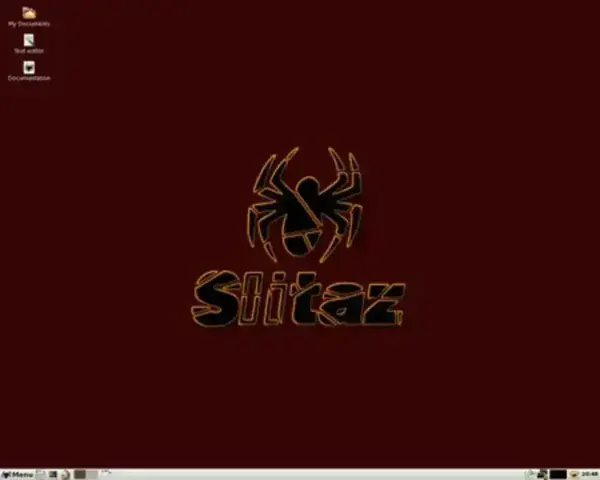
A Running SliTaz Linux Live USB
- Distribution Home Page: Official Project Page
- Developer: Christophe Lincoln
- Release Date: First released in 2008
- Minimum Flash Drive Capacity: 32 MB
- Persistent Feature: Yes
The core team, along with Cedric Tissieres of Ophcrack, have developed their own USB boot tool called tazusb.exe that can be used to create a bootable Live USB of the distribution from within a running Windows environment. Of course, you could also use the YUMI Multiboot USB Boot Maker if you plan to add additional ISOs later on. DD for Windows can also do the trick, if you want a more direct hands on approach.
What is SliTaz Linux?
SliTaz (pronounced "slē-taz") is a lightweight, open source Linux distribution. It was created to be fast and efficient (less resource-intensive), making it a suitable Live distro to run on older hardware. The name "SliTaz" stands for "Simple, Light, Incredible, Temporary Autonomous Zone."
Its most notable features include:
- Small Footprint: Known for its small ISO image, making it an excellent choice for older computers or devices with limited resources.
- Live Boot: Can be booted as a live CD or live USB, allowing you to run the OS without installing it.
- Minimalistic Desktop: Features an Openbox window manager by default.
- Package Manager: Includes the Tazpkg package manager for simplicity and ease of use.
This Live Distro can be useful in scenarios where resource efficiency is crucial, such as on older computers, netbooks, or as a rescue system for troubleshooting and system recovery.
Essentials to Create a SliTaz Live Bootable USB
- Windows Computer: To run the conversion tool
- Fast USB flash drive: To hold the SliTaz OS
- tazusb.exe, YUMI, or DD for Windows
- Cooking or Rolling ISO File
How to Make a SliTaz Linux USB Using Windows
We will cover three different approaches to create a bootable SliTaz Linux USB drive using Windows, each offering unique benefits to suit various needs and preferences:
- Using tazusb.exe: This method leverages the authors official tool, designed specifically for creating a SliTaz bootable USB. It provides a straightforward, dedicated solution and ensures compatibility with the distribution's unique requirements.
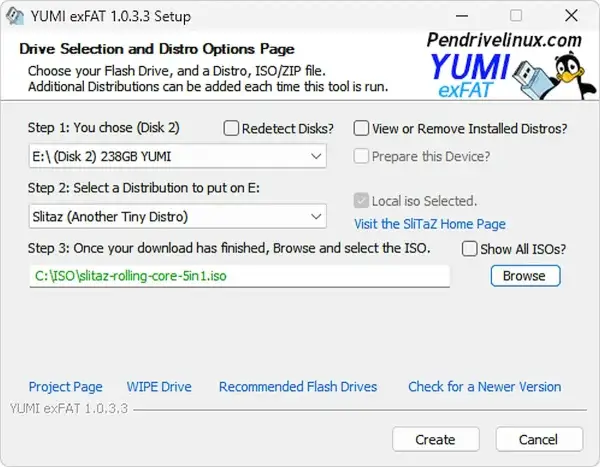
- Using YUMI: YUMI (Your Universal Multiboot Installer) is a versatile tool that allows you to create bootable USB drives for multiple operating systems and tools. It's ideal to use if you plan to add more ISOs to allow for a multiboot setup, while offering flexibility to still use the USB device for traditional storage purposes too.
- Using DD for Windows: This method uses the powerful DD command to write the ISO image directly to the USB drive. It's a robust and reliable approach for those who are comfortable with command line operations and need a no frills, efficient method for creating bootable media. Be aware that this method overwrites the entire drive making it appear to be the size of the ISO file. As such persistence and using the drive for other storage purposes might not work.
Using tazusb.exe to make the Live USB
- Download the SlitaZ ISO: Grab either the rolling or cooking ISO file.
- Insert a flash drive into your computer's USB port.
- Download tazusb.exe: Run the executable, following the tools instructions to put the ISO file on your flash drive..
- Boot from USB:
- Reboot your PC and access BIOS/UEFI or boot menu to set your system to boot from the removable USB device.
- Save your changes (usually F10) and proceed to boot your computer from the USB stick.
If all goes well, you should now be booting into the desktop of this tiny Linux distribution.
Using YUMI to make the bootable USB
- Download YUMI: Run the executable to start the program.
- Choose your USB drive from the drop list.
- Select SliTaz option from the distribution dropdown.
- Browse to and select your SliTaz ISO file.
- Reboot your PC and access BIOS/UEFI or boot menu to set your system to boot from the removable USB device.
- Save your changes (usually F10) and proceed to boot your computer from the USB stick.
Using DD for Windows to make the Live USB
You can use dd for Windows to write the SliTaz Cooking ISO to USB. The following process uses diskpart as I've found it more effective when the USB device is first wiped and left in a raw state. This briefly prevents Windows from mounting the drive and interfering with the write process.
Warning: As usual the entire disk will be wiped clean. Make sure you have backed up anything important before proceeding.
- Download dd for Windows and extract it to a known directory.
- Insert the USB flash drive you want to use.
- Open an elevated Command Prompt
Press Win + R, typecmd, then press Ctrl + Shift + Enter to run it as administrator. - Reset the USB device using diskpart
diskpartlist diskselect disk #cleanexit - Navigate to the dd directory
cd C:\path-to-dd - Write the SliTaz Cooking ISO to the USB device
Immediately after cleaning the disk, write the ISO image. Replacepathto.isoand#with your actual USB disk number.dd if=pathto-slitaz-cooking.iso of=\\.\PhysicalDrive# bs=4M --progress
Enabling Persistence
To enable persistence, which allows you to save and restore changes on subsequent boots, type slitaz home=usb at the Boot prompt. You need to do this before every boot. Alternatively, edit your /boot/syslinux/syslinux.cfg file to automate persistent boots by adding the following to the append line:
append initrd=/boot/rootfs.gz rw root=/dev/null vga=normal autologin slitaz home=usb
First Boot Login and Starting the Desktop
If you are using the SliTaz Rolling ISO and boot into a text only screen, this is normal behavior. The graphical desktop does not always start automatically on first boot.
Default Login Credentials
At the login prompt, use either the live standard user or root.
live standard user is:
- Username: tux
- Password: none - just press enter
root account:
- Username: root
- Password: root
Starting the Graphical Desktop
Once logged in at the console, initialize and configure the graphical environment by running the following as root user:
tazxThe tazx tool automatically installs and configures the required X.Org components and video drivers. When the process finishes, start the desktop environment with:
startxIn most cases, this will launch the Openbox or LXDE desktop successfully.
Fixing "No Screens Found" Errors on SliTaz Rolling
If you see an error similar to "no screens found" when running startx, it usually means the correct video driver is not yet installed or configured. This is common on first boot with the Rolling release.
The recommended fix is to run the following and choose autoconfigure:
tazxThis script detects your graphics hardware and installs a compatible driver automatically. After it completes, start the desktop again:
startxIn most cases, this resolves the issue without any manual configuration.
Manual Driver Installation (Optional)
If the desktop still fails to start, you can manually install a video driver based on your hardware:
- Intel graphics:
xorg-video-intel - AMD or ATI:
xorg-video-ati - NVIDIA (open source):
xorg-video-nouveau - VirtualBox:
xorg-video-vbox - VMware:
xorg-video-vmware
Example:
tazpkg get-install xorg-video-intelThen run:
startxFinal Thoughts
Creating a bootable USB for SliTaz Linux is a relatively straightforward process, offering a lightweight, fast, and portable operating system perfect for older machines or users in need of a minimal setup. Whether you use the official tazusb.exe tool, the versatile YUMI multiboot tool, or the command line DD method, each approach offers a unique set of benefits. You can choose the method that best fits your preferences, ensuring flexibility and ease of use while maintaining SliTaz's small footprint.
Once you have created your bootable USB, you can enjoy a fully functional, persistent Linux experience that runs entirely from your USB drive. This makes this portable Linux variant an ideal solution for troubleshooting, recovery, or simply carrying a lightweight Operating System with you wherever you go.
Remember that, like any Linux distribution, SliTaz requires a bit of familiarity with Linux commands and tools. But with its small size and minimalistic design, it remains an excellent choice for anyone seeking an efficient, portable OS that doesn't compromise on power and functionality.