
How to Boot from USB Without BIOS Support Using PLoP Boot Manager: If your computer's BIOS does not natively support USB booting, this alternate Boot Manager allows you to boot from USB drives via a CD. This is especially useful for older computers or laptops with limited boot options.
PLoP Boot Manager Overview
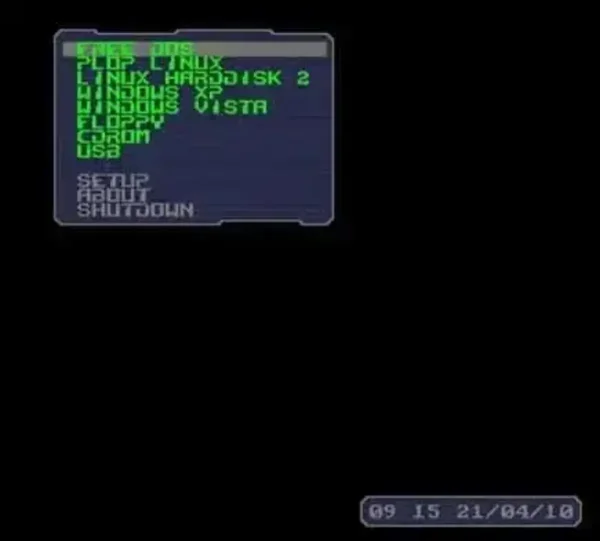
Distribution Home Page: Project Page
Developer: Created by Elmar Hanlhofer
Release Date: Early 2000s (still useful for older hardware)
What is PLoP?
PLoP Boot Manager is a utility that provides additional boot options, particularly for systems with limited BIOS capabilities. It is commonly used to overcome restrictions on USB booting, allowing older computers to boot from modern USB drives.
Key Features
- USB Booting: Boot from USB devices even if BIOS doesn't support it.
- CD/DVD Booting: Boot from optical media on systems without native support.
- Floppy Disk Emulation: Emulates a floppy drive for systems without a physical floppy.
- Multiboot Support: Choose from multiple operating systems or tools during boot.
- Network Booting: Boot from network devices, even on systems lacking native support.
PLoP is especially useful for running Linux distributions or utilities from USB drives on older computers with limited BIOS features.
Boot from USB Without BIOS Support
Follow these steps to use PLoP Boot Manager to boot a USB drive on systems without native USB boot support:
- Download PLoP Boot Manager and extract the ZIP archive to your Desktop.
- Burn the plpbt.iso file to a CD using your preferred CD/DVD burning software.
- Insert the newly created Boot CD and your prepared USB flash drive into the computer.
- Reboot your PC and set the BIOS to boot from the CD/DVD drive.
If everything is set up correctly, your system will boot into this alternate Boot Manager, presenting a menu to select from available devices, including your USB flash drive.
Note: On some systems, the USB flash drive may appear as a fixed hard disk. This is normal and can be ignored as long as you select the correct device for booting.
BIOS/UEFI Considerations
On modern UEFI systems, you may need to disable Secure Boot and enable CSM (Compatibility Support Module) to allow PLoP to work. If booting from the CD fails, double check your system's BIOS/UEFI settings.
Alternative: Boot USB in VirtualBox
If you prefer not to reboot your system, you can use a virtual machine like VirtualBox to boot from the USB drive. This avoids BIOS changes and allows portable testing or running different operating systems.
See our tutorial on How to Run VirtualBox Portably from USB for simple instructions.
VirtualBox lets you boot USB drives in a virtual environment, making it ideal for testing or using multiple OSes without altering your main system.
Final Thoughts
PLoP Boot Manager provides an effective solution for booting USB drives on older systems without native BIOS support. While modern systems often rely on VirtualBox or other tools for USB booting, it remains a valuable utility for legacy hardware.