Pendrive Linux

As the founder of Pen Drive Linux, I dream that some day, a majority of the population might be able to carry Linux with them on a portable USB device such as a flash drive. Boasting the ability to walk up to any PC or terminal, USB boot and run their own operating environment, remove the device when finished, and walk away. Leaving no information behind on the PC or terminal they used.

How to Enable Linux on Chromebook (Crostini)
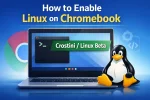
enable linux on chromebook crostini

How to easily enable Linux on Chromebooks: Most modern Chromebooks include a built-in Linux feature called Crostini, also known as Linux on ChromeOS. This allows you to run Linux applications securely alongside your native ChromeOS without wiping your device, enabling Developer Mode, or creating and booting from a USB flash drive.

In this article, you will learn how to run Linux on your Chromebook, install Linux applications, and understand how Crostini compares to other Linux options like GalliumOS and Crouton.
How to Get UUID of a USB Flash Drive

get uuid usb drive

How to Get UUID: Need to quickly find the UUID of a USB flash drive for scripting, mounting, or system administration? This guide shows how to locate a USB drive UUID on Linux and macOS, along with the equivalent Windows volume serial number.

GalliumOS: The Best Linux for Chromebooks

GalliumOS Linux for Chromebooks

GalliumOS is often heralded as the best Linux distribution for Chromebooks and Chromeboxes. Designed specifically for ChromeOS devices, this lightweight operating system is optimized for performance, compatibility, and efficiency. By combining the speed of Xubuntu with Chromebook specific tweaks, it offers a seamless experience for users looking to repurpose their Chromebook hardware.

How to Install Chrome on Linux

How to Install Chrome on Linux

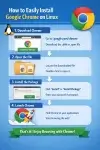
How to Install Chrome on Linux: This guide explains how to easily install the Google Chrome browser on several popular Linux distributions, including CentOS, Ubuntu/Debian, Fedora, openSUSE, and Arch Linux. Methods including yum, dnf, apt get install chrome and more.

How to Install and Use LZMA Compression on Linux

LZMA Compression

LZMA compression (Lempel-Ziv-Markov chain algorithm) is a high-performance data compression algorithm known for its high compression ratio. It is widely used in various applications where space efficiency is critical, such as software distribution, embedded systems, and large datasets. This tutorial will guide you through installing and using LZMA on Linux. We'll cover everything from installation to basic and advanced commands, including how to compress and decompress files using this powerful tool on popular Linux distributions like Ubuntu, Fedora, and Arch Linux.

How to Create a Bootable USB from ISO using DD

create bootable usb from iso

How to manually create a bootable USB from ISO Files Using the Linux dd Command. You can use dd to write ISO to USB from within Linux or any Unix based system. The dd command is powerful and can be used for copying data bit by bit from a source to a destination, in essence making an exact copy of the source at the destination.
CHMOD Command | Change File Permissions in Linux

change file permissions linux - chmod command

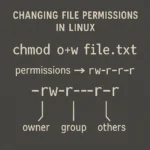
The chmod command is an essential tool for managing file permissions in Linux and Unix-based systems. It allows users to control the access rights to files and directories, ensuring that only authorized users can read, write, or execute specific files. The term CHMOD stands for CHange MODe, representing a fundamental skill for maintaining a secure and efficient system.

How to Check Linux Version and Kernel Information

Check Linux Version

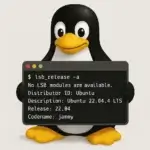
How to easily check Linux version and display installed kernel information. In this post, I walk you through multiple methods to check your Linux operating system (OS) version using simple terminal commands. Whether you're using Ubuntu, Debian, CentOS, Fedora, or any other Linux distribution, these methods will help you identify your OS version quickly. Keep reading to learn how to check your Linux version with commands like lsb_release, cat, and others. Plus, we'll also cover how to find your kernel version and other useful details.
Change Ownership of File in Linux using Chown

change ownership of file linux

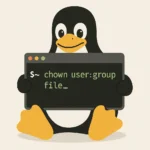
Easily Change Ownership of File or Directory in Linux. Changing file or directory ownership in Linux is a common administrative task. Whether you're managing a server, developing software, or organizing personal files, understanding how to use the chown command effectively is essential. This guide will walk you through the process, explain its syntax, and provide practical examples.

How to Find and Kill a Process in Linux

kill process Linux

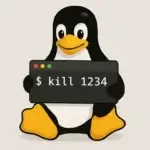
At some point, you will likely need to find and kill a process in Linux. Like any operating system, Linux applications can freeze, crash, or become unresponsive. When that happens, the safest approach is to locate and terminate the problematic process rather than restarting your entire system.

Common reasons to kill Linux processes include fixing frozen programs, freeing up system resources, troubleshooting performance issues, and stopping suspicious or unwanted background tasks.

Rename File in Terminal from Linux

linux rename file

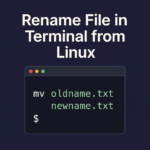
Linux Rename File: Rename File in Terminal using Linux: Renaming files in Linux using the terminal might not be immediately obvious, but it's quite simple with the mv (move) command. This powerful command allows you to rename files, rename directories, and move files to different locations.

Creating a For Loop Bash Script in Linux

for linux command

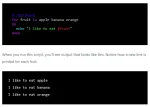
For Loop Bash. For is a loop command in Linux; A bash command used in Linux and other Unix like operating systems to loop through a series of commands. It is most commonly used in shell scripts or bash to help automate tasks or routines.

Using and Linux Command to Chain Commands

&& command in Linux

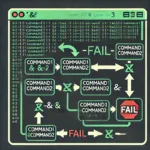
And Linux Command; && in Linux, logical operators are used in various contexts, including shell scripting and command line operations. Logical operators are used to perform logical operations on values or conditions, and they are typically used within conditional statements to control the flow of a script or to evaluate expressions.

Updating Linux: Ubuntu, Fedora, CentOS, Arch

Updating Linux Packages

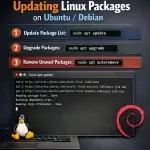
Updating Linux: Keeping your Linux system updated is essential for maintaining stability, improving performance, applying security patches, and gaining access to the latest features. This guide walks you through updating and upgrading packages, as well as moving to newer releases, on several popular Linux distributions including Ubuntu, Debian, Fedora, CentOS, and Arch Linux.

How to Find a File in Linux from the Terminal

Easily find a file in Linux

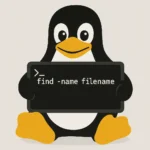
Learning how to find a file in Linux from the terminal can save time, reduce frustration, and significantly improve your productivity. Whether you're hunting for misplaced files, organizing a complex directory structure, or managing storage space, the find command in Linux is a powerful and versatile tool you need to master.

Restore Grub after Windows Install

Restore Grub

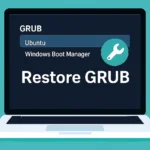
Restore GRUB After Windows Install. When you install Windows alongside Linux, the Windows bootloader overwrites GRUB, preventing you from booting into Linux. This guide explains how to restore or repair GRUB and finally regain access to your Linux system.

Easily Boot Windows 11 from USB on a VHDx Image

boot windows 11 from usb

Want to boot Windows 11 from USB without installing it to your internal hard drive? This complete step by step guide shows you how to create a fully portable Windows 11 bootable USB using a VHDx virtual hard disk image. It'll also work with windows 10.

Unlike a standard Windows 11 installer USB, this method allows you to run Windows 11 directly from a USB drive. The operating system runs entirely from portable media, giving you a modern Windows To Go alternative that can bypass strict hardware requirements while keeping your internal disks untouched.

Ubuntu Cheat Codes | Startup Parameters

ubuntu cheat codes - boot parameters

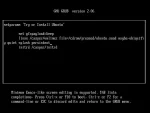
Ubuntu Cheat Codes, boot options, and kernel parameters can help you boot Ubuntu from a USB flash drive on different machines. These Ubuntu boot parameters allow you to customize the boot process, fix hardware compatibility issues, and enable persistence, among other features. To append cheat codes during bootup, press the ESC key if you are booting from Syslinux or press E to edit, if booting from GRUB. Then proceed to add one or more of the following boot options to your existing boot string, and press ENTER to boot.

How to Recover Lost Space on a USB Flash Drive

recover lost space on usb

Recover Lost Space on a USB flash drive: Missing space on your USB drive after formatting or creating a bootable USB? Is your USB drive showing the wrong capacity? You may have encountered this issue after using tools to burn an ISO to a USB. Don't worry, recovering lost space on a USB flash drive in Windows, Linux, or even macOS is pretty straightforward.

Make an exFAT Bootable USB Flash Drive

create exfat bootable usb drives

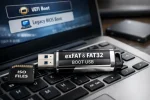
Can you boot from an exFAT USB? Yes, but not directly from a single exFAT partition. To create an exFAT bootable USB flash drive that works in UEFI mode, you must use two partitions: one exFAT partition for storing ISO files and one small FAT32 partition dedicated to booting. A bootloader such as Grub2 is installed to the FAT32 partition, enabling boot support for both UEFI and Legacy BIOS systems.

Mount exFAT USB from Linux: Access exFAT Drives

mount exFat

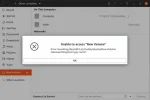
Looking to Mount exFAT USB flash drives from Linux? Many modern USB flash drives come pre formatted with exFAT (Extended File Allocation Table), a proprietary filesystem created by Microsoft to overcome the 4GB file size limitation of FAT32. exFAT is ideal for sharing large files across Windows, macOS, and Linux systems without reformatting. This guide will show you how to mount exFAT USB drives from Linux, fix common mount errors, and install exFAT support if your system doesn't recognize the filesystem.

Convert a Virtual Machine into a Bootable USB Drive

Convert a Virtual Machine into a Bootable USB

Learn how to turn VirtualBox or VMware virtual machines (VDI, VHD, or VMDK) into bootable USB drives that can run directly on physical hardware. This comprehensive guide covers Windows, Linux and macOS hosts, simple instructions, prerequisites, troubleshooting, and key tips for running USB Virtual Machines and booting from VHD/VDI/VMDK.

Convert Fat32 to NTFS without losing Data

Converting FAT32 to NTFS safely

Convert FAT32 to NTFS Without Losing Data. Do you need to store files larger than 4GB on a FAT32-formatted drive? The FAT32 file system has a limitation that prevents you from doing so, making it necessary to convert to NTFS. Luckily, you can convert FAT32 to NTFS without losing your data or needing to reformat. In this tutorial, we'll walk you through the process step by step.

Write Image ISO to USB: Win32 Disk Imager

win32 disk imager - image iso to usb

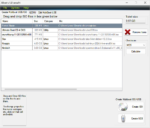
Easily Write Image ISO to USB: Win32 Disk Imager is a free and open source utility for writing disk image files to USB drives and SD cards. It supports both ISO and IMG formats, making it useful for creating bootable media, backing up removable storage, or duplicating Raspberry Pi SD cards. Whether you're a hobbyist, developer, or sysadmin, this tool offers a simple, reliable solution for image writing and recovery tasks.

How to Install GRUB2 on USB from Windows

GRUB2 on USB

Install Grub2 on USB from Windows: Need a reliable way to create a USB stick that boots from both BIOS and UEFI? In this guide we will show you how to install the Grub2 bootloader onto a USB flash drive directly from Windows. Using the grub-install.exe utility, you'll prepare a highly compatible bootable USB device.

Balena Etcher: Burn ISO to USB or Clone USB Drives

balena etcher

Use Balena Etcher to easily burn ISO files to USB or Clone your USB drives. Ever wondered how to burn an ISO file to create a bootable USB drive? Or perhaps you're looking for a simple tool to clone a USB drive? Etcher, a freely available software utility, makes both of these tasks as straightforward as possible for users of all skill levels.

Ventoy Multiboot Bootable USB Maker Tool

Ventoy Boot Menu

Ventoy is a powerful, open source multiboot USB creator that lets you boot directly from multiple ISO files stored on a single USB drive. Instead of reformatting the USB for each ISO, you simply copy the files and select what to boot at startup. Just drag, drop, and boot.

Make a USB Boot CD for Ubuntu

How to create a USB Boot CD for Ubuntu

To make a USB Boot CD for Ubuntu that can be used to boot your Ubuntu Live USB flash drive from a PC or Mac with a BIOS that doesn't natively support booting from USB devices, follow these steps. This process replaces our older USB Boot CD for Ubuntu tutorial, with updated requirements for later versions.

How to Boot DOS from USB with Rufus

Boot DOS From USB

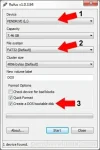
Rufus - easily boot DOS from USB: Creating a bootable USB flash drive to boot DOS from USB can be complicated. However, a tool called Rufus (Reliable USB Format Utility), created by Pete Batard, can make this task relatively simple. This utility can also be used to create a Bootable USB of a given distro from an ISO or image file.

LiveUSB Install - Live USB Creator

LinuxUSB Install

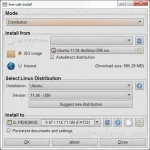
LiveUSB Install is a versatile third party tool used to create Live Linux Bootable USB drives. It enables you to easily transfer a Live Linux distribution of your choice onto a flash drive, ideal for testing or installing Linux systems without modifying your hard drive. You can write an existing ISO, use a CD/DVD as the source, or download a Linux ISO file directly from the internet.

XBOOT Multiboot ISO USB Creator Windows

XBOOT

XBOOT is a neat little Multiboot ISO USB Creator for Windows. Similar to YUMI, this Windows based application lets you create a Live Linux Multiboot Bootable USB. You can also use it to build a Multiboot ISO file containing several distributions, which can then be burned to a CD or DVD.

YUMI: Multiboot Windows and Linux from USB

YUMI Multiboot Bootable USB Drive

YUMI (Your USB Multiboot Installer) is a powerful multiboot USB boot tool that lets you build bootable flash drives for multiple operating systems. It also works as a USB Windows media creation tool or utility, enabling you to quickly create a custom USB drive packed with multiple ISO files and essential system diagnostic utilities. This makes it easy for anyone to boot from a USB drive to install operating systems, run Linux Live portably or troubleshoot and fix a PC.

SARDU: Multiboot USB Creator

SARDU   Multiboot USB Creator

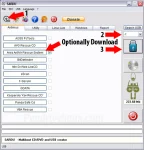
SARDU (Shardana Antivirus Rescue Disk Utility) is a powerful multiboot USB and DVD creation tool for Windows and Linux systems. Designed for IT professionals, system administrators, and tech enthusiasts, it supports multiple Live Linux ISOs, Windows setup installers (Windows 11, 10, 8, 7, XP), antivirus boot utilities, and recovery tools, all from a single USB flash drive.

Boot Multiple ISO from USB via GRUB2

Boot Multiple ISO from bootable USB via GRUB2

Boot Multiple ISO from bootable USB using GRUB2 from Linux. Here is one way to manually create a Multiboot USB Flash Drive (Multiboot ISOs) from a running Linux environment. Allowing you to store and run Multiple ISO files from one single USB drive.

Create a Kubuntu Live USB with Persistence from Live CD

Kubuntu Make Startup Disk

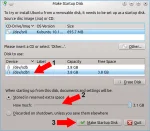
Easily create a Kubuntu Live USB flash drive with Persistence from a Live CD: Looking to run Kubuntu from a USB flash drive without installing it on your computer? In this simple tutorial, you will learn how to use Ubuntu's official Startup Disk Creator to create a Kubuntu Live USB. This tutorial also covers Casper Persistence, which allows you to save files, settings, and installed applications so that they remain available every time you boot from your USB.

Create a Persistent Xubuntu Live USB from CD

Xubuntu Make Startup Disk

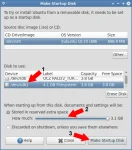
Learn how to create a bootable Xubuntu Live USB flash drive with persistence using the Startup Disk Creator while running from a Live CD or DVD. This guide walks you through the entire process, including enabling Ubuntu’s Casper Persistence option so you can save changes and restore them between boots.

Create Ubuntu Bootable USB from Live ISO

Proceed to Make an Ubuntu Startup Disk

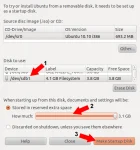
Easily Create an Ubuntu Bootable USB with Persistence: This tutorial guides you through creating an Ubuntu Live CD USB with persistence using the Official Startup Disk Creator. This tool, made by the Ubuntu team, allows you to put Ubuntu on a USB flash drive, enabling you to save and restore changes across reboots using Ubuntu's Casper Persistent feature.

MultiSystem Create a MultiBoot USB from Linux

Drag and Drop ISOs

How to Create a Multisystem LiveUSB Flash Drive from Linux: Multisystem is a versatile tool designed to create Multiboot USB drives directly from Linux. Similar to the YUMI MultiBootISOs USB boot creator, it allows you to build a customized Multiboot USB flash drive with your preferred bootable Live Linux distributions. This guide provides step by step instructions on installing and using Multisystem while up and running from Ubuntu or another Debian based Operating System.

How to Make an OpenMandriva Linux Bootable USB

OpenMandriva Live USB

This guide walks you through how to run OpenMandriva Linux from a USB flash drive using tools like YUMI, Balena Etcher, or the dd command in Linux. With your portable Linux USB stick, you can try OpenMandriva Live on a bootable flash drive or install it on your hard drive, no DVD required.

Create a Bitdefender Rescue USB

Bitdefender Rescue CD   running from USB

Creating a Bitdefender Rescue USB: The Bitdefender Rescue CD is a free bootable antivirus and malware removal utility created by Bitdefender, a leading name in cybersecurity. Designed for emergency virus recovery, it allows users to scan and clean infected systems that can no longer boot into Windows. You can create a portable rescue environment by running it directly from a USB flash drive, eliminating threats from outside the compromised system.