
Booting Linux from USB-ZIP: If you are working with an older computer system, its BIOS may not support USB-HDD booting. In such cases, it may still be possible to boot Linux from a USB flash drive if the BIOS offers a USB-ZIP boot option.
This method works by tricking the BIOS into thinking the USB flash drive is actually a ZIP disk, a format that some legacy BIOS implementations can recognize as bootable.
The process involves manipulating the reported disk geometry of the USB drive so it resembles a ZIP drive. Once the geometry is modified, the drive is partitioned in a way that older BIOS firmware expects. Below, we walk through how this legacy trick works and how to apply it.
Booting Linux from USB-ZIP Prerequisites
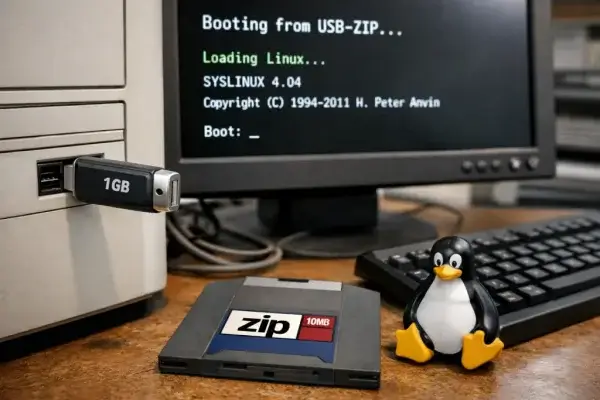
The BIOS is tricked by modifying the number of heads and sectors reported by the USB flash drive to match that of a traditional ZIP disk. ZIP drives typically use partition 4, so the drive must be prepared accordingly.
For this tutorial, we use the mkdiskimage utility included with Syslinux.
Warning:
This is a legacy method and may no longer work reliably on modern USB flash drives. It was originally tested on drives up to 1GB in size. Always back up any important data before proceeding.
- Ubuntu or a similar Linux-based operating environment.
- USB flash drive (tested up to 1GB) with a Live Linux distribution installed.
- An older system BIOS with USB-ZIP listed as a boot option.
Tricking the BIOS into Booting Linux from USB-ZIP
This section walks through the steps needed to modify the disk geometry and prepare the USB drive for USB-ZIP booting.
Before proceeding, it is strongly recommended that you review the official Syslinux documentation explaining this process. See the USB Keys document, specifically the mkdiskimage section.
The following steps were performed from a running Ubuntu environment:
- Insert your USB flash drive.
- Open a terminal using Ctrl+Alt+T. Type or paste each command below, pressing Enter after each one.
- If Syslinux is not installed, install it:
sudo apt-get install syslinux
- If mtools is not installed, install it as well:
sudo apt-get install mtools
- List all available disks and identify your USB flash drive:
sudo fdisk -l
- Create the ZIP-style disk geometry (replace x with your actual drive letter):
sudo mkdiskimage -4 /dev/sdx 0 64 32
- After the process completes, verify the new geometry:
sudo fdisk -l
The output should now indicate 64 heads, 32 sectors.
- Install the Syslinux bootloader to partition 4:
sudo syslinux /dev/sdx4
Is This Still Needed in 2025?
For most users, no. Modern systems overwhelmingly support USB-HDD booting via BIOS or UEFI, making this method unnecessary in typical scenarios.
However, this technique can still be useful if you are working with:
- Very old legacy hardware with limited BIOS options.
- Systems that only expose USB-FDD or USB-ZIP boot modes.
- Retro computing, hardware preservation, or recovery scenarios.
If your system supports USB-HDD or UEFI booting, you should instead use modern tools such as YUMI, Universal USB Installer, or a standard ISO-to-USB workflow.
Troubleshooting Tips
- USB-ZIP Not Available in BIOS Boot Menu: If USB-ZIP is not listed, your BIOS likely does not support this method. Check for BIOS updates, but note that many systems never supported USB-ZIP.
- Drive Does Not Boot: Ensure USB-ZIP is first in the boot order and that the geometry change completed successfully.
- Partitioning Issues: Confirm that partition 4 exists and was used. Use
fdiskto inspect the partition layout if needed.
Frequently Asked Questions
Can I use a USB drive larger than 1GB for this process?
While this tutorial was tested on a 1GB USB drive, larger drives may not work reliably due to the disk geometry trick involved. For best results, it is recommended to use smaller USB flash drives, ideally 1GB or less.
What is the USB-ZIP option in BIOS?
The USB-ZIP option causes the BIOS to treat a USB flash drive as if it were a ZIP disk. Some older systems can boot ZIP disks but cannot boot USB-HDD devices, making this option useful on legacy hardware.
What if USB-ZIP is not listed in my BIOS?
If USB-ZIP is not available as a boot option in your BIOS, this method will not work. In that case, you may need to look for a BIOS update or use an alternative boot method such as a bootable CD or DVD.
Can I reverse the changes made to the USB drive?
Yes. You can undo the changes by reformatting the USB flash drive. This will remove the ZIP-style partitioning and restore the drive to a normal usable state.
Why do I need to modify the disk geometry?
Modifying the disk geometry tricks the BIOS into recognizing the USB flash drive as a ZIP disk. Older BIOS implementations rely on this geometry to determine whether a device is bootable.
What should I do if my USB drive still is not booting?
Double-check that USB-ZIP is set as the first boot device in BIOS and that the geometry changes completed successfully. If problems persist, try a different USB drive or consider alternative boot methods such as PXE or optical media.
Final Thoughts
While this USB-ZIP trick is largely obsolete, it remains a valuable workaround for specific legacy systems. If you are maintaining or reviving older hardware, this method may still be the key to getting Linux to boot.
For additional technical details, consult the official Syslinux USB Key documentation.
Happy booting.