Want to add the famous Desktop Cube, smooth window animations, transparency, and other eye catching desktop effects to Debian? While modern Linux desktop environments include their own compositors, Compiz still offers one of the most customizable desktop experiences available.
This guide walks you through installing and configuring Compiz on modern Debian systems, enabling classic effects like the Desktop Cube, and resolving common issues that can prevent it from starting correctly.
Whether you're customizing your daily desktop or simply reliving one of Linux's most iconic visual experiences, you'll have everything running in just a few minutes.
What Is Compiz?
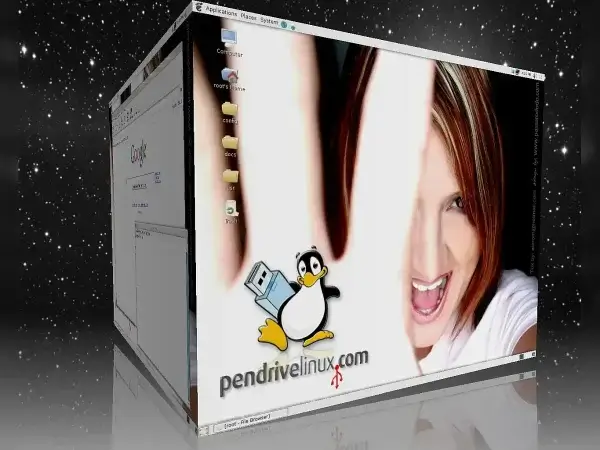
Compiz is an OpenGL accelerated compositing window manager for Linux. Instead of drawing application windows directly to the screen, it uses your graphics hardware to render smooth animations, transparency, shadows, workspace transitions, and dozens of optional visual effects.
Originally released in 2006, it quickly became one of the defining features of the Linux desktop. Effects such as the Desktop Cube, Expo workspace overview, Wobbly Windows, and animated application switching helped demonstrate the flexibility of Linux long before similar features became common on other operating systems.
Although most modern desktop environments now include their own compositors, Compiz remains available in Debian's software repositories and continues to be a favorite among Linux enthusiasts who enjoy customizing their desktop.
Why Install It Today?
While desktop effects alone are reason enough for many users, this compositor also improves workflow by making multiple workspaces easier to manage and windows easier to organize.
Some of the most popular features include:
- Desktop Cube for rotating between virtual desktops.
- Expo mode for viewing every workspace at once.
- Smooth window open, close, minimize, and maximize animations.
- Configurable transparency, shadows, and fading effects.
- Wobbly Windows and dozens of optional animation plugins.
- Zoom and accessibility features for visually impaired users.
- A flexible plugin architecture that allows you to enable only the features you want.
Unlike many desktop environments that expose only a handful of appearance settings, Compiz gives you fine-grained control over nearly every visual aspect of your desktop.
Requirements
Before installing Compiz, make sure your system meets the following requirements:
- Debian 12 (Bookworm), Debian 13 (Trixie), or newer.
- An X11 desktop session.
- Working OpenGL hardware acceleration.
- A supported desktop environment such as GNOME, XFCE, MATE, Cinnamon, or LXDE.
- A user account with sudo privileges.
Important: Compiz currently works only with X11. If your desktop is running a Wayland session, log out and select an X11 session from your login manager before continuing.
Check Whether You're Using X11 or Wayland
If you're unsure which display server is running, open a terminal and enter:
echo $XDG_SESSION_TYPEIf the command returns:
x11you're ready to continue.
If it returns:
waylandlog out, choose an X11 or GNOME on Xorg session from your display manager, then sign back in. You'll want to remember this check — it's also the first thing to verify later if effects don't start.
Install Compiz on Debian
Installing the required packages takes only a minute using Debian's default repositories.
Update your package index and install any available updates:
sudo apt update && sudo apt upgradeInstall the compositor along with its configuration utility:
sudo apt install compiz compizconfig-settings-managerReplace your current window manager with Compiz:
compiz --replace &Open the configuration utility:
ccsmThe CompizConfig Settings Manager (CCSM) provides access to every available plugin and visual effect. From here you can enable workspace switching effects, configure animations, adjust window behavior, and customize keyboard shortcuts.
At this point, the compositor is installed and running. In the next section, you'll configure the Desktop Cube, enable popular plugins, and make the new desktop environment start automatically each time you log in.
Configure the Desktop Cube
One of the most recognizable features of Compiz is the Desktop Cube. Rather than switching between workspaces in a flat grid, each virtual desktop becomes one side of a rotating 3D cube, making navigation both visually appealing and surprisingly practical.
Before enabling the cube, you'll need multiple virtual desktops. Most desktop environments default to a single workspace, so increase the number to at least four if necessary.
Enable the Required Plugins
Launch the CompizConfig Settings Manager:
ccsmEnable the following plugins:
- Desktop Cube
- Rotate Cube
- Cube Reflection and Deformation (optional)
If prompted to disable Desktop Wall, choose Yes. Both plugins provide workspace switching, but they cannot be active simultaneously.
Set the Number of Workspaces
The Desktop Cube requires at least four virtual desktops.
Depending on your desktop environment, workspace settings may be available from:
- GNOME Tweaks
- MATE Control Center
- XFCE Window Manager Settings
- Cinnamon System Settings
Once four or more workspaces are available, the cube can rotate normally.
Rotate the Cube
The default controls vary slightly between desktop environments, but the most common shortcuts are:
- Ctrl + Alt + Left Mouse Button while dragging
- Ctrl + Alt + Left Arrow
- Ctrl + Alt + Right Arrow
- Mouse wheel while holding Ctrl + Alt
If these shortcuts don't work, they can be customized from within CCSM.
Recommended Plugins
One of the strengths of Compiz is its modular design. Instead of enabling every available effect, start with a small collection of stable plugins and add more as needed.
| Plugin | Purpose |
|---|---|
| Animations | Smooth window open, close, minimize, and restore effects. |
| Expo | Displays every virtual desktop simultaneously. |
| Scale | Shows all open windows for quick selection. |
| Window Decoration | Provides title bars and window borders. |
| Resize | Hardware accelerated window resizing. |
| Move Window | Improves window movement performance. |
| Snap | Automatically aligns windows to screen edges. |
| Fade | Adds subtle transparency transitions. |
Enable only the plugins you intend to use. Running unnecessary plugins increases complexity and may introduce conflicts with other desktop components.
Start Compiz Automatically
Once you're satisfied with your configuration, you can have Compiz start automatically each time you log in.
- Open your desktop's Startup Applications utility.
- Create a new startup entry.
- Enter the following information:
Name
CompizCommand
compiz --replaceSave the new entry, then log out and back in to verify that your settings load automatically.
Troubleshooting
If desktop effects fail to start or windows behave unexpectedly, the following solutions resolve the vast majority of installation issues.
Window Borders Are Missing
If title bars disappear after replacing your window manager, restart the window decorator:
gtk-window-decorator --replace &If you're using Emerald:
emerald --replace &Desktop Effects Don't Start
This is almost always a session issue — double check the X11/Wayland status from the Requirements section above. If you're on Wayland, log out and select an X11 session before trying again.
Plugin Conflicts
If enabling a new plugin causes problems, reopen CCSM and disable the most recently enabled plugin. Workspace switching effects, in particular, can conflict if multiple workspace managers are enabled simultaneously.
Restore Your Original Window Manager
If you decide to stop using Compiz, restore your desktop's default window manager.
GNOME
mutter --replace &XFCE
xfwm4 --replace &MATE
marco --replace &To prevent it from starting automatically in future sessions, simply remove the Startup Applications entry you created earlier.
Frequently Asked Questions
Does Compiz work with Wayland?
No, it currently requires an X11 session. If your desktop defaults to Wayland, choose an X11 session from your login screen before launching Compiz.
Can I use it with GNOME?
Yes. It works with GNOME on Xorg, although some visual features overlap with GNOME's built-in compositor.
Will it make Debian faster?
No. Its purpose is to improve the appearance and usability of the desktop through hardware accelerated effects rather than increasing system performance.
Can I uninstall it later?
Yes. Remove the packages using APT and restore your desktop's default window manager if necessary.
sudo apt remove compiz compizconfig-settings-managerIs Compiz still worth using?
If you enjoy customizing your Linux desktop or prefer classic workspace effects like the Desktop Cube and Expo, it remains one of the most capable compositing window managers available for X11.
Final Thoughts
Although modern Linux desktop environments already include polished compositing, Compiz continues to offer a level of customization that few alternatives can match. From the iconic Desktop Cube to advanced animation plugins and flexible workspace management, it remains a favorite among Linux enthusiasts who enjoy tailoring every aspect of their desktop.
With just a few packages installed and a little configuration, you can transform a standard Debian desktop into a highly customizable workspace while preserving the stability and flexibility Debian is known for.
Setting up a fresh Debian install to try this out? YUMI makes it easy to build bootable installation media, so you can get Debian on the machine first and come back here to add Compiz once you're up and running.