Accessing Linux files from Windows (Linux Windows file sharing). How do I read Linux files from Windows or access files from Linux on Windows? The following section, I cover several methods that can be used to share files from Linux to Windows. Enabling you to read ext3 or ext2 partition data on Windows.
Why Access Linux files from Windows?
This might become useful for cases when you have files on your Linux system you want to share with Windows. For example, perhaps you like to dual boot Windows and Linux from the same computer? Maybe you have some mp3's, videos, favorites, email and more you would like to have access to from both operating environments? In which case, you do not have to shut down Windows and then boot into Linux to use those Linux files! You just need an ext2/ext3 Linux filesystem driver for Windows.
Methods to Access Linux files from Windows
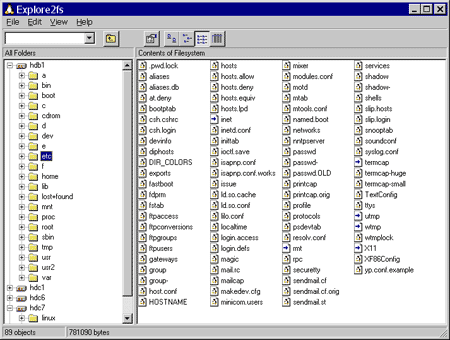
You can use a Free utility called Explore2fs to easily access your Linux files from within Windows. Explore2fs is a GUI explorer tool for accessing both ext3 and ext2 filesystems and partitions. It runs under all versions of Windows and can be used to read data on ext2 or ext3 filesystems.
Explore2fs (Read Only Access)
Shown browsing a Linux filesystem from Windows. Note that this tool can only be used to read data on a Linux partition. It cannot be used to write any changes back to the filesystem.
Project Home Page: Explore2fs
Installing Explore2fs ext3 explorer
To install Explor2fs on Windows to be used for reading data stored on your Linux partitions:
- Download Explore2fs and install the explorer for Linux ext2fs partitions.
- Then, reboot your PC to allow the changes to take effect.
You should now be able to access & "read files stored on Linux partitions" from within Windows.
Ext2 IFS (Read and Write Access)
To gain complete read-write access to Linux files and directories of volumes using Ext2 or Ext3 file systems, from Windows, you could use the Ext2 IFS (Installable File System) tool which includes an Ext file system driver for Windows.
This tool offers full read and write access to Linux Ext volumes and filesystems enabling you to quickly share files from Linux to Windows.
Ext2 IFS Home Page: Ext2 IFS
Installing Ext2 IFX (Installable File System)
To install Ext2 IFX and allow read and write access to Ext2 and Ext3 partitions from Windows:
- Download Ext2 IFS and install it onto your Windows PC.
- Then reboot to allow the changes to take effect.
Ext2Fsd (Full Linux Filesystem Access)
You can also gain access to your Linux files on Windows by using a tool called Ext2Fsd. This is my personal favorite Windows Ext2, Ext3 Ext4 Read/Write access tool. An ext file system driver for Windows that comes with a few extra features. It is essentially another file explorer that enables you to easily read Ext4 on Windows.
This open source tool ships with the drivers necessary for Windows to detect and mount an ext4, ext3 or ext2 file system as read only or with read and write access. Additionally, it comes with a Volume Manager and many other useful tools like mke2fs.exe (allowing you to create an ext formatted partition from Windows). Installation is simple and straight forward.
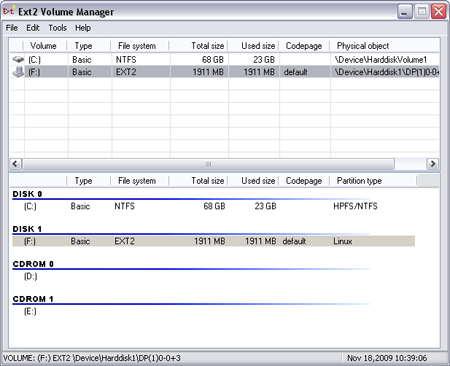
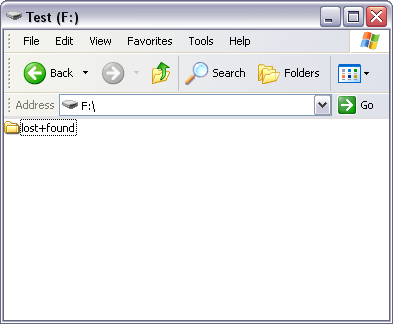
Here we are shown how easy it is to begin accessing Linux files from Windows. Notice how Windows Explorer is displaying the contents of a freshly formatted USB Flash Drive. This device was using a ext2 filesystem. The entire Linux File System was readable from within a running Windows operating environment. Though nothing had been stored there yet, any files placed there could become available between systems.
Installing Ext2Fsd
Here is how easy it is to Read Linux Files from Windows by using Ext2Fsd:
- Download Ext2Fsd and install it onto your PC.
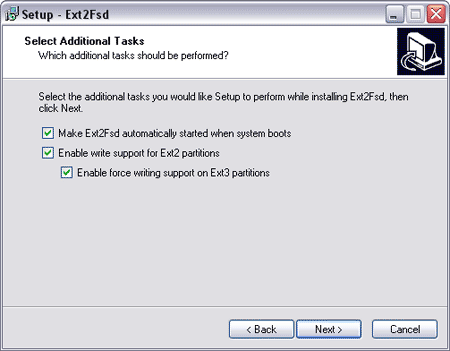
- Ensure you enable Read and Write support for Ext2 and Ext3.
- Then reboot your computer to allow the changes to take effect.
If all went smoothly, you should now be able to access Linux partition from windows. Providing full read and write access to your ext2, ext3 or ext4 filesystems. enabling you to finally open Linux files from Windows, and edit or use Linux files on Windows.