
YUMI (Your Universal Multiboot Installer) is a free and open source tool for creating a multiboot USB drive that can store and boot multiple operating systems, Windows installers, Linux distributions, antivirus rescue tools, and recovery utilities from a single flash drive.
Instead of writing a single ISO to a USB drive, YUMI organizes multiple bootable images in one place, allowing you to build a portable toolkit for installation, recovery, testing, and system maintenance.
What is YUMI?
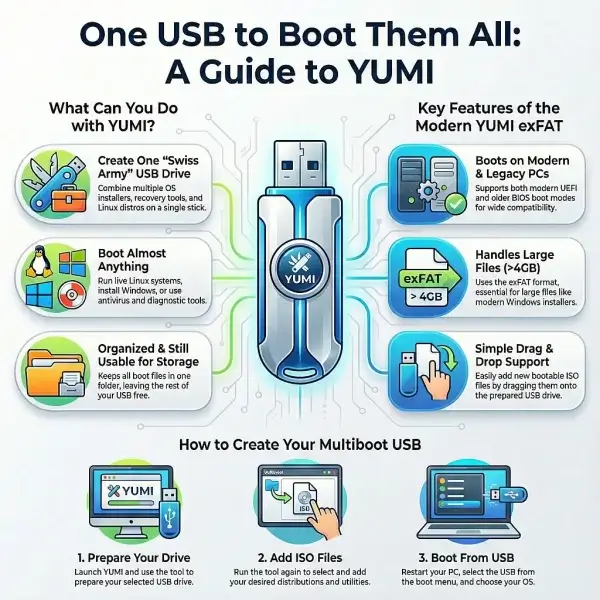
YUMI is a multiboot USB management tool that lets you add, remove, and organize bootable operating systems and utilities on a single USB drive. It was originally developed from the Pendrive Linux Multiboot ISO project and evolved alongside our Universal USB Installer (UUI), which focused on single ISO USB creation.
Unlike traditional single purpose tools, YUMI allows multiple bootable systems to coexist on one drive using an organized folder-based structure, making it possible to carry multiple operating systems, installers, and recovery tools on a single device while still leaving space for personal file storage. Over time, YUMI expanded beyond Linux live systems to also support Linux installation media and Windows installation media, making it a flexible alternative for creating and managing bootable USB environments.
Who is YUMI for?
YUMI is designed for users who need a flexible way to manage multiple bootable operating systems and utilities on a single USB drive. It is useful for IT technicians, system administrators, developers, students, and anyone who regularly works with operating system installation media or system recovery tools.
Beginners can use YUMI to safely explore Linux distributions without modifying their computer, while advanced users can build portable toolkits that include Linux live systems, Windows installers, antivirus rescue disks, backup utilities, and diagnostic tools. Because everything is stored on one drive and managed through a simple interface, YUMI reduces the need for multiple USB devices and makes system recovery and testing more efficient.
Why Choose YUMI?
YUMI simplifies the process of creating and managing multiboot USB drives by automating setup, organization, persistence creation, and boot menu configuration.
- Multiboot support - Store multiple operating systems and utilities on one USB drive
- Automatic drive preparation - Automatically configures boot and storage partitions for multiboot use
- Windows and Linux support - Works with Windows installers, Linux distributions, antivirus tools, and recovery utilities
- Easy ISO management - Add or remove ISO files without rebuilding the entire drive
- Built-in distribution resources - Includes links to official project websites and ISO downloads for many supported distributions
- Drag and drop booting - Boot supported ISO, IMG, WIM, VHD, and EFI files directly from the USB drive
- Persistent storage support - Save changes on supported Linux live systems
- Organized boot menu - Automatically generates a structured boot menu
- BIOS and UEFI compatibility - Works across modern and legacy systems
- Large file support - exFAT support allows files larger than 4GB
- Portable toolkit creation - Combine installation, recovery, troubleshooting, and diagnostic tools on a single drive
- Free and open source - Source code is publicly available
History of YUMI
Originally released in 2011, YUMI has been downloaded millions of times and has been actively maintained for more than a decade. It was derived from our earlier Multiboot ISOs project and was developed alongside Universal USB Installer (UUI). While UUI supported single ISO boot drives, YUMI introduced multiboot functionality, allowing multiple operating systems and tools on one USB device.
Over time, it evolved into YUMI exFAT, which adds modern BIOS and UEFI support while maintaining its multiboot structure and ease of use. Today, YUMI exFAT remains a free and actively maintained multiboot USB solution for both legacy and modern systems.
What is a Multiboot USB Drive?
Multibooting allows multiple operating systems, installers, and utilities to run from a single USB drive. Instead of using separate flash drives for each tool, everything is stored and launched from one boot menu. YUMI automates this process by creating a selectable boot menu at startup.
Benefits of a Multiboot USB
- Multiple tools on one drive - Linux, Windows, recovery, and antivirus tools
- Less hardware needed - No need for multiple USB drives
- Easy maintenance - Add or remove ISOs anytime
- Great for troubleshooting - Quick access to repair and recovery tools
- OS testing - Try Linux distributions without installing them
YUMI exFAT (BIOS and UEFI USB Boot)
YUMI exFAT is the latest and recommended version. It supports exFAT format, stores files larger than 4GB, and works with both modern UEFI and legacy BIOS boot modes. You can also drag and drop bootable ISO files into folders on your flash drive to be automatically detected and added to the boot menu at startup.
Question: How can I boot from USB with exFAT?
Answer: The YUMI exFAT media creation tool automatically creates an exFAT bootable USB. Here are the key differences between it and older archived variants:
- YUMI exFAT supports exFAT format & 4GB+ files. BIOS and UEFI USB boot.
- YUMI Legacy (archived) supports NTFS or Fat32 format. BIOS USB boot only.
- YUMI UEFI (archived) Fat32 only. BIOS and UEFI USB booting (distro dependent).
Create and manage Arch, Debian, Fedora, and Ubuntu based distributions with persistent images, or make multiple bootable Windows Media Installers, functioning much like a custom Windows Media Creation Tool but with added multiboot support. You can even use the software for installing Windows onto USB, in which case each distribution is stored and booted from separate VHDx images.
Persistent Storage Support
This persistence method works on many Debian based live distributions, including Kali Linux, as well as several Arch Linux, Fedora, and Ubuntu based live systems when supported by the distribution. YUMI can automatically create and manage persistence files for compatible live systems using preconfigured loopback images stored on the USB drive.
Important Notes About Newer Debian Live Persistence: Recent official Debian Live releases changed how persistence is handled upstream. These newer images require a different persistence layout than older live systems. Specifically:
- The persistence storage must be named and labeled
persistencerather thanlive-rw - The persistence volume or file must contain a
persistence.conffile - The
persistence.conffile must include the line/ union
YUMI version 1.0.3.4 and later automatically handles the required boot parameters and layout for newer Debian Live releases. For advanced manual setup, larger custom persistence images, or troubleshooting, see: Setting up Debian Persistence.
YUMI exFAT Download
WARNING Backup Data: You must backup any data you wish to keep before using the "Prepare this Device" option. While preparing the drive, ALL volumes/partitions on the selected (Disk #), even if hidden, will be wiped clean.
YUMI exFAT Changelog
- 06/08/2026 - YUMI-exFAT-1.0.3.9.exe: Fixed volume label never being set to YUMI after disk preparation. Fixed selected disk not being restored when returning to the drive selection page after preparation. Brought back built-in Wipe Drive feature.
- 05/01/2026 - YUMI-exFAT-1.0.3.8.exe: Updated to use Ventoy 1.1.12 bootloader, addressing the following upstream issues:
- Ubuntu 24.04.4 install failure.
- VirtualBox UEFI display issue when booting Windows.
- UEFI boot Windows/WinPE resolution issue.
- Oracle Linux 6.9 install issue.
- 04/09/2026 - YUMI-exFAT-1.0.3.7.exe: Updated to use Ventoy 1.1.11 bootloader, addressing the display issue when UEFI booting Windows/WinPE ISO.
- 03/19/2026 - YUMI-exFAT-1.0.3.6.exe: Fixed broken 32G persistence file pointer for Debian.
- 02/08/2026 - YUMI-exFAT-1.0.3.5.exe: Added preparation menu with options for reserving unformatted space and selecting the storage filesystem.
- 02/03/2026 - YUMI-exFAT-1.0.3.4.exe: Fixed the Debian Live Persistence option. Disabled automatic updates at runtime.
- 01/06/2026 - YUMI-exFAT-1.0.3.3.exe: Added an entry for AerynOS. Updated to use Ventoy 1.1.10 bootloader, addressing the following upstream issues:
- Fixed LinuxGUI program crash issue in Wayland environment.
- Fixed boot issue with Kylin Server V11.
- Fixed Windows boot issue in F2 mode.
- Fixed the vhd.vtoy file boot issue in ext4 file system.
How To Create a Multiboot USB with YUMI
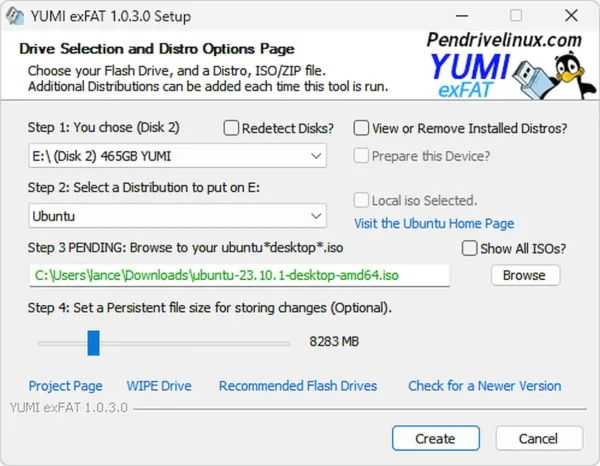
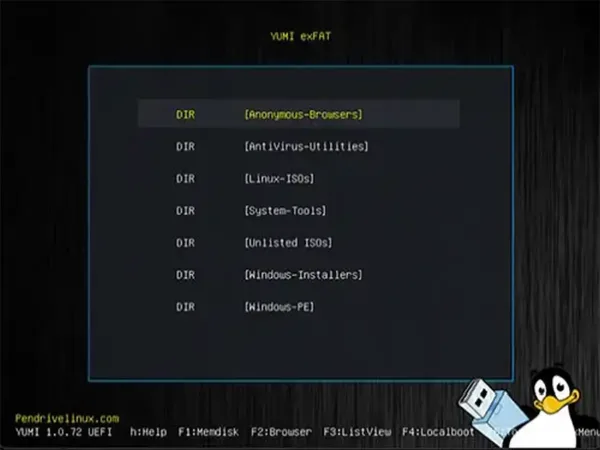
YUMI enables each user to create their own custom multiboot USB drive containing only the distributions they want. Additional distributions can be added to the USB drive each time the tool is run. After preparing your selected drive using the "Prepare this Device" option, you can use the installer interface to learn more about and download distributions and tools to put on the selected drive. The front end will automatically create an organized folder structure and then copy each ISO file to the drive for you. YUMI also keeps track of installed distributions and utilities, which can come in handy for removal later on. Each Arch, Fedora, Debian, or Ubuntu based distribution can also have its own persistent storage.
What You Need
Recommended flash drives: You will have the best experience when using a fast solid state flash thumb drive. I've put together a list of some of the best USB flash drives that I have personally used and highly recommend. All of them are SSD and super fast.
Hardware:
- 4GB+ flash drive (128GB - 1TB sized SSD works well)
- Computer that can boot from USB
Software:
- Windows 11, 10, or 8 operating environment (or Linux with WINE)
- YUMI software (to create and manage a multiboot drive)
- Your favorite Windows and Linux ISO files
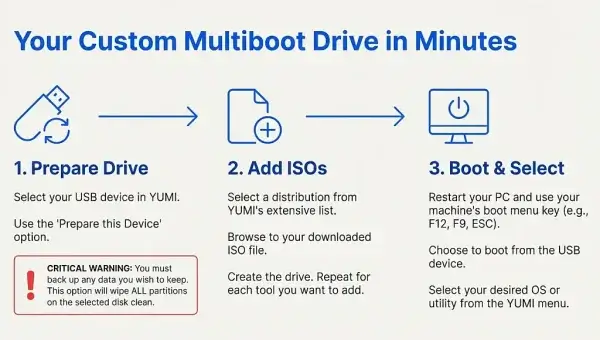
Creating the Multiboot USB (Windows)
- Launch YUMI and follow the onscreen instructions:
- Select Disk (prepare disk)
- Select ISO
- Browse to ISO
- Optionally set a persistent size (if persistence is available)
- Click Create
- Run the tool again to add more ISOs/distributions to your thumb drive.
Booting from Your YUMI USB Drive
- Restart your PC and during system POST, before a loading logo appears, use the hotkey to access BIOS. For example, a Lenovo boot menu key is typically F12. Other commonly used keys are F1, F2, F9, F10, and ESC.
- Set your UEFI or BIOS Boot Menu to bypass the Windows boot manager and boot from the USB drive, then save changes (F10).
- Proceed to start your computer from the multiboot drive.
- Select a distribution or tool to launch, then boot and enjoy!
Drive Preparation Options
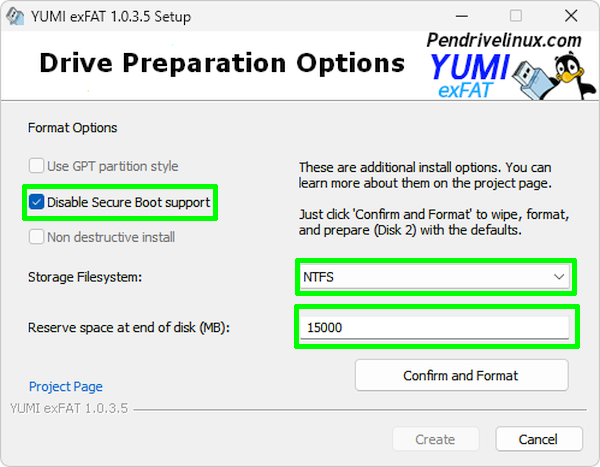
Before adding distributions to your USB drive, YUMI provides options to customize how the drive is prepared. This ensures optimal compatibility and flexibility for your particular use case.
Format Options
- GPT Partition Style - Use GPT instead of MBR for modern systems. (Currently greyed out)
- Disable Secure Boot Support - Bypass Secure Boot checks.
- Non Destructive Install - Keep existing files on the drive. (Currently greyed out)
Note: Greyed out options are not yet implemented, and YUMI will apply default settings automatically.
Filesystem Options
Note: Using an exFAT or NTFS filesystem is recommended.
- NTFS - Supports large files, Windows compatible.
- exFAT - Cross-platform support (Windows, Mac, Linux), default choice.
- FAT32 - Works on older systems, 4GB max file size (can't store large ISO files).
Reserve Space at End of Disk
Optionally, specify how much free space to leave at the end of the USB drive to partition and use for other storage purposes. Note: You'll need to partition and format that free space yourself to make use of it.
Confirm and Format
Click the Confirm and Format button to:
- Wipe and format the USB drive
- Apply your chosen filesystem and partitioning
- Prepare the drive for multiboot use
Here's an example setup showing a drive being prepared with an NTFS filesystem for storage, roughly 14.6GB reserved at the end of the disk to create another partition on later, and Secure Boot support completely disabled.
Drag and Drop ISO to USB Support
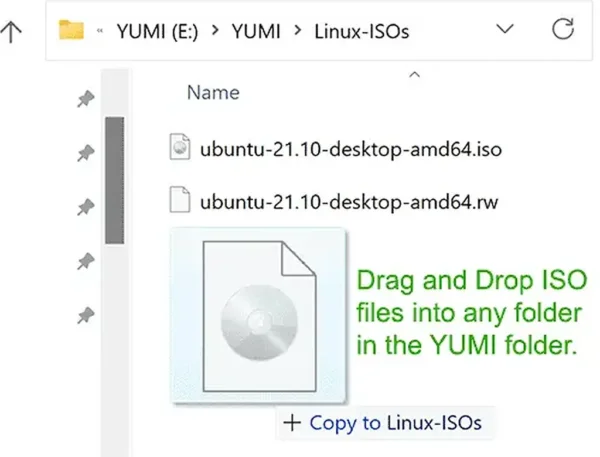
You can also create your own storage folders within the YUMI folder on the flash drive and then drag and drop your ISO, IMG, WIM, VHD(x), VDI.vtoy, and EFI files into those folders on the USB flash drive. During startup, the system will add entries for discovered items. Stored files can be larger than 4GB.
Is USB Secure Boot Supported?
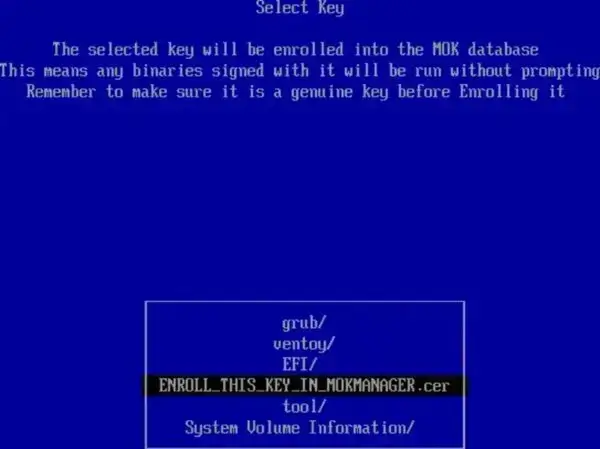
Yes, YUMI exFAT makes use of upstream Ventoy Secure Boot. Simply select VTOYEFI and then set ENROLL_THIS_KEY_IN_MOKMANAGER.cer as the key to be enrolled into the MOK database.
Troubleshooting: What To Do If an ISO Won't Boot
When you boot an ISO file from a USB, YUMI may give you a few ways to start it. If one method does not work, another usually will.
Quick Tip: If one boot option doesn't work, just reboot and try another one. This is normal and expected when working with different computers and ISOs.
Normal Mode (Default): This is the first option to try. It starts the ISO using its own built-in startup code. Most of the time, this works just fine. If it fails, it is usually because the computer's BIOS or UEFI doesn't like how that ISO starts.
GRUB2 Mode: Use this if Normal Mode doesn't work. Instead of using the ISO's own startup method, this option uses GRUB2 (a very common Linux boot menu) to start the system. This works especially well for many Linux distributions and often shows full boot menus and options.
MEMDISK Mode: Use this for small tools or special systems. MEMDISK loads the entire ISO into system memory (RAM) before booting. This makes it ideal for small Linux live systems, rescue tools, and WinPE or utility ISOs. Because the system runs entirely from RAM after startup, it may not require continued access to the USB drive. In some cases, the flash drive can be removed after boot, provided persistence is not used and no additional data needs to be loaded from the device.
UEFI Error: No bootfile found for UEFI
If you see a message similar to:
No bootfile found for UEFI!

Maybe the image does not support x64 UEFI
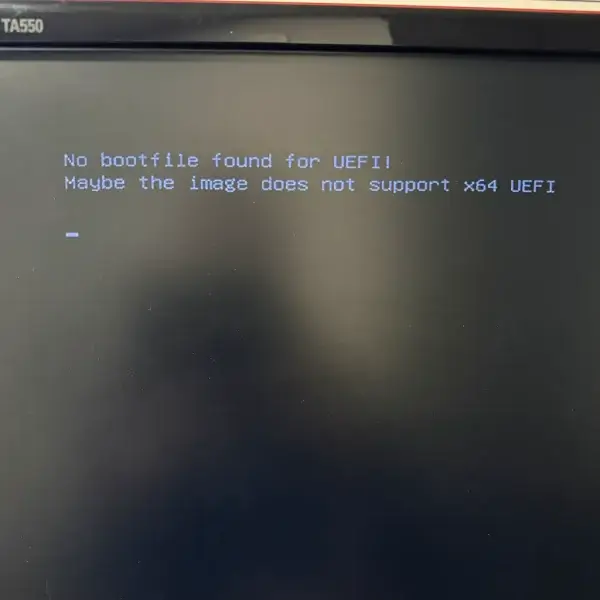
This means your system is booting in UEFI mode, but the selected ISO does not contain a compatible UEFI bootloader. In UEFI mode, firmware looks for a valid EFI boot file, typically located at:
/EFI/BOOT/BOOTX64.EFIIf that file is missing or unsupported, the system cannot start the ISO.
Common reasons this happens:
- The ISO is legacy BIOS only and does not support UEFI booting
- The ISO supports UEFI but only 32 bit (most modern systems require 64 bit UEFI)
- The ISO was created for optical media and not USB UEFI boot
- Secure Boot is enabled and the bootloader is unsigned
How to fix it:
- Verify the ISO explicitly supports x64 UEFI
- Use YUMI exFAT for modern BIOS and UEFI systems
- Disable Secure Boot temporarily and retry
- If the ISO is legacy only, enable CSM or Legacy Boot in your motherboard system firmware
Tip: Very old Linux ISOs, DOS utilities, and some rescue tools will never boot in UEFI mode. In those cases, legacy BIOS boot is required.
Supported Operating Systems and Utilities
Here are some bootable Live Linux distros, portable operating systems, Windows installers, and system diagnostic tools that you can install and boot from USB using YUMI. This list is by no means all inclusive.
Please feel free to let me know about any missing unlisted "FREE" Live Linux distributions or version revisions, and I will update the USB Multiboot Tool to support them as I find the time. Additionally, open source developers who wish to have their Live Linux distribution added can direct me to a copy to try.
Using YUMI on Linux
Yes, you can use YUMI on Linux. The YUMI4Linux "YUMI.sh" script creates a multiboot drive from within Linux. After preparation, you can drag and drop ISO files into the YUMI folder on the prepared drive. ISO files stored there will be detected and added to the menu for USB booting.
The following steps assume that gzip and WINE packages are already installed on your system.
- Open a terminal: Ctrl+Alt+T
- From the open terminal window, cd to your desktop:
cd Desktop - Download YUMI4Linux gzipped tarball using wget:
wget https://yumiusb.com/downloads/YUMI/YUMI4Linux.tar.gz - Extract the archive:
tar xzvf YUMI4Linux.tar.gz - Switch to the YUMI4Linux folder:
cd YUMI4Linux - Set permissions and run the YUMI Linux script as root user:
chmod +x ./YUMI.sh && sudo ./YUMI.sh
Once finished, the included YUMI-exFAT-1.0.3.9.exe can be run from WINE to learn more about a distro, download related ISO files, and install additional distributions and create persistence files on any prepared drive. To do this, issue the wine command from the directory containing YUMI-exFAT-1.0.3.9.exe:
wine YUMI-exFAT*Distros can be conveniently added or removed with the .exe at any time on prepared drives. Note: If you want to see how it works, the files contained within the YUMI4Linux.tar.gz are also the source code.
FAQ and Known Issues
Persistent Storage Issues on Newer Debian Based Live Systems
Persistent storage works on most Arch Linux, Fedora, Ubuntu, and several Debian based live distributions, including Kali Linux releases.
The persistent feature on newer official Debian live images works differently due to upstream changes in how persistence is handled. Recent Debian releases require a different persistence layout than many other live systems. Specifically:
- The persistent storage must be named and labeled
persistencerather thanlive-rw - The persistence volume or file must contain a
persistence.conffile - The
persistence.conffile must include the line/ union - The persistence boot parameter must be manually added before booting
A fix was released in YUMI version 1.0.3.4 which should resolve the previous Debian Live Persistence not working.
Excluding a Drive from Being Detected
To exclude a drive from being detected by YUMI, create a blank text file named excludedrive.txt and place it at the root of the drive to be excluded.
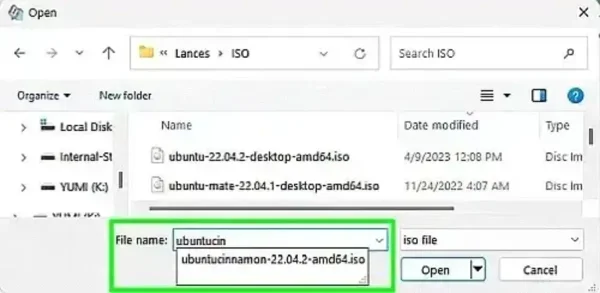
ISO File Not Detected? Force an ISO
You can try to force the selection of an ISO file for ISO filenames that do not appear when you browse for a select distribution. This is useful in situations where you know that a distribution is based on another existing distro, but an installable entry or option for it does not yet exist.
For example: To force a Cinnamon ISO file while using Ubuntu as the select distribution:
- Select Ubuntu for the distribution, during step 2.
- During step 3, when browsing to the ISO file, begin to type ubuntucin into the file name: box.
- Click to select the filename from the drop down as its name is being detected.
- Then click Open to override and force the new file name selection.
Can't Boot from USB but BIOS/UEFI Supports USB Booting
Some flash drives ship formatted without a partition, but this USB boot tool requires the drive to contain a partition with an MBR (Master Boot Record). To ensure compatibility, the installer will format your device during preparation.
Troubleshooting USB Boot Errors
When booting Linux distributions from some laptops such as the Lenovo Yoga with a touchscreen, the acpi=off boot parameter might be necessary in order to successfully boot.
If you don't have a floppy drive and get fd0 errors while booting, simply add floppy.allowed_drive_mask=0 to the append line for the troubled entry. The best fix is to simply disable floppy in BIOS.
Persistently Saving Changes
The casper-rw persistence feature is used for some (but not all) Debian and Ubuntu based distributions. You can also have multiple persistent distributions, as each distro utilizes its own block file.
Ophcrack Tables
In order to load Ophcrack tables, the tables folder needs to exist at the root directory of the USB device (example F:\tables\vista_free). You can get Ophcrack Tables from the Official Ophcrack site. Once downloaded, simply unzip them to the root of the USB. Because you're using this method, you can have your Windows 11/10/8/XP tables all working together on the same device.
TAILS USB Drive Detection Issue
If your USB drive is detected as a "fixed" hard drive and not a "removable" disk (a few of the larger AXE and SanDisk drives have the removable bit flipped this way), you'll need to remove occurrences of the boot parameter live-media=removable, or TAILS will fail to find the live filesystem.
How Do You Pronounce YUMI?
YUMI is commonly pronounced "YUMMY" (Yŭh-Mēē). Because the name is an acronym for "Your Universal Multiboot Installer," some users also pronounce it as "YOU-ME."
Common misspellings include:
- YUMMI
- YUUMI
- YUMY
- YUME
Regardless of pronunciation, all refer to the same YUMI multiboot USB creation tool.
How Are YUMI and Ventoy Related?
YUMI was among the first tools to pioneer the creation of multi-system bootable USB drives, designed for the purpose of booting multiple operating systems and tools from a single USB device. It originated as our Windows based USB multi-boot software developed back in 2010 and was publicly released as open source bootable USB software on March 13, 2011. The latest version can be run on either Windows or within Linux using WINE.
The exFAT variant is an iteration that utilizes the newer Ventoy boot process in place of its older USB multi-booting methods while retaining YUMI's familiar frontend and popular features. These features include user-defined automated persistence file creation, the ability to create VHD containers for running Windows from USB, and a means of providing users with categorized information, website links, and download links for each bootable distribution or tool.
Key features, such as A1ive's (AGFM) Grub File Manager-based Boot Menu, were already integrated into the exFAT variant before the existence of Ventoy. At its inception, Ventoy also adopted AGFM along with Rufus partitioning methods to use separate partitions for boot and storage. This setup allows for NTFS or exFAT large file storage, along with a small FAT partition for BIOS boot support. This feature, originally pioneered by Pete Batard (the developer of Rufus), eventually became a standard across these utilities, providing a method for all of them to natively support both BIOS and UEFI USB booting.
Ventoy works by modifying the boot sector of the USB drive (based on characteristics of the ISO file being booted) to implement its unique boot method. Doing so allows it to be compatible with a wide range of bootable ISO files, operating systems, and utilities, eliminating the need to extract or physically manipulate the contents of an ISO file. This ability to modify the boot sector is the main feature that LongPanda's project brought to the table.
All of these open source projects have their place in the ongoing cycle of software development and provide a feedback loop that each developer can draw from, allowing for the expansion into the creation of ever evolving boot pendrive software.