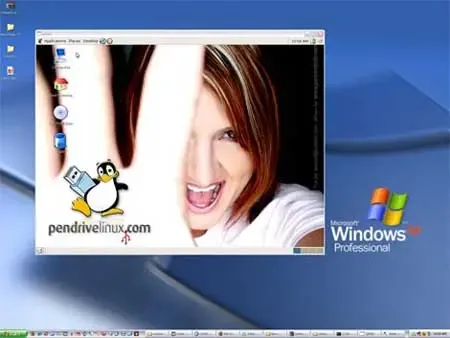
Run ISO from Windows without rebooting. The following tutorial explains how to use VirtualBox to run Linux or any other bootable ISO from a portable USB flash device or elsewhere while still working within a running Windows. This process enables users to have both operating systems up and running at the same time eliminating the need to restart the PC and set your BIOS or UEFI options to boot Linux from USB.
Linux ISO running from Windows
Essentials for VirtualBox Live ISO Booting
- Computer with Windows running as the (Host)
- Your favorite Live Linux CD image (ISO)
- VirtualBox Virtual Machine (Software)
VirtualBox is virtualization or emulation software. It can be used for Business or Personal purposes. It is extremely feature packed and efficient. Not only that, but this virtualization tool is freely available as Open Source Software, licensed under the GNU General Public License (GPL) version 2.
How to Boot and Run ISO from Windows
- Download install, and then start VirtualBox.
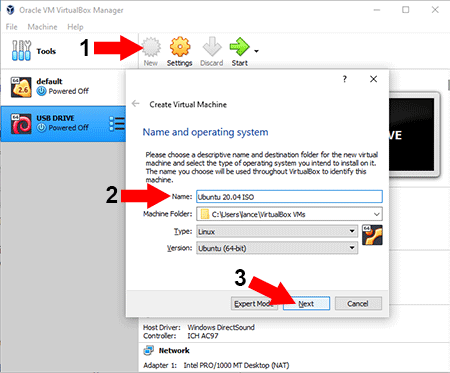
- Next, to create a New "Virtual Machine":
1.) Click New 2.) Type a Name for the ISO entry 3.) Click Next
Setup Virtualbox to run ISO from Windows - Then, set a Memory size to use for the Virtual Machine, and Click Next
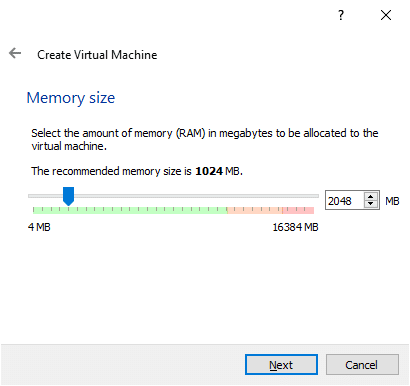
Setting Virtual Machine Memory Size - Since we will be booting from a Live ISO, to skip the hard disk:
1.) Choose Do not add virtual hard disk 2.) and Click Create
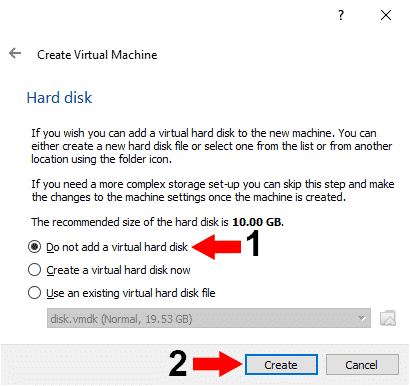
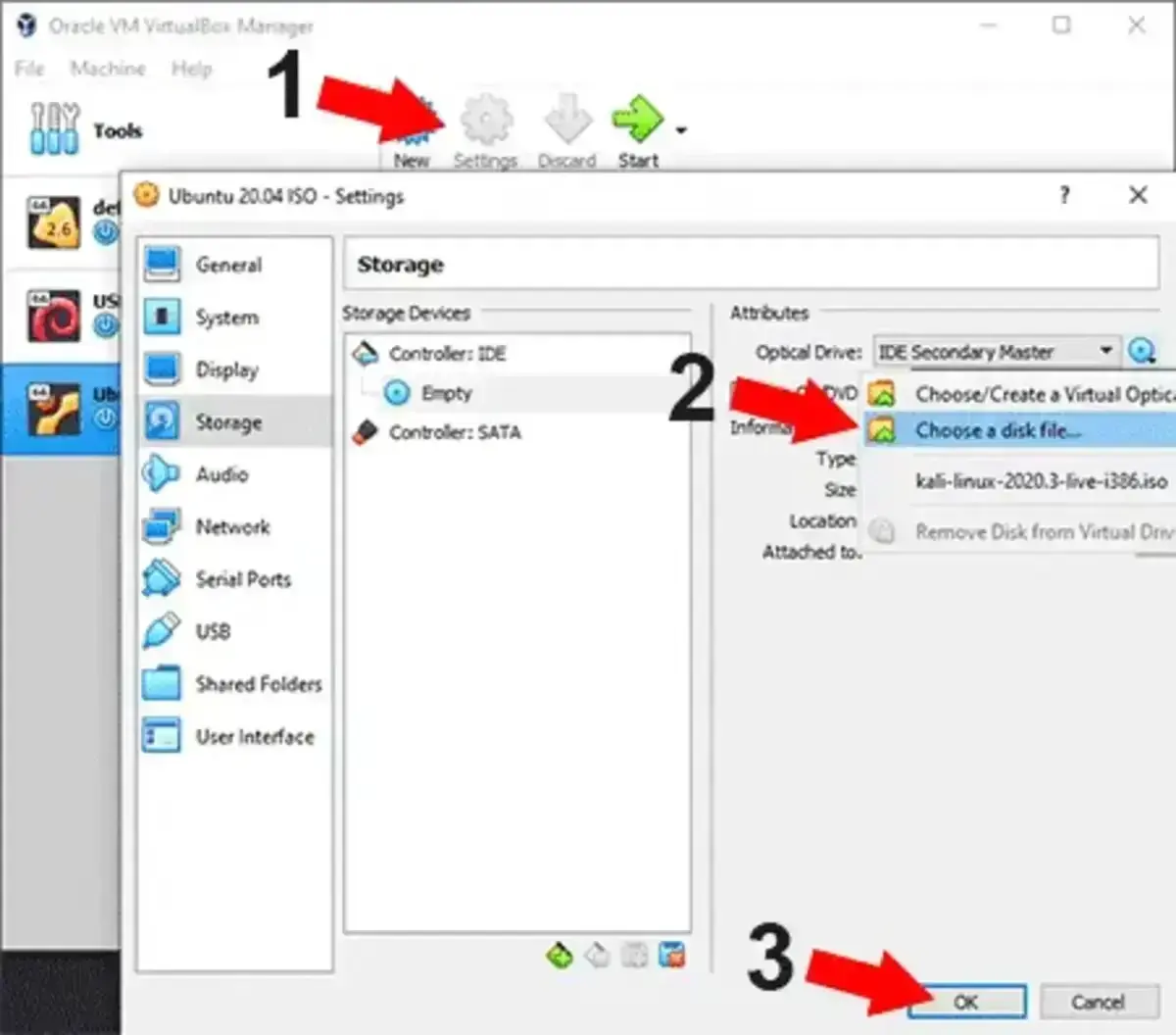
Selecting the option Do not add a virtual hard disk - Now, to browse to and select the ISO file you want to use:
1.) Click Settings 2.) Select Choose a disk file (browse and select your ISO), then 3.) Click Ok
- Click Start to boot and run the ISO from the Virtual Machine.
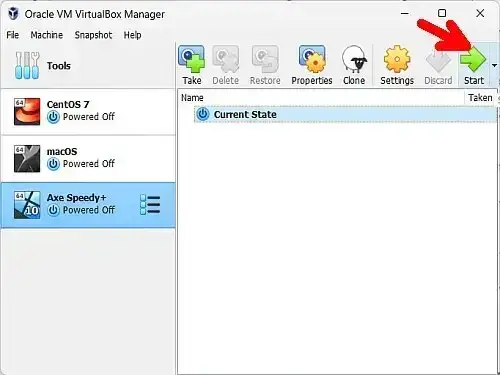
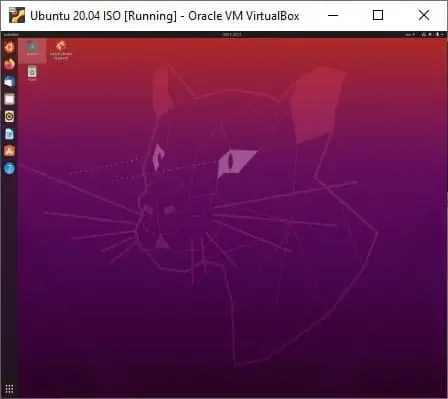
If all went as planned, VirtualBox should now be up and running. With your chosen ISO booted up and running from within your Windows operating environment. Shown below is an Ubuntu ISO running from Windows 11 using this same process.
If you enjoyed this tutorial on How to run ISO from Windows, you might also be interested in our tutorial on How to Boot from a USB flash drive in VirtualBox.